SONY:
4-151-512-11(1)
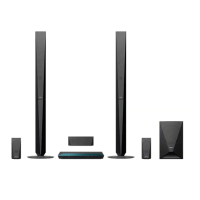
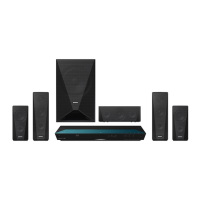
Blu-ray
Disc™
Home
Theatre
System
Owners:
What
You
Need
to
Know
Keeping Your Firmware
Up-to-Date:
Three Easy Steps
Did
you know?
The Blu-ray
Disc~
format
is
an evolving format.
By
keeping your firmware up to date, you will assist in
making sure that your system works with features
on
the latest cutting-edge movie releases.
What
is
Firmware?
Firmware
is
the software within the unit that tells the
unit
what to do
and
how to operate. Much like a
computer, systems sometimes need an update to support
the
latest features.
It/s Easy
to
Update!
Sony occasionally updates firmware to help improve your system experience.
There are three different ways you can update the firmware in your unit:
• Connect your unit to a high-speed internet connection (using the LAN (l00) terminal)
and
follow the
on-screen
menu
of
the unit in [Network Update]
under
[Setup].
•
On
your computer go to www.esupport.sony.com
and
enter in the model
of
your system. There will be
instructions how to download
and
install the update to your system.
• Call 1-866-909-7669
and
request an update disc
and
update instructions for your system.
We
recommend that when you first get your system, you register it at www.esupport.sony.com (click
on
"Register Product") so that you can be alerted automatically
if
updates become available.
Blu-ray Disc Features:
Get
the
Most
Out
of
Your System
~"--_
...
_----
What
is
BD-L1VE™?
BD-
LIVE~
technology brings the power
of
the Internet to your system. This technology lets you access
additional content via the Internet, including upcoming movie previews
and
exclusive special features, live
events, peer-to-peer interactions, ring-tone/wallpaper downloads,
and
more.
To
use this feature, follow the
steps below:
1)Prepare a BD-ROM that is BD-
LIVE~
-enabled. Checkyour media, since this feature should be called
out
on
the packaging.
2)Connect your unit to a high-speed internet connection (using the LAN
(l00)
terminal).
3)Insert a
USB
flash
memory
(not supplied) into the EXT slot.
If
you insert this
memory
while a disc
is
in
the tray
of
the unit, you will need to open
and
close the disc tray before the system will recognize the
memory
and
the EXT indicator lights
up
in the front panel display.
HDMITM
Cable
and
10S0p
High-definition
Video
To
get the most out
of
your system (including 1080p high definition video from Blu-ray Disc media), you
must connect your unit directly to your
TV
with an
HDMr"
cable. Your
TV
must
also support lO80p
high-definition video. Certain circumstances
may
limit/prevent Blu-ray Disc media
or
DVD playback.
© 2009 Sony Corporation Printed in Malaysia



 To Next Page