111
Enjoying images on your computer
Changing “Image Transfer”
settings
You can change “Image Transfer” settings.
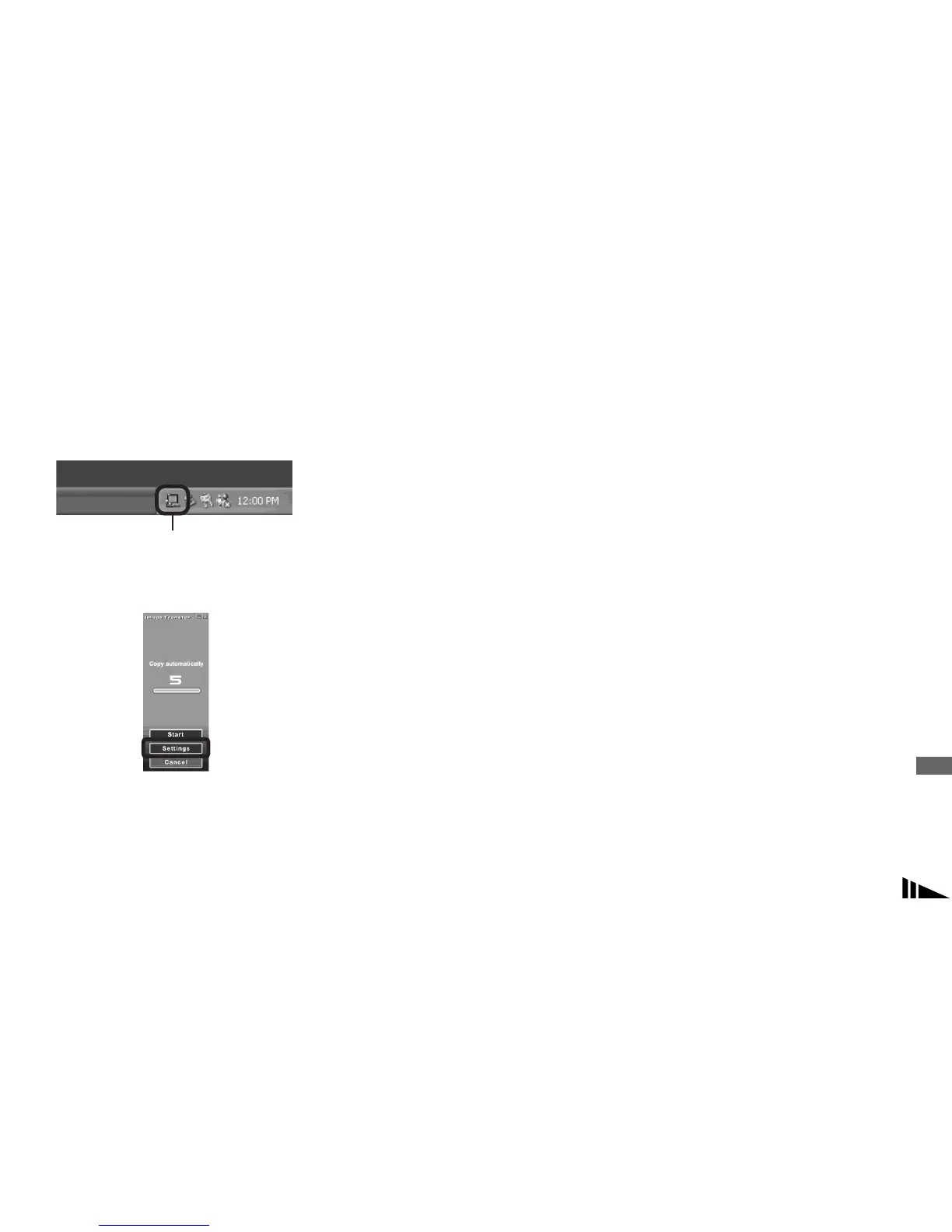
Right-click the “Image Transfer” icon on
the tasktray, select [Open Settings]. The
settings you can set are as follows: [Basic],
[Copy], and [Delete].
When the “Image Transfer” starts, the
below window appears.
When you select [Settings] from the above
window, you can only change the [Basic]
setting.
Copying images without
using “Image Transfer”
– Windows 98/98SE/2000/Me
If you do not set to launch “Image Transfer”
automatically, you can copy images as
following procedure.
a Double-click [My Computer],
then double-click [Removable
Disk].
The contents of the recording medium
inserted in your camera appear.
• This section describes an example of copying
images to the “My Documents” folder.
• When the “Removable Disk” icon is not shown,
see page 112.
• When using Windows XP, see page 112.
b Double-click [DCIM], then
double-click the folder that the
image files you want to copy
are stored.
c Right-click the image file to
display the menu, then select
[Copy] from the menu.
d Double-click the “My
Documents” folder and right-
click on the “My Documents”
window to display the menu,
then select [Paste] from the
menu.
The image files are copied to the “My
Documents” folder.
Right-click here


 To Next Page
 Loading...