45
GB
Other Recording Operations
Recording via Other Devices
Recording with an external
microphone
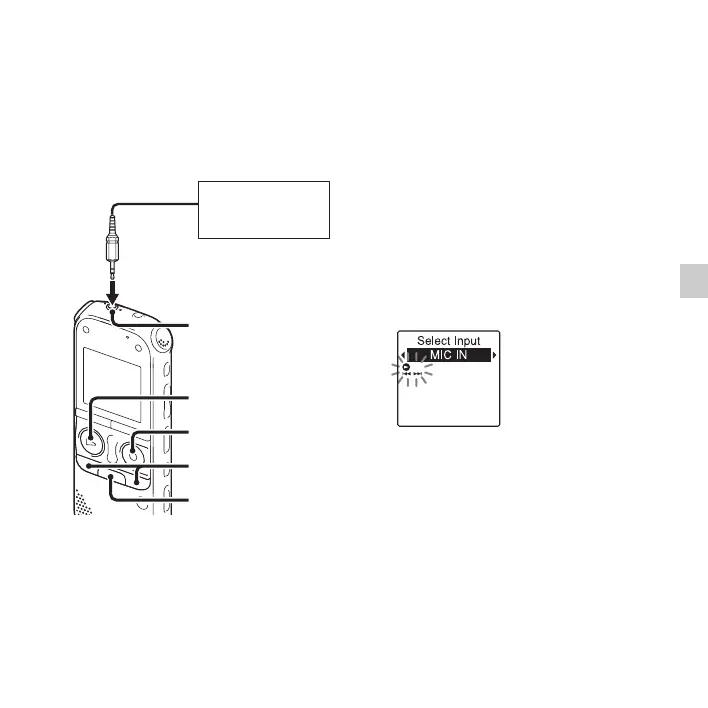
1 Connect an external microphone (not
supplied) to the m (microphone) jack
when the IC recorder is in the stop mode.
When the recording mode is set to
“128kbps” (STSP) or “192kbps” (ST)
and a stereo microphone is used, you can
record sound in stereo.
“Select Input” appears in the display
window.
If “Select Input” is not displayed, set it in
the menu (page 90).
2 Press –. or >+ to select “MIC IN,”
and then press
N PLAY/
STOP•ENTER.
“Select Input” is set to “MIC IN” when
you purchase the IC recorder.
3 Press x (stop) to exit the menu mode.
4 Press z REC/PAUSE to start recording.
The built-in microphones are
automatically cut off, and the IC recorder
starts recording sounds from the external
microphone.
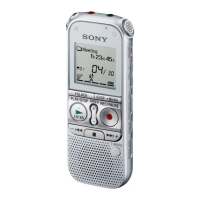
m (microphone) jack
z REC/PAUSE
External
microphone
(not supplied)
x
–., >+
N PLAY/
STOP•ENTER


 To Next Page