EasyManua.ls Logo

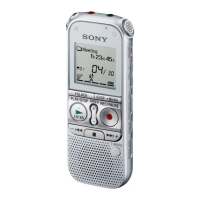
Sony ICD-AX412F - User Manual

Sony ICD-AX412F
150 pages
Print Icon
To Next Page IconTo Next Page
Loading...
4-265-824-11(2)
ICD-AX412F
IC Recorder
Operating Instructions
Getting Started
Basic Operations
Other Recording Operations
Other Playback Operations
Editing Files
Listening to the FM Radio
About the Menu Function
Utilizing Your Computer
Additional Information
Troubleshooting

Table of Contents

Other manuals for Sony ICD-AX412F

Questions and Answers

  • J
    Jamie SmithSep 6, 2025
    Why is the remaining time different on my Sony ICD-AX412F and Sound Organizer software?
    • D
      Dennis TurnerSep 6, 2025
      If the remaining time displayed in the display window of your Sony Voice Recorder is shorter than that displayed in the supplied Sound Organizer software, check for additional memory usage, as the IC recorder requires memory for system operation.
  • K
    Kim KleinAug 25, 2025
    How to fix Sony Voice Recorder not charging?
    • T
      Tracey CortezAug 25, 2025
      If your Sony Voice Recorder is not charging when connected to your computer, ensure the computer is running and not in standby or sleep mode. Also, check that “USB Charge” is set to “ON” in the menu. If the issue persists, disconnect and reconnect the IC recorder from your computer.
  • M
    Michelle HickmanAug 25, 2025
    Why my Sony ICD-AX412F does not operate?
    • E
      Elizabeth ShortAug 26, 2025
      If your Sony Voice Recorder does not operate, even when you press a button, the batteries may be weak. Replace them with new ones. Ensure the device is powered on by sliding the HOLD•POWER ON/OFF switch in the direction of “POWER ON/OFF” for more than 1 second. Also, check if the HOLD function is activated; if so, slide the HOLD•POWER ON/OFF switch to the center.
  • J
    Jared LoganSep 15, 2025
    Why are transferred files not displayed on Sony Voice Recorder?
    • J
      jwashingtonSep 15, 2025
      If the transferred files are not displayed on your Sony Voice Recorder, ensure that the folder levels are within the limit of 8. Also, check that the files are in a compatible format, such as MP3.
  • D
    diana77Sep 23, 2025
    Why are menu items missing on my Sony ICD-AX412F Voice Recorder?
    • S
      shelbywatsonSep 23, 2025
      If there are fewer menu items displayed in the menu mode on your Sony Voice Recorder, switch the operation mode to see different menu items.
  • T
    Timothy CardenasSep 12, 2025
    What to do if Sony ICD-AX412F doesn't recognize memory card?
    • T
      Tammie WhiteSep 12, 2025
      If the memory card is not recognized by your Sony Voice Recorder, it may be due to insufficient memory for creating initial folders because the card contains image data or other files. Erase unwanted files or initialize the memory card. Ensure the correct media is selected. Reinsert the memory card correctly.
  • A
    Amanda GreenSep 2, 2025
    Why doesn't VOR work on my Sony ICD-AX412F?
    • D
      Dana MorrisonSep 2, 2025
      If the VOR function is not working on your Sony Voice Recorder during FM recording, use a different recording method.
  • M
    Melissa HuntSep 2, 2025
    How to adjust playback speed on Sony ICD-AX412F Voice Recorder?
    • J
      Joseph EdwardsSep 2, 2025
      If the playback speed on your Sony Voice Recorder is too fast or too slow, slide the DPC(SPEED CTRL) switch to “OFF” or press SPEED+/– to adjust the speed in DPC again.
  • N
    Nicholas MillerSep 22, 2025
    Why won't my computer start when Sony ICD-AX412F is connected?
    • J
      Jennifer BenitezSep 22, 2025
      If you reboot the computer with the Sony Voice Recorder connected, the computer may freeze or not start properly. Disconnect the IC recorder and reboot the computer again.
  • W
    webstersusanAug 29, 2025
    Why charging indicator is not displayed on Sony ICD-AX412F?
    • A
      Alicia McculloughAug 29, 2025
      If the charging indicator is not displayed or disappears while charging your Sony Voice Recorder, ensure you have inserted rechargeable batteries correctly. Verify the battery orientation and use only NH-AAA rechargeable batteries. Replace old batteries if they have deteriorated. Reconnect the USB cable properly. If “USB??” is set to “?” in the menu, change it to “?”. Stop any playback or radio before charging.

Summary

Getting Started

Preventing Unintentional Operations (HOLD)

Explains how to lock buttons to prevent accidental operation of the IC recorder.

Maintaining Moderate Volume Level (AVLS)

Details the AVLS function for limiting volume to protect hearing during playback.

Preparing a Power Source

Instructions for inserting and preparing batteries for the IC recorder.

Basic Operations

Recording Operations

Step-by-step guide on how to record audio using the IC recorder.

Listening to Recordings

Instructions on how to play back recorded audio files.

Erasing Files

Procedure for deleting unwanted audio files from the IC recorder.

Other Recording Operations

VOR Function for Sound-Activated Recording

Enables automatic recording start/stop based on detected sound levels.

Recording on Memory Cards

Instructions for recording audio files onto compatible memory cards.

Recording with External Microphone

Steps for connecting and using an external microphone for recording.

Recording from Other Equipment

Guidance on connecting and recording audio from external sources.

Other Playback Operations

Noise Cut Function for Clearer Audio

Reduces ambient noise during playback for clearer voice quality.

Adjusting Playback Speed (DPC)

Allows users to change the playback speed of audio files without altering pitch.

Editing Files

Protecting Files

Prevents accidental erasure or editing of important audio files.

Listening to the FM Radio

Tuning FM Radio Stations

Methods for finding and tuning into FM radio stations.

Scanning FM Frequencies

Automatically scans the radio spectrum to find available stations.

Recording FM Broadcasts

Instructions for recording audio directly from FM radio.

Utilizing Your Computer

Using IC Recorder with Computer

Overview of connecting the IC recorder to a computer for data transfer.

Copying Files to Computer

Instructions for transferring recorded audio files from the IC recorder to a computer.

Using Sound Organizer Software

Guide to using the bundled software for managing audio files.

Additional Information

Recharging Batteries via Computer

Steps for recharging the IC recorder's batteries using a computer's USB port.

Using USB AC Adaptor

Instructions for recharging batteries and powering the device using a USB AC adaptor.

Troubleshooting

Troubleshooting Guide

Guidance on resolving common issues and symptoms with the IC recorder.

Sony ICD-AX412F Specifications

General IconGeneral
BrandSony
ModelICD-AX412F
CategoryVoice Recorder
LanguageEnglish

Related product manuals