65
GB
Editing Files
Erasing a track mark
1 Stop at a position after the track mark
you want to erase.
2 Press and hold •DISP
–
MENU in the stop
mode to enter the menu mode.
The menu mode window will be
displayed.
3 Press –. or >+ to select “
Delete
,”
and then press
N
PLAY/STOP•ENTER
.
4 Press –. or >+ to select “Erase
Track Mark,” and then press
N PLAY/
STOP•ENTER.
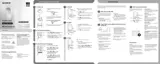
“Erase Track Mark?” is displayed and
the track mark indicator and the track
mark number to be erased will flash.
5 Press –. or >+ to select “YES,”
and then press
N PLAY/
STOP•ENTER.
The “Erasing...” animation appears in the
display window and the selected track
mark will be erased.
The track mark just before the stop position
will be erased.
6 Press x (stop) to exit the menu mode.
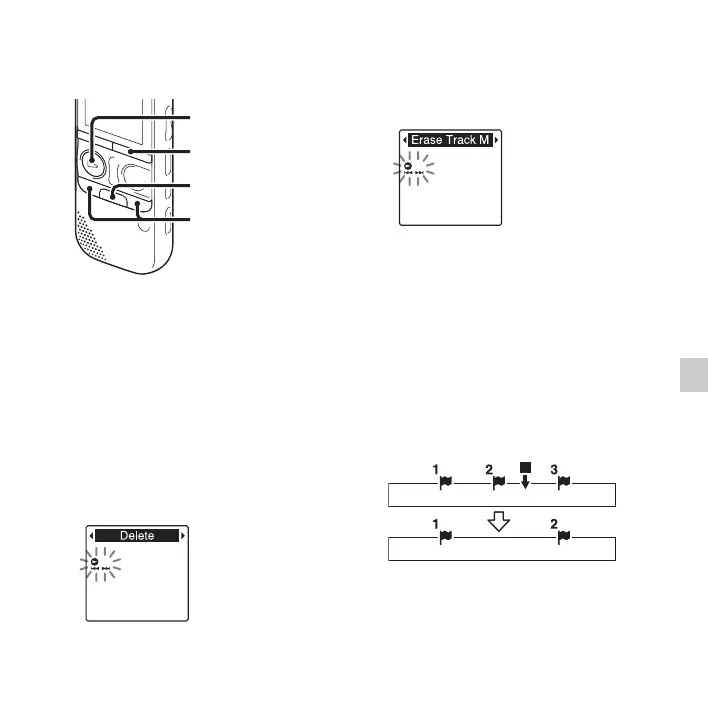
N PLAY/
STOP•ENTER
x
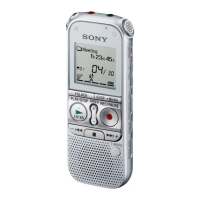
–., >+
•DISP
–
MENU
Stop position
Erase track
mark


 To Next Page