EasyManua.ls Logo

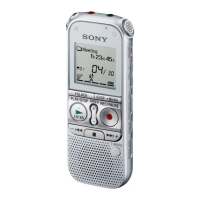
Sony ICD-AX412F - User Manual

Sony ICD-AX412F
150 pages
Print Icon
To Next Page IconTo Next Page
Loading...
4-265-824-11(2)
ICD-AX412F
IC Recorder
Operating Instructions
Getting Started
Basic Operations
Other Recording Operations
Other Playback Operations
Editing Files
Listening to the FM Radio
About the Menu Function
Utilizing Your Computer
Additional Information
Troubleshooting

Table of Contents

Other manuals for Sony ICD-AX412F

Questions and Answers

  • M
    Michelle HickmanAug 25, 2025
    Why my Sony ICD-AX412F does not operate?
    • E
      Elizabeth ShortAug 26, 2025
      If your Sony Voice Recorder does not operate, even when you press a button, the batteries may be weak. Replace them with new ones. Ensure the device is powered on by sliding the HOLD•POWER ON/OFF switch in the direction of “POWER ON/OFF” for more than 1 second. Also, check if the HOLD function is activated; if so, slide the HOLD•POWER ON/OFF switch to the center.
  • T
    Thomas LopezAug 26, 2025
    Why Sony ICD-AX412F Voice Recorder cannot be turned on?
    • J
      Jeremy WestAug 26, 2025
      If your Sony Voice Recorder cannot be turned on, slide the HOLD•POWER ON/OFF switch in the direction of “POWER ON/OFF” for more than 1 second. Also, check that the batteries are inserted with the correct polarity.
  • S
    Scott MartinAug 26, 2025
    What to do if Sony Voice Recorder buttons are not working?
    • A
      alexanderwilsonAug 27, 2025
      If your Sony Voice Recorder is not operating even when you press a button, replace the batteries with new ones, ensure the power is on by sliding the HOLD•POWER ON/OFF switch in the direction of “POWER ON/OFF” for more than 1 second, and make sure the HOLD function is not activated by sliding the HOLD•POWER ON/OFF switch in the center direction.
  • D
    Derek SheaAug 27, 2025
    How to fix “Memory Full” on Sony ICD-AX412F Voice Recorder?
    • S
      Shane LeonardAug 27, 2025
      If your Sony Voice Recorder displays “Memory Full” and you cannot start new files, erase some files or transfer them to another memory medium or your computer and then erase them from the device.
  • K
    Kristen BarkerAug 27, 2025
    How to turn off Sony ICD-AX412F Voice Recorder?
    • E
      Eileen BarronAug 27, 2025
      Slide the HOLD•POWER ON/OFF switch in the direction of “POWER ON/OFF” for more than 2 seconds when the IC recorder is stopped.
  • T
    toddthomasAug 27, 2025
    How to fix noise when recording with Sony Voice Recorder?
    • J
      James HendersonAug 28, 2025
      Noise may occur on your Sony Voice Recorder due to several reasons. It could be that an object rubbed or scratched the device during recording. Ensure the recording area is free from obstructions. Also, move the recorder away from AC power sources, fluorescent lamps, or mobile phones. Check and clean the plugs of connected microphones or headphones, as dirty plugs can cause noise. If the noise occurs during recording pause of a file or VOR recording, avoid pausing the recording.
  • L
    Laurie NashAug 28, 2025
    What to do if Sony ICD-AX412F Voice Recorder is not recognized by computer?
    • J
      Jacob StantonAug 28, 2025
      If your Sony Voice Recorder is not recognized by your computer, try these steps: Disconnect and reconnect the device. Use the supplied USB cable instead of a USB hub or extension. Ensure your computer meets the system requirements. Try a different USB port on your computer.
  • W
    webstersusanAug 29, 2025
    Why charging indicator is not displayed on Sony ICD-AX412F?
    • A
      Alicia McculloughAug 29, 2025
      If the charging indicator is not displayed or disappears while charging your Sony Voice Recorder, ensure you have inserted rechargeable batteries correctly. Verify the battery orientation and use only NH-AAA rechargeable batteries. Replace old batteries if they have deteriorated. Reconnect the USB cable properly. If “USB??” is set to “?” in the menu, change it to “?”. Stop any playback or radio before charging.
  • K
    Kathleen EstesAug 29, 2025
    Why Sony Voice Recorder will not charge when connected to computer?
    • B
      Brittany MayoAug 29, 2025
      If you cannot charge the batteries of your Sony Voice Recorder by connecting it to your computer, ensure that the computer is running and not in standby or sleep mode. Also, check the USB settings in the menu; if “USB??” is set to “?”, change it to “?”. If the problem persists, disconnect and reconnect the recorder, and ensure compliance with system requirements.
  • H
    hlittleAug 30, 2025
    Why can't I divide files on Sony ICD-AX412F Voice Recorder?
    • S
      stacynortonAug 30, 2025
      If you cannot divide a file on your Sony Voice Recorder, free up space in the memory. If there are 199 files in the selected folder, erase some files. You may not be able to divide a file at the very beginning or end, so try dividing from a different point. Also, ensure you are using files recorded with the IC recorder.

Summary

Getting Started

Preventing Unintentional Operations (HOLD)

Explains how to lock buttons to prevent accidental operation of the IC recorder.

Maintaining Moderate Volume Level (AVLS)

Details the AVLS function for limiting volume to protect hearing during playback.

Preparing a Power Source

Instructions for inserting and preparing batteries for the IC recorder.

Basic Operations

Recording Operations

Step-by-step guide on how to record audio using the IC recorder.

Listening to Recordings

Instructions on how to play back recorded audio files.

Erasing Files

Procedure for deleting unwanted audio files from the IC recorder.

Other Recording Operations

VOR Function for Sound-Activated Recording

Enables automatic recording start/stop based on detected sound levels.

Recording on Memory Cards

Instructions for recording audio files onto compatible memory cards.

Recording with External Microphone

Steps for connecting and using an external microphone for recording.

Recording from Other Equipment

Guidance on connecting and recording audio from external sources.

Other Playback Operations

Noise Cut Function for Clearer Audio

Reduces ambient noise during playback for clearer voice quality.

Adjusting Playback Speed (DPC)

Allows users to change the playback speed of audio files without altering pitch.

Editing Files

Protecting Files

Prevents accidental erasure or editing of important audio files.

Listening to the FM Radio

Tuning FM Radio Stations

Methods for finding and tuning into FM radio stations.

Scanning FM Frequencies

Automatically scans the radio spectrum to find available stations.

Recording FM Broadcasts

Instructions for recording audio directly from FM radio.

Utilizing Your Computer

Using IC Recorder with Computer

Overview of connecting the IC recorder to a computer for data transfer.

Copying Files to Computer

Instructions for transferring recorded audio files from the IC recorder to a computer.

Using Sound Organizer Software

Guide to using the bundled software for managing audio files.

Additional Information

Recharging Batteries via Computer

Steps for recharging the IC recorder's batteries using a computer's USB port.

Using USB AC Adaptor

Instructions for recharging batteries and powering the device using a USB AC adaptor.

Troubleshooting

Troubleshooting Guide

Guidance on resolving common issues and symptoms with the IC recorder.

Sony ICD-AX412F Specifications

General IconGeneral
BrandSony
ModelICD-AX412F
CategoryVoice Recorder
LanguageEnglish

Related product manuals