– 31 –
KP-44PS2/44PS2U/51PS2
RM-903
SECTION 6
ELECTRICAL ADJUSTMENTS
6-1. ADJUSTMENTS WITH COMMANDER
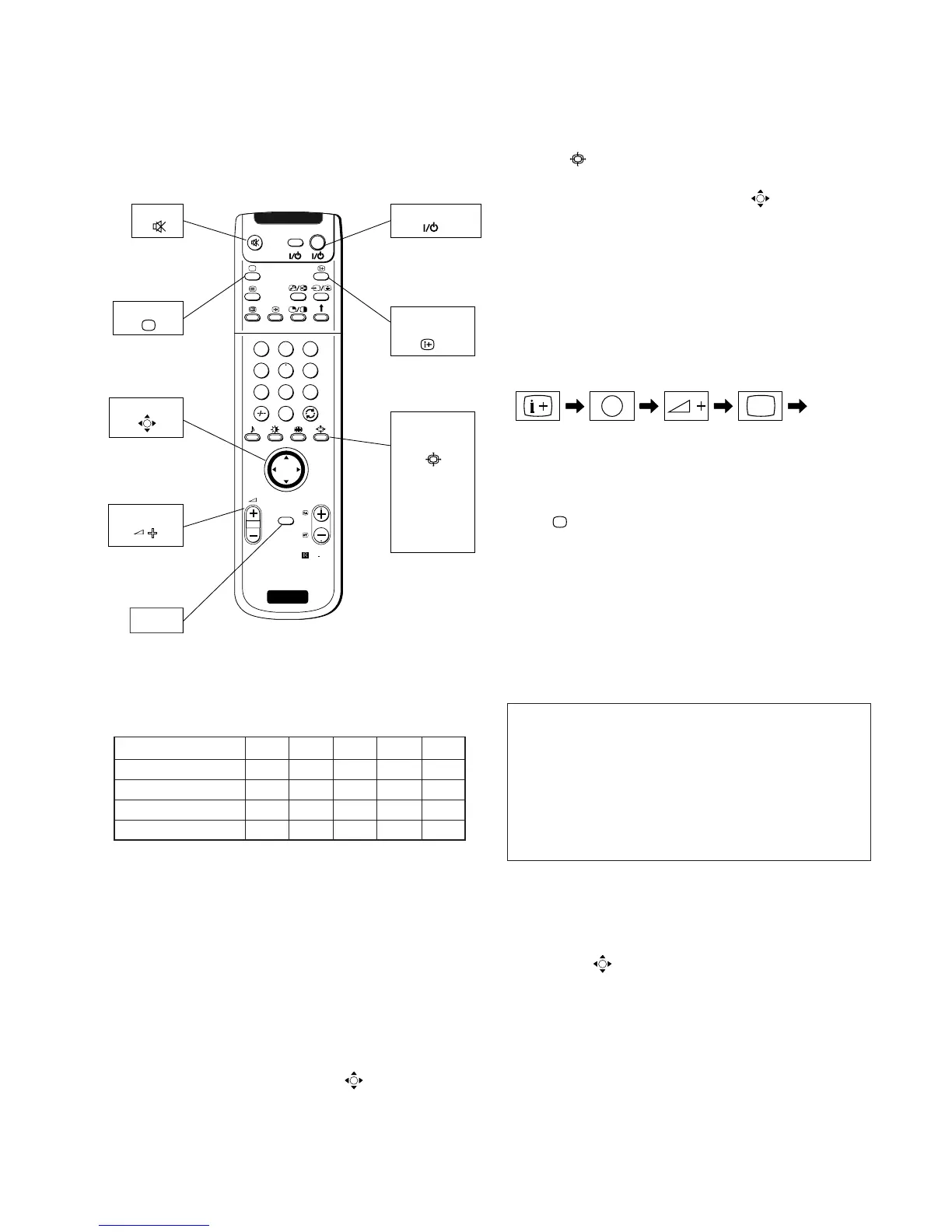
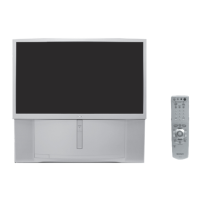
Service adjustment to this model can performed with the sup-
plied remote commander RM-903.
6-1-1. How to Select Each Mode
The adjustment requires the following modes:
Wide Zoom 14 : 9 4 : 3 Smart
DRC 100 (PAL) aaa× a
DRC 50 (PAL) aaa× a
DRC 100 (NTSC) aaa× a
DRC 50 (NTSC) aaa× a
1. Selection of Mode Between PAL and NTSC
PAL mode : Enter PAL signal.
NTSC mode: Enter NTSC signal. (VIDEO input only)
2. Selection of Digital Mode
1) Press “MENU” button on the commander, and the menu
screen will appear.
2) Press B key on the joystick to enter the “Picture Adjust-
ment” menu.
3) Press v or V key on the joystick to select “Digital Mode”,
and press B key.
4) Press v or V key on the joystick to select“Normal”,
“DRC50” or “DRC100”, and press “
(OK)”.
5) Press “MENU” button to return to normal screen.
(In the TT mode, the menu is switched to the Service menu)
3. Selection of Screen Format
1) Press “ (BLUE)” button on the commander.
2) Press v or V key on the joystick to select “Wide”, “Zoom”,
“14 : 9”, “4 : 3” or “Smart”, and press “ (OK)” button. At
this time, normal screen comes back. (In the TT mode, the
menu is switched to the Service menu.)
6-1-2. How to Enter TT Mode
1. Turn on the main power switch to place this set in standby
mode. (LED will light in red.)
2. Press the buttons on commander as follows, and the TT
mode will be selected.
“TT - -” will appear in the top right corner of the screen.
Other status information will also be displayed.
3. If “ (TV MODE)” button or “- ” + “- ” button is
pressed, the set exits from the TT mode and returns to nor-
mal TV mode.
6-1-3. How to Enter Service Menu
1. Enter the TT mode.
2. Press “MENU” button on the commander once, and normal
menu screen will appear, or press it once more, and the fol-
lowing service menu screen will appear.
3. Following the screen, press v or V key on the joystick to
select the desired item, and press B key to enter the selected
item.
4. Press v or V key on the joystick to change data of each item,
and press “
(OK)” button to write changed data.
(Except Projector Engine mode)
5. To return from each item, press b key on the joystick. Or, to
return to the TT mode, press the “MENU” button.
(Except Projector Engine mode)
RM
903
PROGR
MENU
1
4
7
2
5
8
0
3
6
9
VI DEO TV
TV STANDBY
ON SCREEN
DISPLAY
SCREEN
FORMAT
Wide
Zoom
14 : 9
4 : 3
Smart
MUTE
TV MODE
VOLUME +
JOYSTICK
MENU
SONY
RM-903
OK
TV



 To Next Page