SORT
To watch/record
movies
I
SCHEDULE
To adjustprogram
scheduling
SORT allows you toorganize, selectand schedule programs to watchand record.
While in the Program Guide:
1 Press MENU.
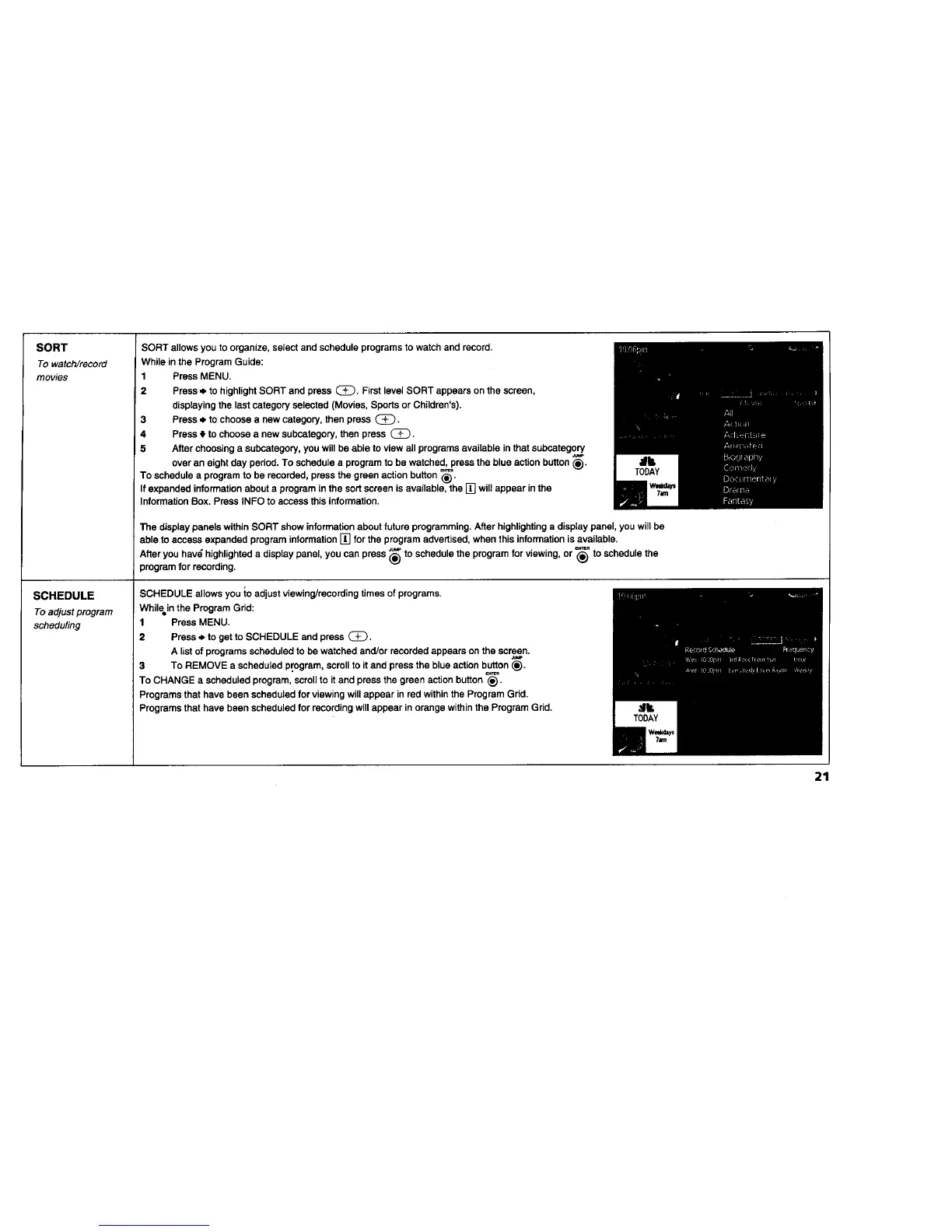
2 Press ,_to highlight SORT and press (_). First level SORT appears on the screen,
displayingthe lastcategory selected (Movies, Sports or Children's).
3 Press ,0btochoose a new category, then press C_.
4 Press • to choose a new subcategory, then press (_).
5 After choosing a subcategory,you will be able to view all programsavailable in thatsubcategory
over an eight day period. To schedule a program to be watched, press the blue action button_.
To schedule a program to be recorded, press the green action button_)".
Ifexpanded informationabout a program in the sortscreen is available, the [] wiUappear inthe
InformationBox. Press INFO to access this information.
The displaypanels withinSORT show informationabout future programming.After highlightinga display panel, you willbe
able to access expanded program information[] for the program advertised, when this informationis available.
Afteryou hav_ highlighteda displaypanel, you can press ,_,_to schedulethe programfor viewing, or '_ to schedule the
program for recording.
SCHEDULE allows you to adjust viewing/recordingtimes of programs.
While,in the Program Grid:
1 Press MENU.
2 Press ,_ to get to SCHEDULE and press (_.
A list of programs scheduled to be watched and/or recorded appears on the screen.
3 To REMOVE a scheduled program, scrollto it and press the blue action button _).
To CHANGE a scheduled program, scrollto it and press the green action button_)".
Programs that have been scheduled for viewing will appear in red withinthe Program Grid.
Programs that have been scheduled for recordingwillappear in orange withinthe Program Grid.
21










 To Next Page