Spectralink 84-Series Series Wireless Telephones Administration Guide
1725-86984-000_P.docx
September 2016 207
Generating a Certificate Signing Request
You may need a certificate to perform a number of tasks, for example, TLS with mutual
authentication.
For version 4.12 and above, the CSR is 2048 bits, while 4.11 and below generated
512 bit keys.
To obtain a certificate you need to:
Request a certificate from a Certificate Authority (CA) by creating a certificate signing
request (CSR).
Forward the CSR to a CA to create a certificate. If your organization doesn’t have its
own CA, you will need to forward the CSR to a company like Symantec. If successful,
the CA will send back a certificate that has been digitally signed with their private key.
After you receive the certificate, you can download it to the handset:
Using a configuration file
Through the handset’s user interface
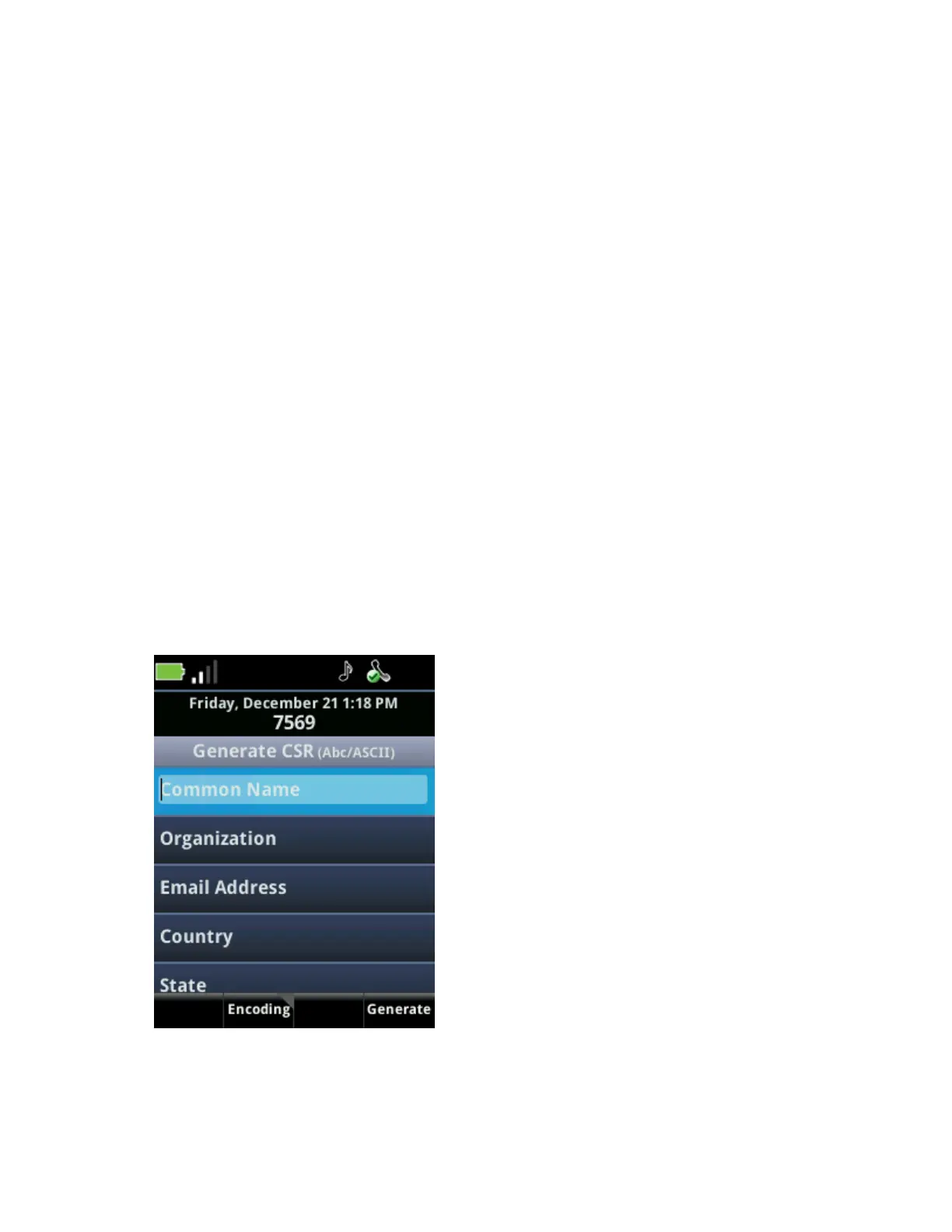
To generate a certificate signing request on a Spectralink handset:
1 Navigate to Settings> Advanced Settings> [enter password]> Administration
Settings> Generate CSR.
2 From the Generate CSR Screen, enter information as shown next. You must fill in the
Common Name and Country fields. The Organization, Email Address, Country, and
State fields are optional.
3 Press Generate.
A message CSR generation completed displays on the handset’s screen.


 To Next Page