Spectralink 84-Series Series Wireless Telephones Administration Guide
1725-86984-000_P.docx
September 2016 281
The handsets reboot or freeze up.
The handsets do not download all ringtones, directory entries, backgrounds, or XML
dictionary files.
Applications running in the browser stop or do not run at all.
The next sections show you how to check your handset’s available memory and manage the
handset features to make handset memory available.
Checking the Phone’s Available Memory
You can use two methods to quickly check whether you need to manage your handset’s
memory. Before you begin checking, load and configure the features and files you want to make
available on the handset.
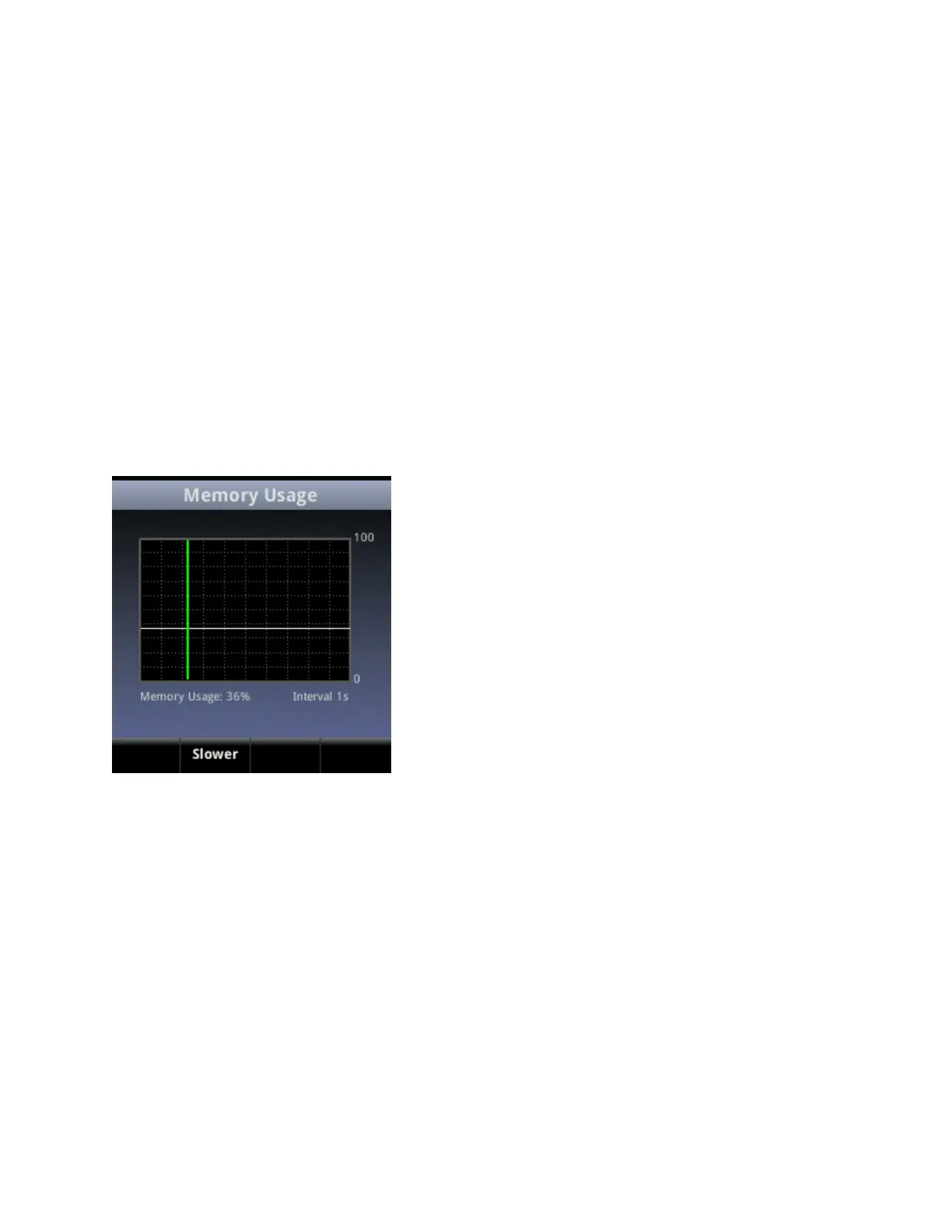
Using the first method, on your handset’s keypad Select Settings> Status> Diagnostics>
Graphs> Memory Usage as shown next.
Use the Memory Usage chart to check what the current Memory Usage amount is. Typically,
you want to ensure that the handset is running at less than 95 percent of its available memory.
If the handset is using more than 95 percent of its available memory, you may need to take
steps to reduce this amount. For information and tips on freeing memory on the handset, see
Managing the Phone Features.
The second method you can use to confirm whether you need to manage your handset’s
memory is to check the app log files. The app log file is enabled by default and is saved to your
provisioning server directory with the MAC address of the handset prepended to the app log file.
For example, if the MAC address of your handset is 00907a0e33b0, the app log file name will
be 00907a0e33b0-app.log.
Open the app log. If you see the message shown next you may need to manage your handset’s
memory resources.


 To Next Page