6.1.1. Working with controller in Labview
Download Labview example from the Software page.
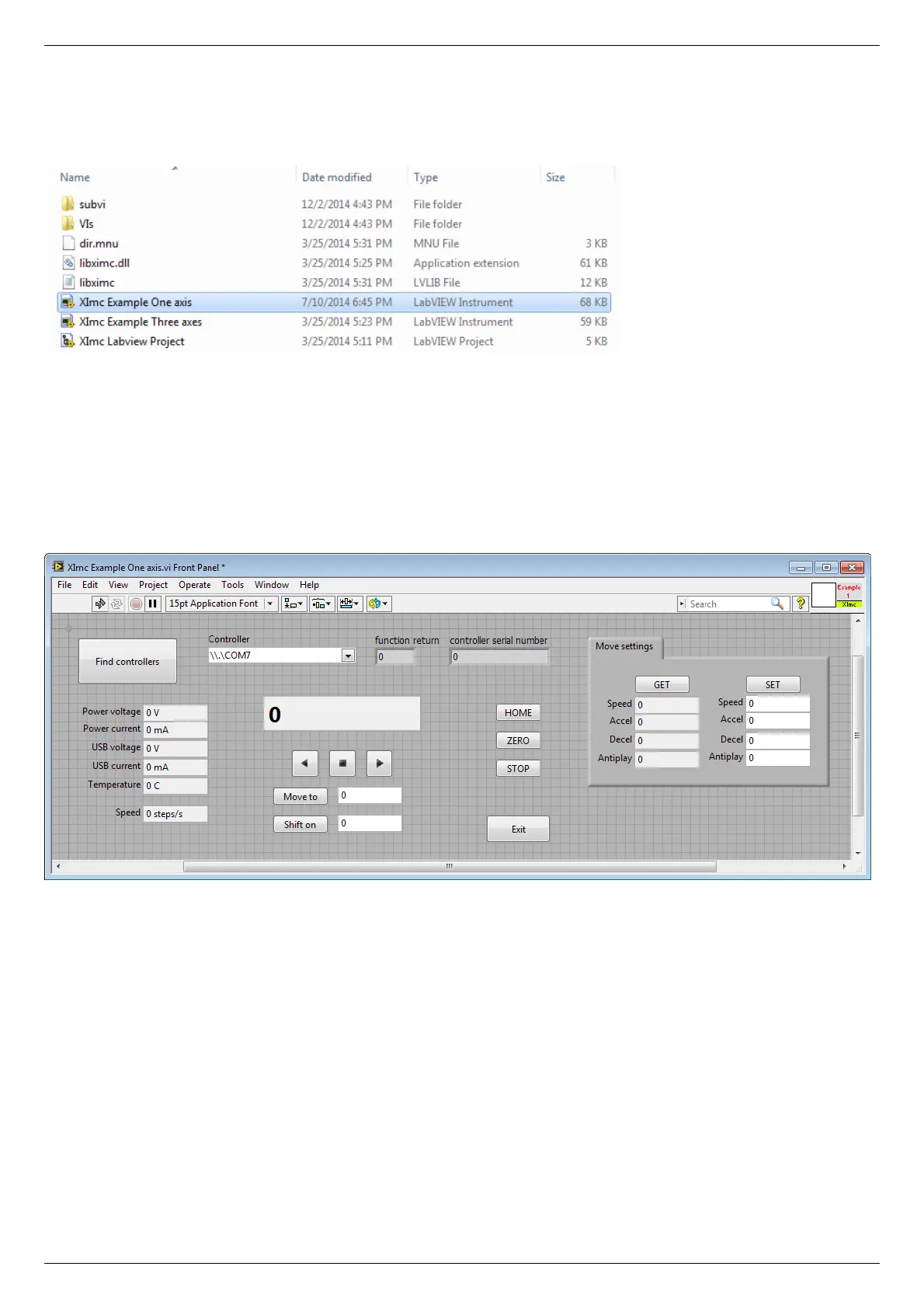
Extract the archive and run "XImc Example One axis" file using Labview.
LabView environment will start. You will see graphical user interface of the front panel of the example, which looks like a simplified
XILab interface.
In the left part of the window you can find a "Find controllers" button to rescan available controllers, a field to pick the controller by its
serial port name and an information block which displays current open controller state (power and usb voltage and current,
temperature and movement speed).
In the central part of the window you will find indication and control block. This block contains a numeric field with current position,
left, right and soft stop buttons, controls to move to specified coordinate and shift on specified offset.
To the right of this block you can find "HOME", "ZERO", "STOP" and "Exit" buttons, which perform homing, zero current controller
position, perform fast stop and exit the example, respectively.
The rightmost block is a "Move settings" dialog, which demonstrates how you can load and save settings to the controller. When you
press its "GET" button current movement settings are loaded into the fields below this button and the "SET" button sends values from
its edit fields to the controller.
Example source can be viewed by entering edit mode. The example queries the controller status in an infinite loop and outputs the
results. If you press any button on the front panel the corresponding functional block of the example is run.


 To Next Page