© 2022 STYPE; ALL RIGHTS RESERVED.
20
08 STARTING UP FOLLOWER
When all of the parts are connected, it is time to turn on the system. Push the ON/OFF button on the Main
Server. To start the system double click on the Follower icon. The user interface will guide you through the
process of setup.
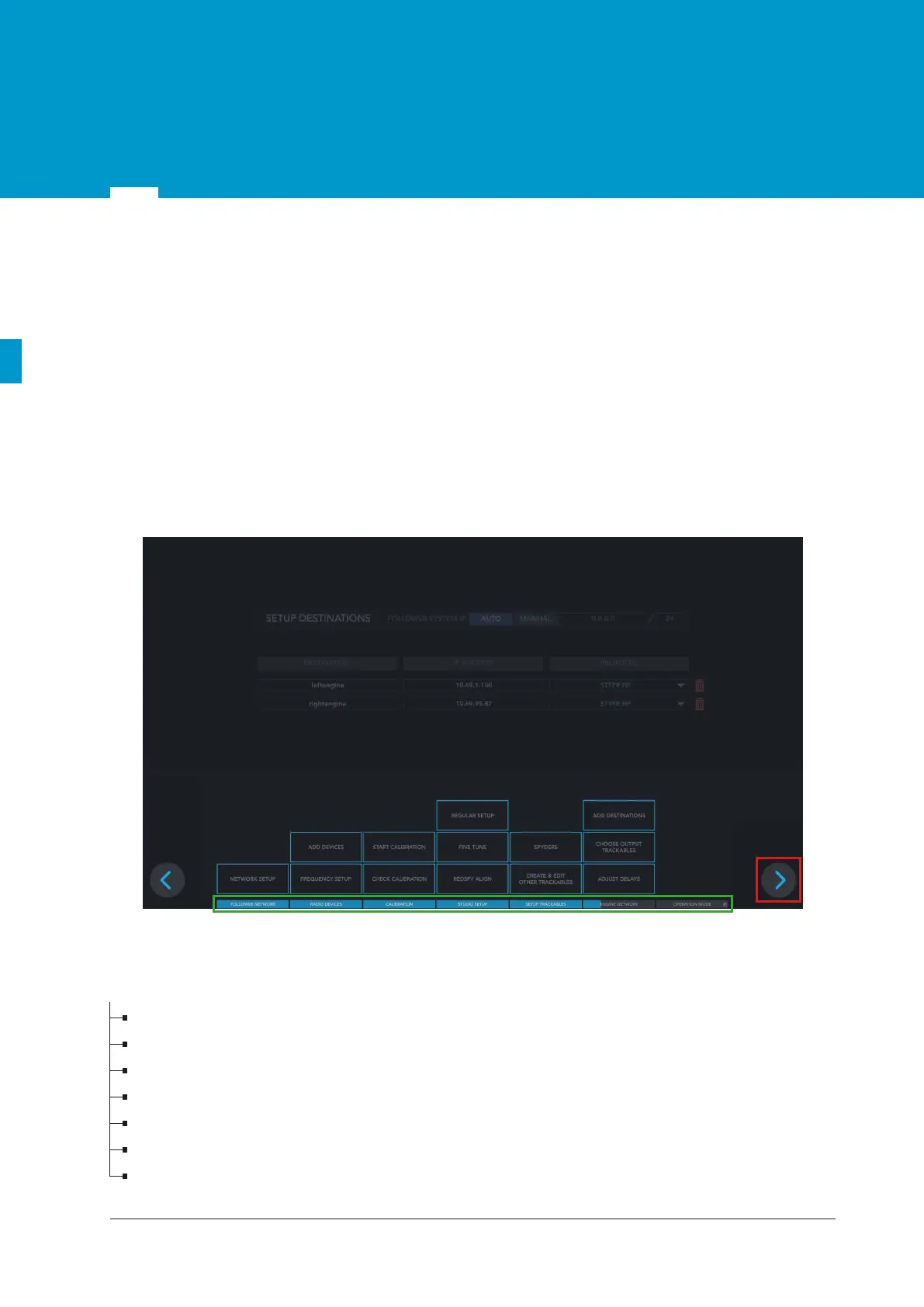
Follower's unique interface streamlines the setup process by guiding the user step by step trough 6
chapters leading up to the operation mode. Chapter menu (GREEN rectangle in Figure 8.1) resembling a
progress bar is located at the very bottom of the UI screen, allowing access to a specific part of the
Follower system, so you can make any adjustments to your setup at any time. When done with a particular
menu, the 'NEXT' button (RED rectangle in Figure 8.1) will take the user to the relevant part of their setup
process. As they undertake each step, the menu bar will be shown in blue, or partially blue, to indicate
progress of the entire setup.
8.1 Follower User Interface
Follower Network
>>
more details in chapter 9. Follower Network
Radio Devices
>>
more details in chapter 10. Radio Devices
Calibration
>>
more details in chapter 11. Calibration
Studio Setup
>>
more details in chapter 12. Studio Setup
Setup Trackables
>>
more details in chapter 13. Setup Trackables
Engine Network
>>
more details in chapter 14. Engine Network
Operation mode
>>
more details in Figure 8.2
USER INTERFACE FLOWCHART
Figure 8.1 Follower UI chapter menu overview


 To Next Page