42
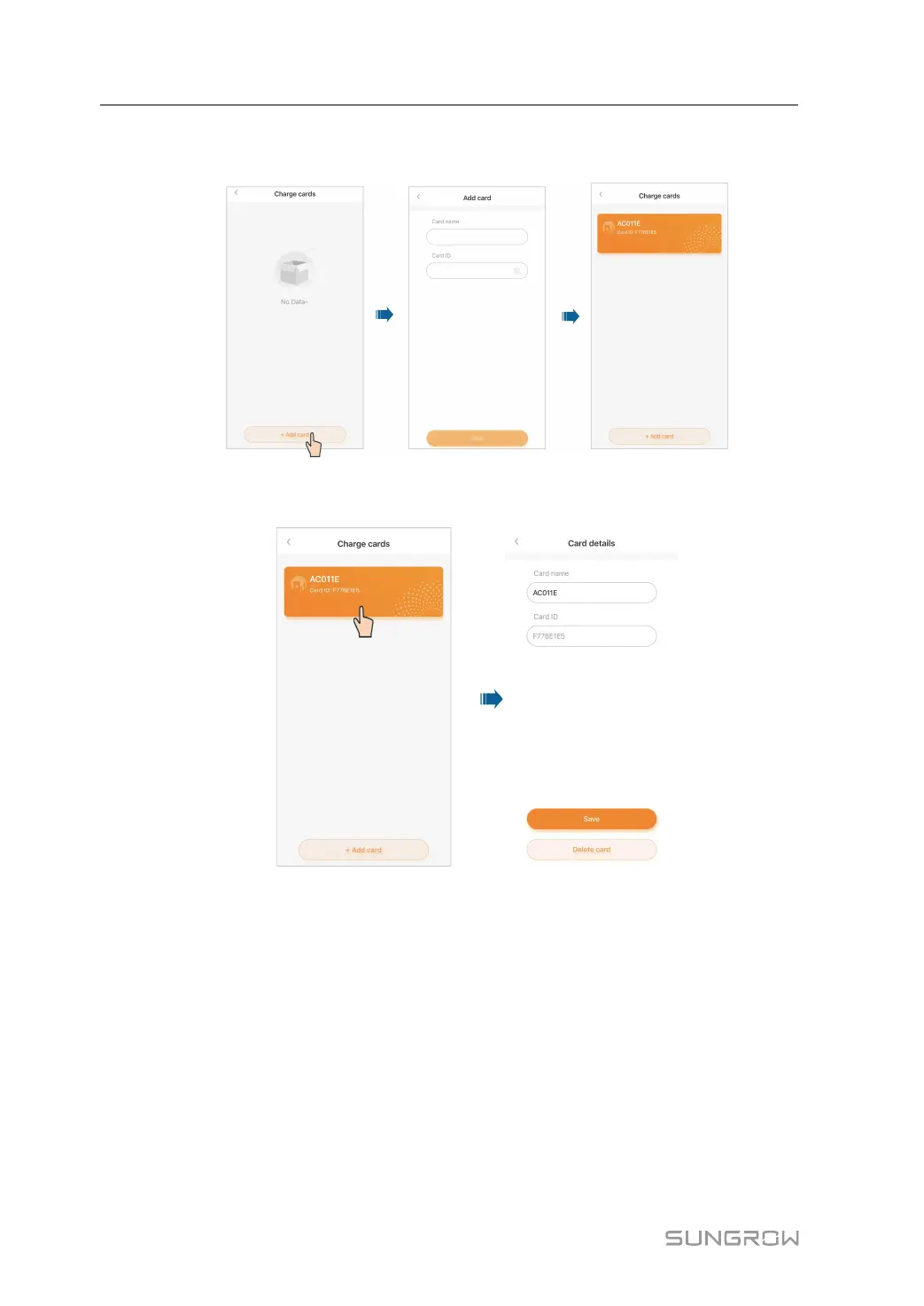
Step 2 Tap Add card at the bottom of the screen. Then, enter the card name and ID, and tap Save.
The card is now added successfully.
Step 3 Tap the card that has been added, and go to “Card details”. Here you can edit the card name
or delete the card.
- - End
5.5.8 Settings
Tap Settings. Here you can complete settings related to the language of the App, push noti-
fications, email, and password. You can tap Log out to log out of the current account.
5 iEnergyCharge App User Manual


 To Next Page