60
MPC-385 SERIES OPERATION MANUAL – REV. 3.21K (20201120)
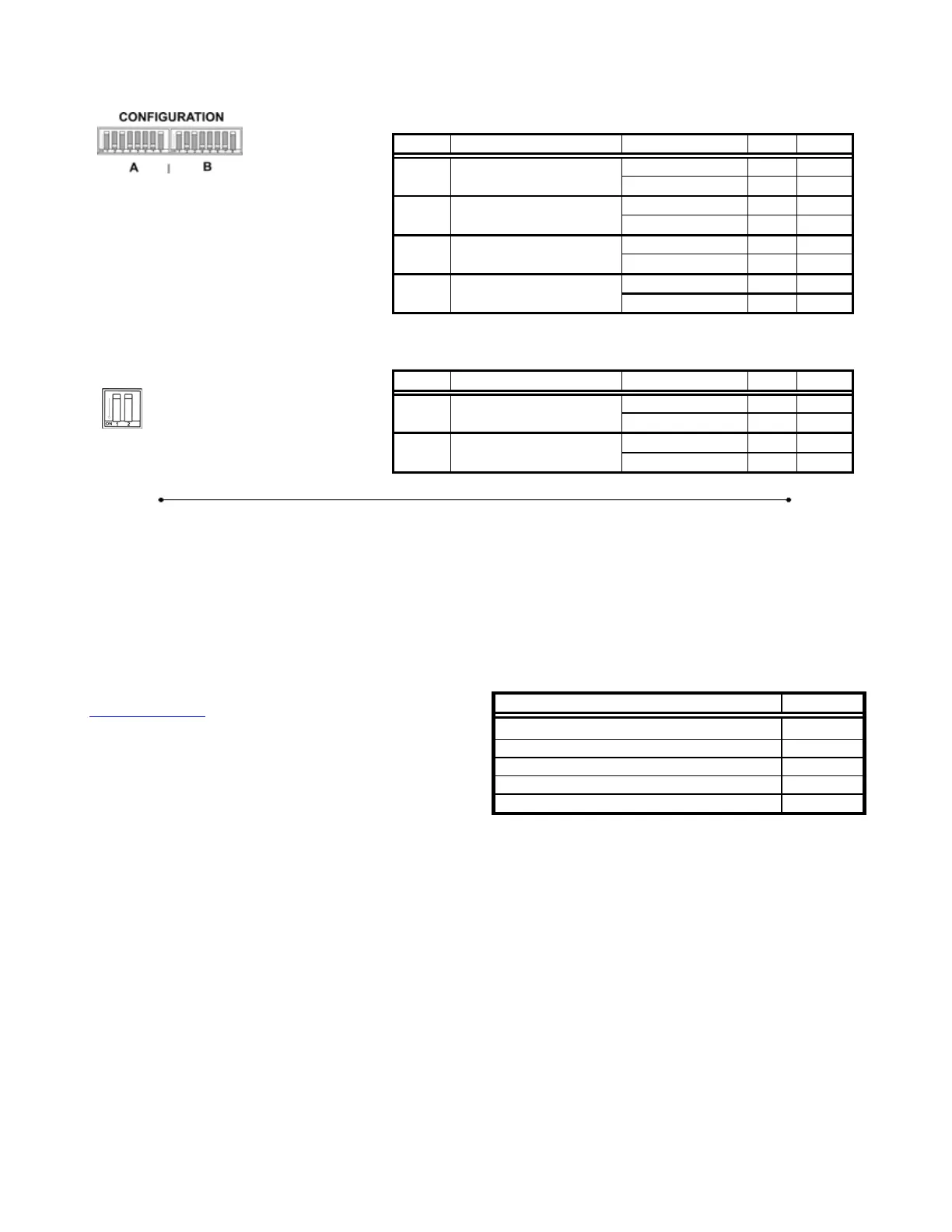
Table E-3. MPC-200 rear-panel config. Switches 5 – 8 for Device A or B.
X-axis knob rotation for
forward movement
Y-axis knob rotation for
forward movement
Z-axis knob rotation for
forward movement
Y-Axis lockout during HOME
& WORK position moves
* Normal operation (factory default).
** Normal operation (factory default) in MPC-365 series systems.
TRANS
Table E-4. MPC-200 rear-panel RIGHT TRAN config. switches for Device A or B.
Manipulator A right angle
installed state
Manipulator B right angle
installed state
* Normal operation (factory default).
E.3. External Control
Controlling the MPC-385 externally via computer is
accomplished by sending commands to the MPC-200
controller over the USB interface between the
computer and the USB connector on the rear of the
ROE-200 that’s connected to the MPC-200
controller. The USB device driver for Windows is
downloadable from Sutter Instrument’s web site
(www.sutter.com
). The MPC-385 (MPC-200)
requires USB CDM (Combined Driver Model)
Version 2.10.00 or higher. The CDM device driver for
the MPC-385 (MPC-200) consists of two device
drivers: 1) USB device driver, and 2) VCP (Virtual
COM Port) device driver. Install the USB device
driver first, followed by the VCP device driver. The
VCP device driver provides a serial RS-232 I/O
interface between a Windows application and the
MPC-385 (MPC-200). Although the VCP device
driver is optional, its installation is recommended
even if it is not going to be used. Once installed, the
VCP can be enabled or disabled.
The CDM device driver package provides two I/O
methodologies over which communications with the
controller over USB can be conducted: 1) USB Direct
(D2XX mode), or 2) Serial RS-232 asynchronous via
the VCP device driver (VCP mode). The first method
requires that the VCP device driver not be installed,
or if installed, that it be disabled. The second method
requires that the VCP be installed and enabled.
Virtual COM Port (VCP) Serial Port Settings: The
following table lists the required RS-232 serial
settings for the COM port (COM3, COM5, etc.)
generated by the installation or enabling of the VCP
device driver.
Table E-5. USB-VCP interface serial port settings.
Data (“Baud”) Rate (bits per second (bps))
128000
The settings shown in the above table can be set in
the device driver’s properties (via the Device
Manager if in Windows) and/or programmatically in
your application.
Protocol and Handshaking: Command sequences do
not have terminators. All commands return an
ASCII CR (Carriage Return; 13 decimal, 0D
hexadecimal) to indicate that the task associated
with the command has completed. When the
controller completes the task associated with a
command, it sends ASCII CR back to the host
computer indicating that it is ready to receive a new
command. If a command returns data, the last byte
returned is the task-completed indicator.


 To Next Page