[] Troubleshooting Guide
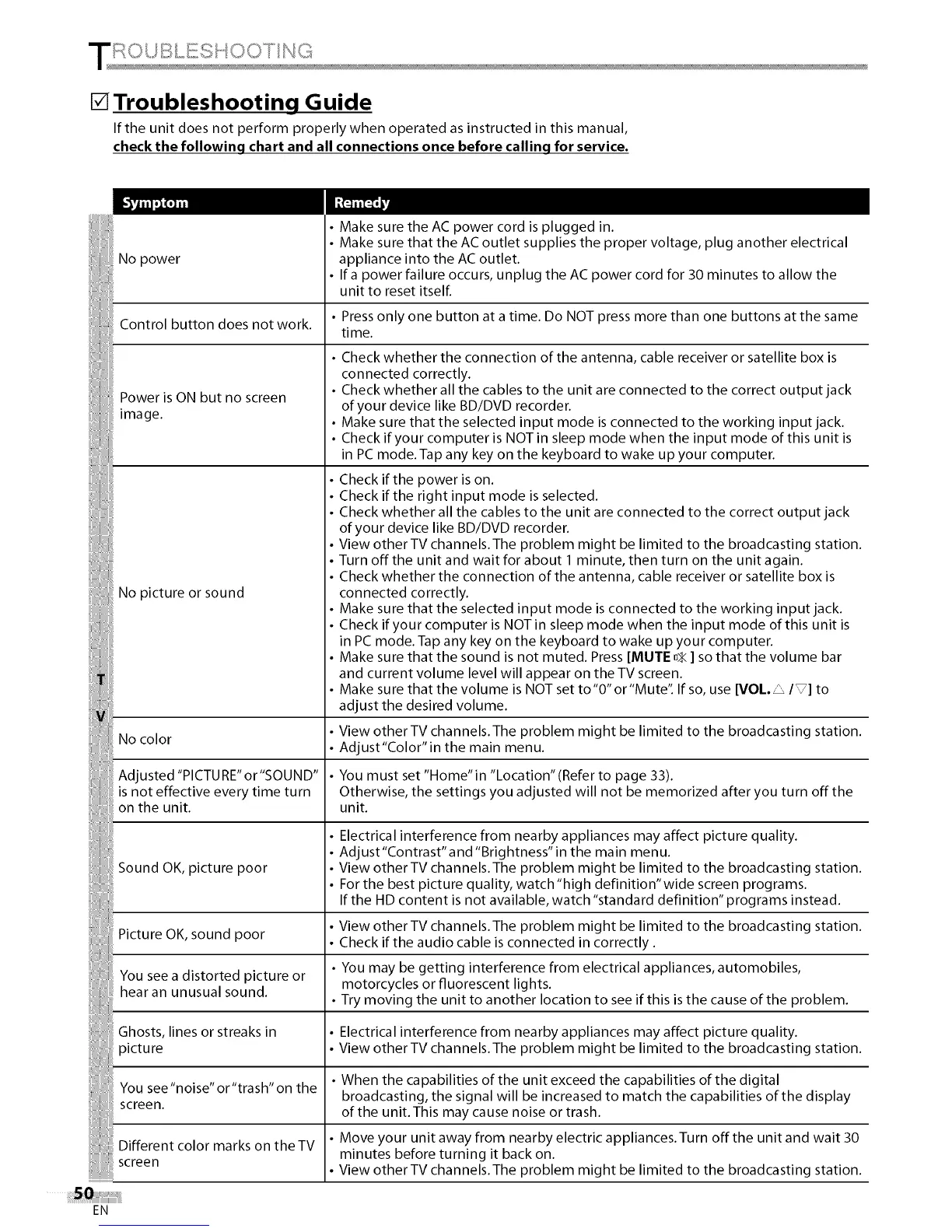
If the unit does not perform properly when operated as instructed in this manual,
check the following chart and all connections once before calling for service.
No power
Make sure the AC power cord is plugged in.
Make sure that the AC outlet supplies the proper voltage, plug another electrical
appliance into the AC outlet.
If a power failure occurs, unplug the AC power cord for 30 minutes to allow the
unit to reset itself.
• Press only one button at a time. Do NOT press more than one buttons at the same
Control button does not work.
time.
Power is ON but no screen
image.
No picture or sound
• Check whether the connection of the antenna, cable receiver or satellite box is
connected correctly.
• Check whether all the cables to the unit are connected to the correct output jack
of your device like BD/DVD recorder.
• Make sure that the selected input mode is connected to the working input jack.
• Check if your computer is NOT in sleep mode when the input mode of this unit is
in PC mode. Tap any key on the keyboard to wake up your computer.
Check if the power is on.
Check if the right input mode is selected.
Check whether all the cables to the unit are connected to the correct output jack
of your device like BD/DVD recorder.
View otherTV channels.The problem might be limited to the broadcasting station.
Turn off the unit and wait for about 1 minute, then turn on the unit again.
Check whether the connection of the antenna, cable receiver or satellite box is
connected correctly.
Make sure that the selected input mode is connected to the working input jack.
Check if your computer is NOT in sleep mode when the input mode of this unit is
in PC mode. Tap any key on the keyboard to wake up your computer.
Make sure that the sound is not muted. Press [MUTE n¾] so that the volume bar
and current volume level will appear on the TV screen.
Make sure that the volume is NOT set to"O" or"Mute". If so, use [VOL. _/_] to
adjust the desired volume.
View otherTV channels.The problem might be limited to the broadcasting station.
No color
Adjust"Color"in the main menu.
Adjusted "PICTURE"or"SOUND" You must set "Home"in "Location"(Refer to page 33).
is not effective every time turn Otherwise, the settings you adjusted will not be memorized after you turn off the
on the unit. unit.
Electrical interference from nearby appliances may affect picture quality.
Adjust"Contrast"and "Brightness"in the main menu.
Sound OK, picture poor View otherTV channels.The problem might be limited to the broadcasting station.
For the best picture quality, watch "high definition"wide screen programs.
If the HD content is not available, watch "standard definition" programs instead.
View otherTV channels.The problem might be limited to the broadcasting station.
Picture OK, sound poor Check if the audio cable is connected in correctly.
• You may be getting interference from electrical appliances, automobiles,
You see a distorted picture or motorcycles or fluorescent lights.
hear an unusual sound.
• Try moving the unit to another location to see if this is the cause of the problem.
Ghosts, lines or streaks in Electrical interference from nearby appliances may affect picture quality.
picture View other TV channels. The problem might be limited to the broadcasting station.
• When the capabilities of the unit exceed the capabilities of the digital
You see "noise" or "trash" on the
broadcasting, the signal will be increased to match the capabilities of the display
screen, of the unit. This may cause noise or trash.
Different color marks on the TV Move your unit away from nearby electric appliances.Turn off the unit and wait 30
minutes before turning it back on.
screen View other TV channels. The problem might be limited to the broadcasting station.
EN



 To Next Page