11
98-05141 R2www.teejet.com
CHAPTER 2 – UNIT SETUP
Unit Setup is used to confi gure System Setup, BoomPilot/
Single Boom Setup, Vehicle Setup, Tilt Gyro Module
Setup, and FieldPilot Setup.
NOTE: All settings are automatically saved when selected.
To access the Unit Setup screens:
1. Press HOME BUTTON or press the screen to activate the
icons and select HOME ICON in bottom left corner of screen.
2. Select UNIT SETUP from Home Menu .
3. Select from:
► System Setup – used to confi gure:
◄ Lightbar – used to confi gure LED Spacing , Display/
Swath Mode and LED Brightness settings.
◄ Culture – used to confi gure Units , Language
and Time Zone .
◄ GPS – used to confi gure GPS
Type and the GPS Port , as well as view GPS
Status information .
◄ Console – used to confi gure
Volume , LCD Brightness , Screen Calibrate and
Screenshot settings, as well as view About information
and Save system software information .
◄ Video – used to set up individual cameras
A
B
C
D
E
F
G
H
.
► BoomPilot/Single Boom Setup – used to confi gure
Overlap , Delay On , Delay Off , Number of Boom
Sections
#
and Boom Section Width settings.
► Vehicle Setup – used to confi gure Vehicle Type ,
Antenna Height , Direction to Boom and Boom Offset
Distance settings.
► Tilt Gyro Module Setup – used to calibrate the Tilt Gyro
Module, allowing for tilt correction for application on hilly or
sloped terrain.
► FieldPilot Setup – used to confi gure:
◄ Enable/Disable FieldPilot .
◄ Valve Setup – used to confi gure Valve Frequency,
Minimum Duty Cycle Left, Minimum Duty Cycle Right
and Maximum Duty Cycle settings.
◄ Valve Test – verifi es steering is directed correctly and
is used to fi ne tune the oil fl ow.
◄ Confi gure FieldPilot – used to confi gure Coarse
Steering Adjustment, Fine Steering Adjustment,
Deadband, and Lookahead settings.
General Information
Press the icon of any menu item to display a defi nition of that item.
To remove the information box, press anywhere on the screen.
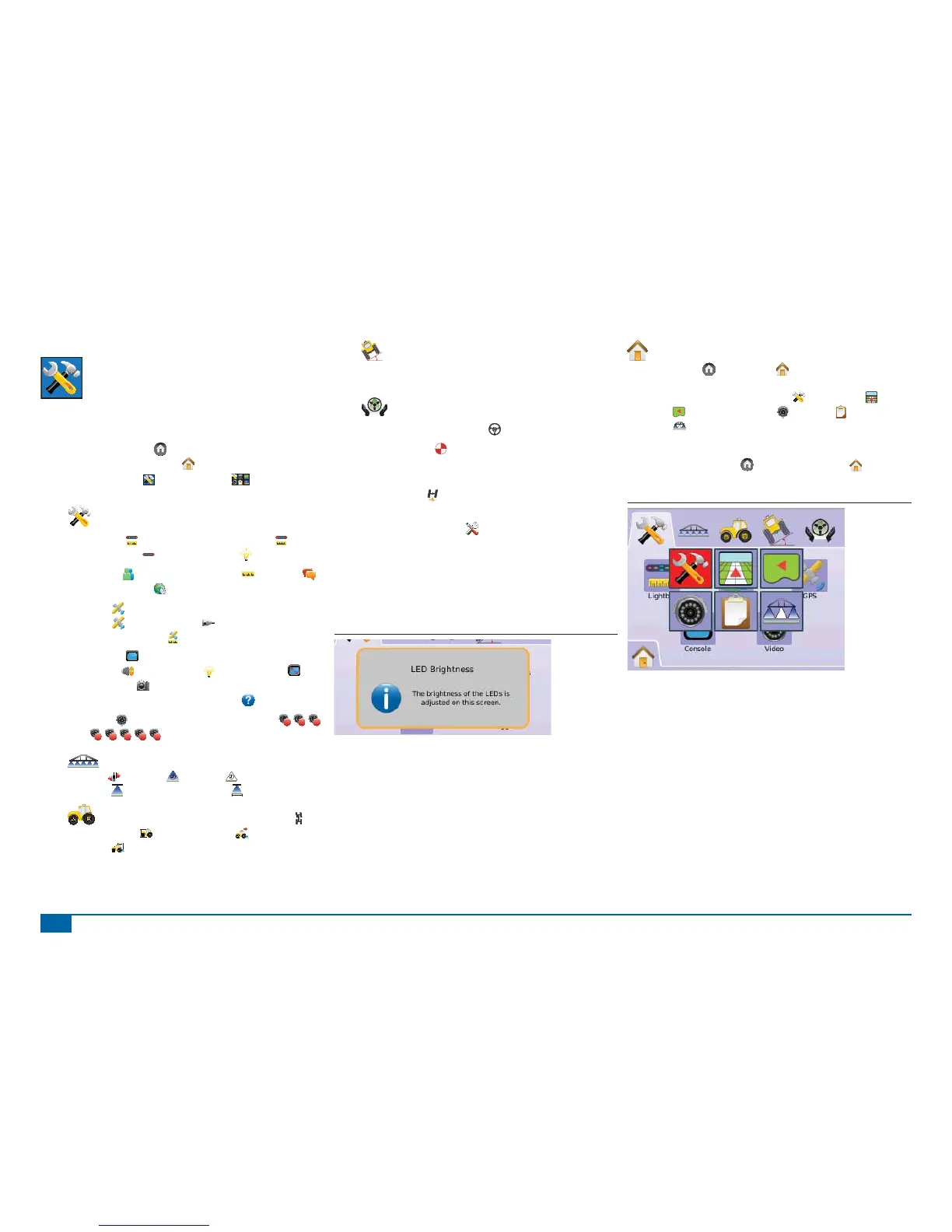
Figure 2-1: Example of Information Text Box
Home Menu
The Home Button or Home Icon gives you access to the
unit’s three functions: Setup, Guidance and Monitoring. The six
touch screen Menu Options (Unit Setup , Vehicle View ,
Field View , RealView Guidance , Job View and Boom
Monitoring ) quickly access all aspects of the unit.
To view the Home Menu options:
1. Press HOME BUTTON or select HOME ICON in bottom
left corner of screen.
Figure 2-2: Home Menu - Unit Setup



 To Next Page