●
20
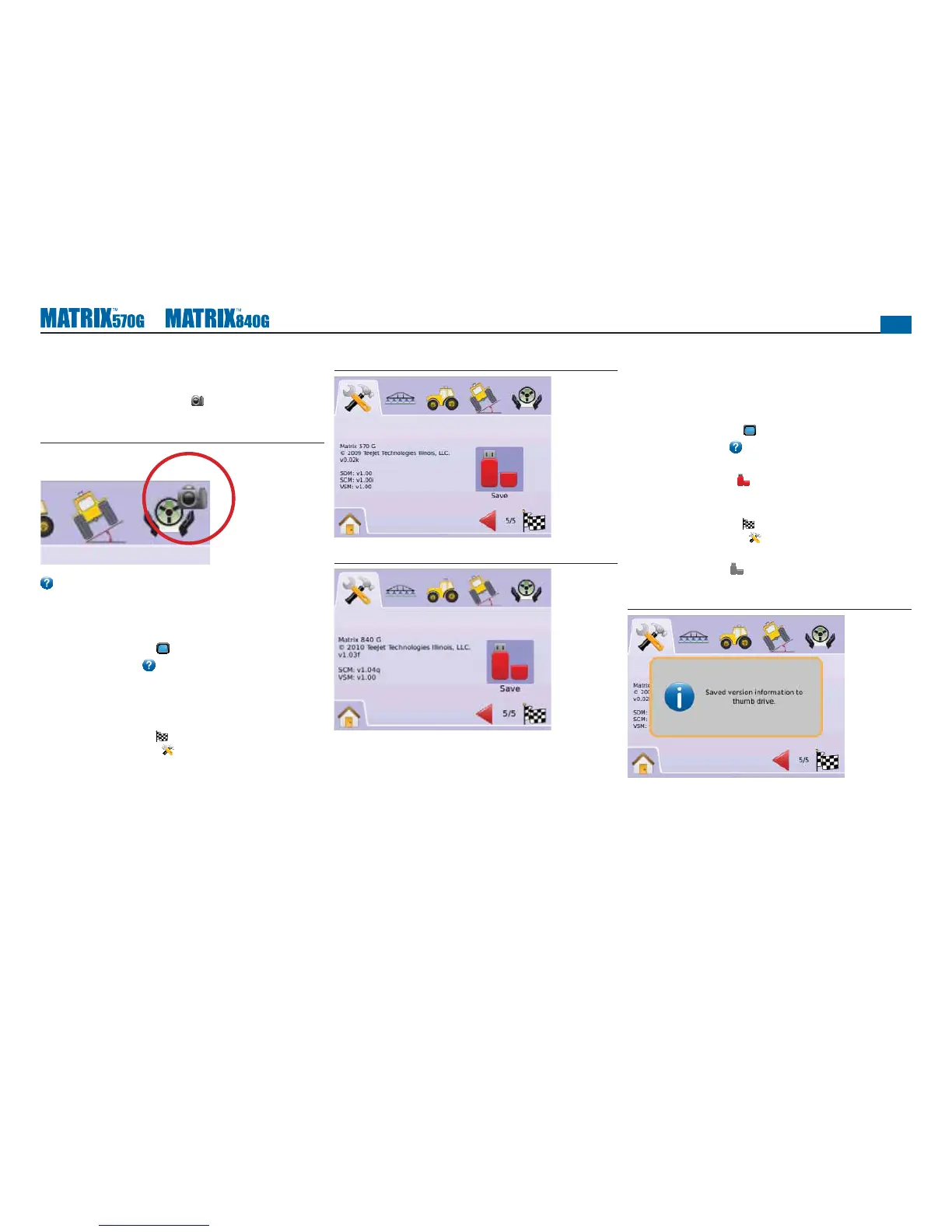
Capture an Image
1. Insert a USB drive into the USB port.
2. Press the SCREENSHOT ICON
.
NOTE: Screenshot does not capture live feed from video.
Figure 2-28: Example of Screenshot on Screen
About/Save
About/Save screen displays the system software version as well as
the software versions of modules connected to the CAN bus.
To view system information:
1. Press CONSOLE ICON .
2. Press ABOUT ICON to view data including:
◄Unit Model Number
◄Software Version
◄Connected Modules
3. Press
►CHECKERED FLAG to complete Console Setup.
►SYSTEM SETUP TAB to return to main System Setup
screen.
Figure 2-29: About Matrix 570G
Figure 2-30: About Matrix 840G
Save About Information
To aid when troubleshooting problems in the fi eld, an end user
can use Save to download a text fi le containing current software
information to a USB drive, then e-mail the fi le to support personnel.
1. Press CONSOLE ICON
.
2. Press ABOUT ICON .
3. Insert a USB drive in the USB port.
4. Press the SAVE ICON .
“Saved version information to USB drive” will confi rm save.
5. Press
►CHECKERED FLAG to complete Console Setup.
►SYSTEM SETUP TAB to return to main System Setup
screen.
NOTE: The SAVE ICON is not available for selection (grayed
out) until a USB drive is inserted properly.
Figure 2-31: About Verification



 To Next Page