●
50
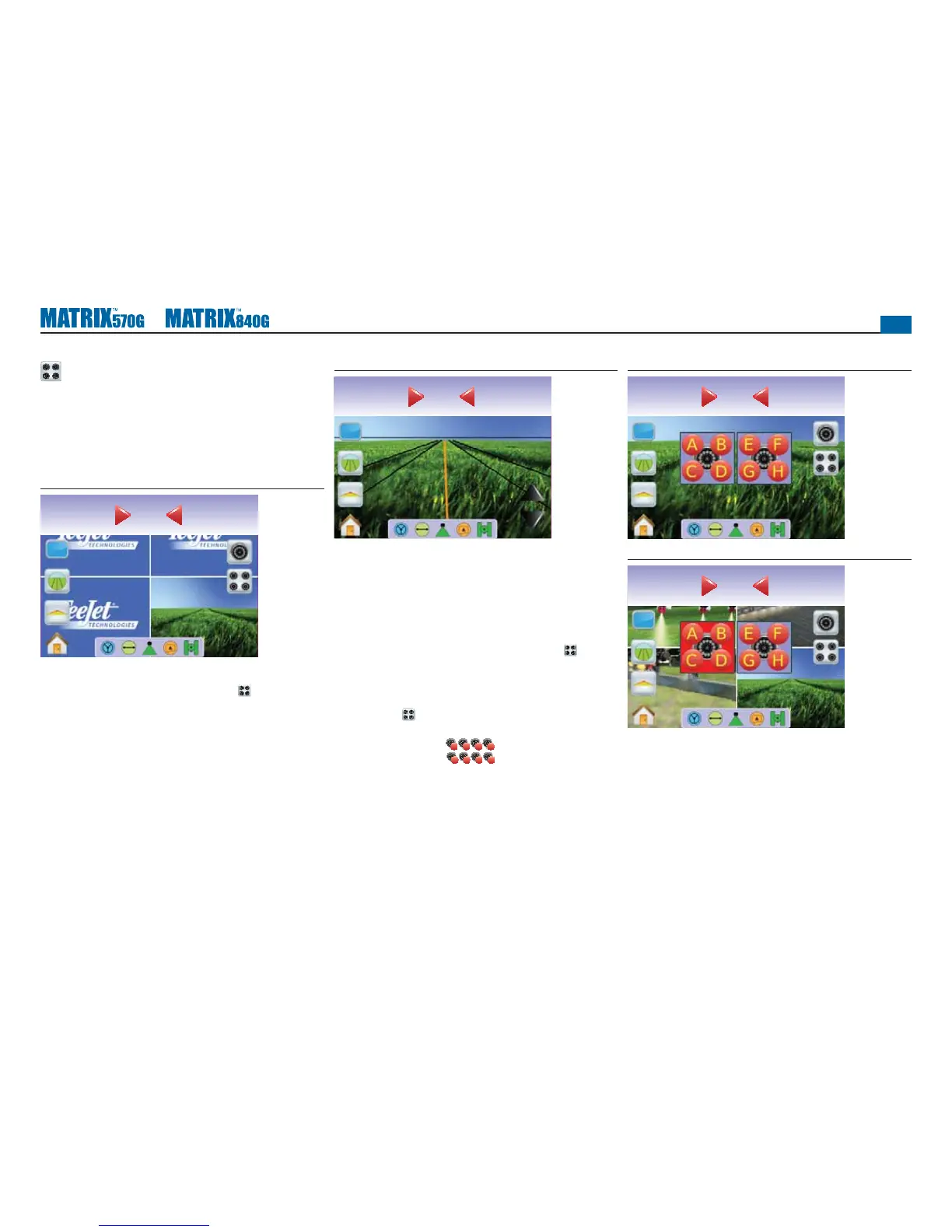
Split Camera View
Split Camera View allows one of two sets of four camera inputs
(A/B/C/D or E/F/G/H) to be selected to divide the screen into
four separate video feeds while in RealView Guidance if a Video
Selection Module (VSM) is attached.
If a VSM port does not have a camera installed, a blue screen with
the TeeJet logo will fi ll that port’s screen quarter.
Figure 3-58: Inactive Camera Ports
Swath acres
0.00
0.0
No VSM
If a VSM is not installed, the SPLIT VIEW ICON is not available
and only one (1) video feed will be available.
Figure 3-59: VSM Not Installed
Swath acres
0.00
0.0
Eight Channel VSM
When a eight (8) channel VSM is on the system, up to eight (8)
cameras can be installed. Two sets of four camera inputs (A/B/C/D or
E/F/G/H) can be selected.
NOTE: If installing four or less cameras, all in ports A, B, C or D,
setup screens will follow Four Channel VSM instructions.
NOTE: If a VSM is not installed, the SPLIT VIEW ICON is not
available.
To change active a set of split camera views:
1. Press the screen to activate the icons and select the SPLIT
VIEW ICON .
2. Select
►CAMERAS A/B/C/D
A
B
C
D
►CAMERAS E/F/G/H
E F G H
NOTE: If only set A/B/C/D is available, cameras are only installed on
ports A, B, C and D.
Figure 3-60: Split View
Swath acres
0.00
0.0
Figure 3-61: Split View Selection A/B/C/D
Swath acres
0.00
0.0



 To Next Page