37
98-05141 R2www.teejet.com
Icon Description
BoomPilot Status.
Red = Off/Manual
Green = Automatic
Yellow = All On
No icon = Single Boom Section (no SmartCable or SDM
installed on system).
Bounded Area Status.
Outside Boundary = Currently traveling outside bounded
area.
Inside Boundary = Currently traveling inside bounded
area.
No icon = No boundary established
GPS Status.
Red = no GPS
Yellow = GPS only
Green = DGPS,WAAS/RTK
Peach = Glide/ClearPath
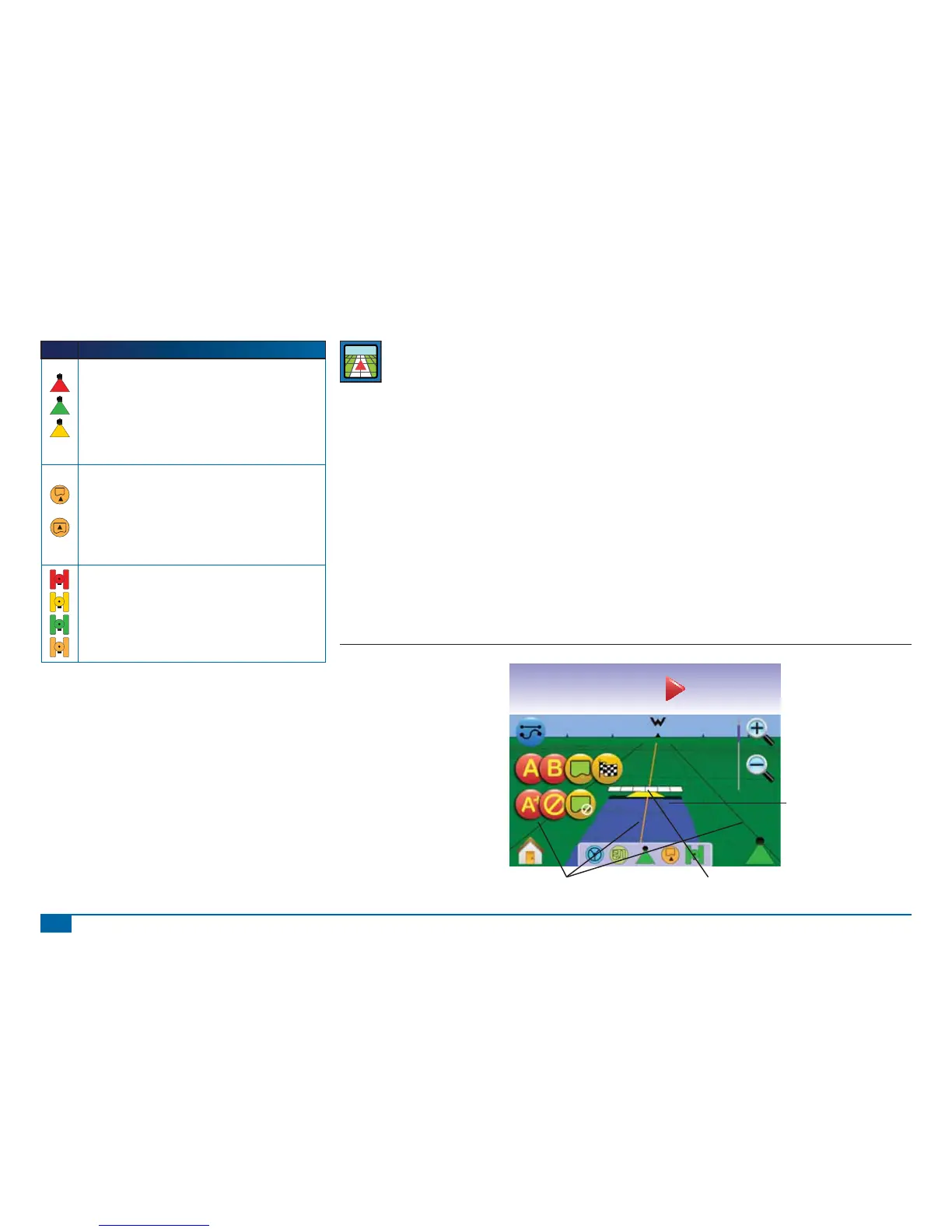
VEHICLE VIEW
Vehicle View creates a computer-generated image of the
vehicle position displayed in the application area. From
this screen one can access options for guidance modes, boundary
areas and BoomPilot.
On Screen Guidance
• Guidelines
►Orange Line – active guidance line
►Black Lines – adjacent guidance lines
• Points - markers for established points
►Red Point – Return to Point
►Blue Point – Mark A
►Green Point – Mark B
• Horizon Compass – general heading can be displayed on
horizon (when zoomed in)
• Coverage Area – illustrates applied area and overlap:
►Blue – one application
►Red – two or more applications
• Zoom In/Out & Perspective – adjust the vehicle’s view or
perspective to the horizon from vehicle view to bird’s eye view.
• Boom Sections
►Hollow boxes – inactive booms
►White boxes – active booms.
Button Assistance
• Zoom In/Out & Perspective – adjust the vehicle’s view or
perspective to the horizon from vehicle view to bird’s eye view.
Figure 3-11: Overview of Vehicle View
mph acres
0.5314.6
5.8
Guidance Bar
Vehicle View/Perspective
(Zoom In/Out)
or press Zoom In/Out Buttons
Horizon Compass
Painted Coverage Area
BoomPilot
Status Bar
Navigation Guidelines
Vehicle with Real-time Representation of
Active Boom Sections
Guidance Mode
Mark A/B
Mark Boundary
Finish Boundary
Nudge A/B Line
Cancel Point
Cancel Boundary
Home/Menu Options
or press Home Button



 To Next Page