19
98-05141 R2www.teejet.com
Touch Screen Calibration with Software Version
1.03
Touch Screen Calibration is used to activate a touch screen
calibration.
1. Press CONSOLE ICON
.
2. Press CALIBRATE TOUCH SCREEN ICON .
3. Press HAND ICON to enable the touch screen calibration
process.
4. “Begin touch screen calibration?”
Press
►Yes – to begin the Touch Screen Calibration.
►No – to return to the Touch Screen Calibration screen
5. Press series of 5 crosshairs .
6. Press OK to complete the touch screen calibration.
7. Press
►PAGE RIGHT ARROW to proceed to Screenshot.
►SYSTEM SETUP TAB to return to main System Setup
screen.
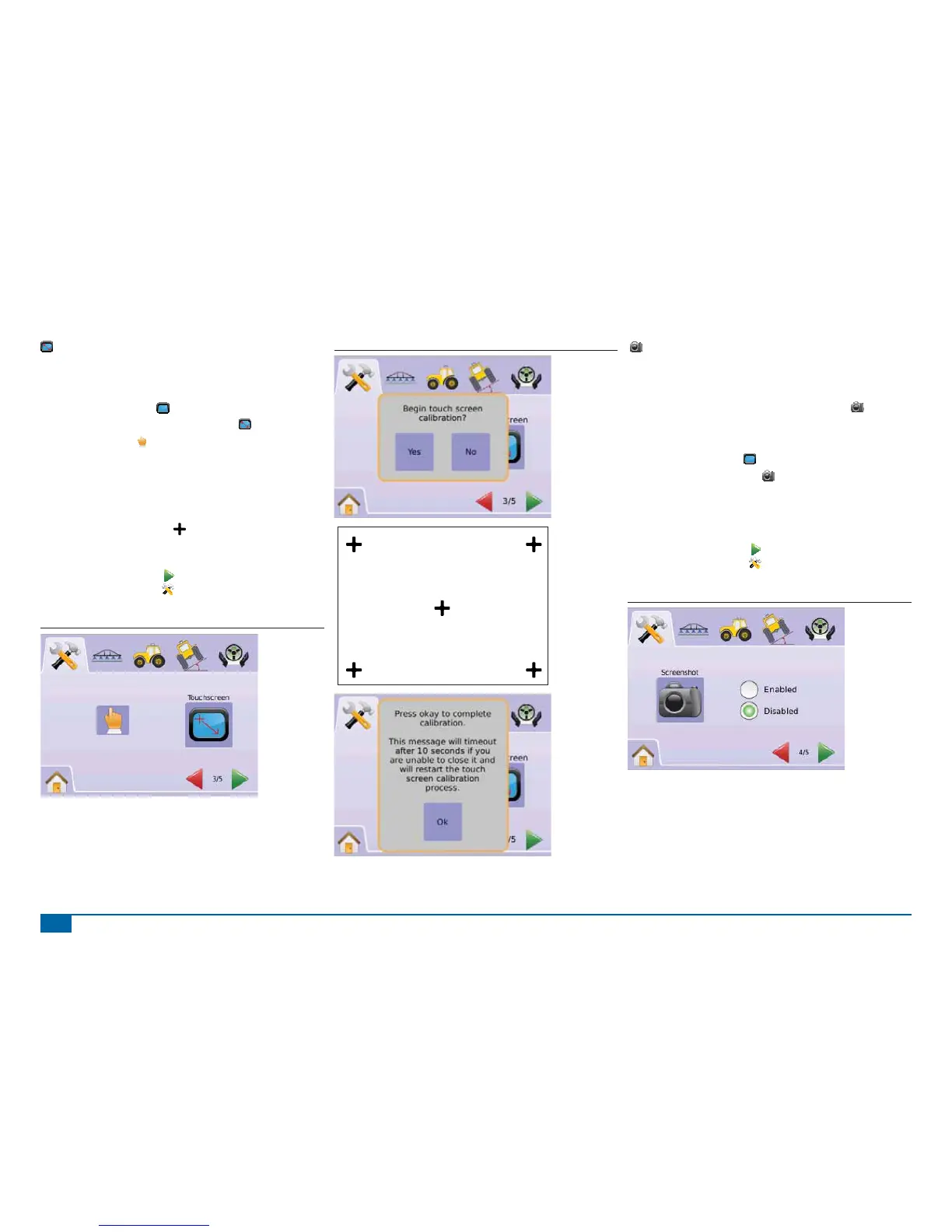
Figure 2-25: Touch Screen Calibration
Figure 2-26: Touch Screen Calibration Process
Screenshot
To aid when troubleshooting problems in the fi eld, an end user can
use Screenshot to save a screen to a USB drive, then e-mail the
image to support personnel.
When Screenshot is enabled, a SCREENSHOT ICON
is
displayed on the upper right of each screen.
Enable/Disable
1. Press CONSOLE ICON .
2. Press SCREENSHOT ICON .
3. Select
►Enable
►Disable
4. Press
►PAGE RIGHT ARROW to proceed to About/Save.
►SYSTEM SETUP TAB to return to main System Setup
screen.
Figure 2-27: Screenshot



 To Next Page