13
98-05141 R2www.teejet.com
Display Mode
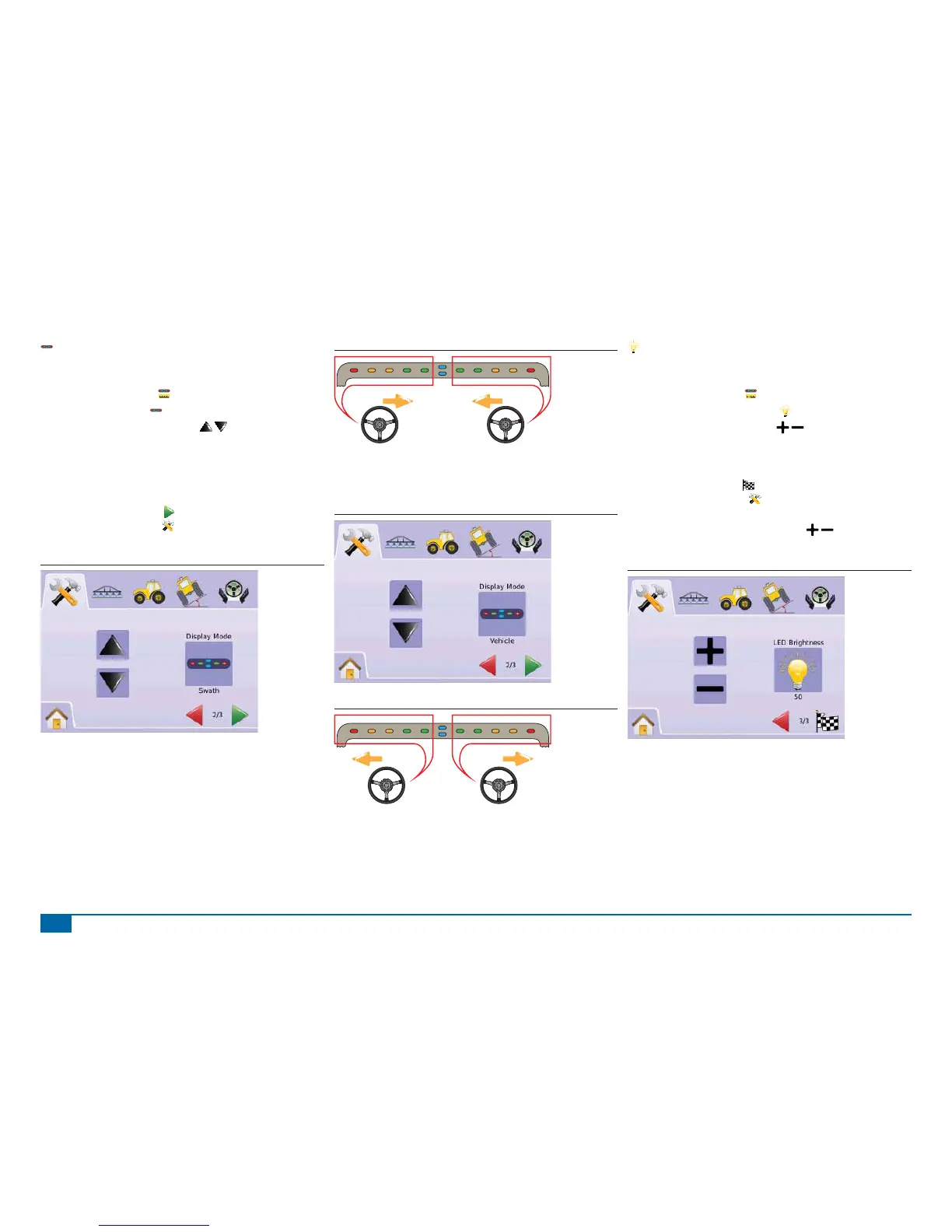
Display/Swath Mode determines whether the lightbar represents the
swath or vehicle.
1. Press LIGHTBAR ICON .
2. Press DISPLAY ICON .
3. Press UP/DOWN ARROW ICONS to change between:
►Swath – the LEDs represent the guideline location and the
moving LED represents the vehicle.
►Vehicle – the center LED represents vehicle location and the
moving LED represents the guideline.
4. Press
►PAGE RIGHT ARROW to proceed to LED Brightness.
►SYSTEM SETUP TAB to return to main System Setup
screen.
Figure 2-6: Display Mode - Swath
Figure 2-7: Swath Lightbar
Lights illuminated on the
right of the Lightbar require a
steering adjustment to the left.
Lights illuminated on the left of
the Lightbar require a steering
adjustment to the right.
Figure 2-8: Display Mode - Vehicle
Figure 2-9: Vehicle Lightbar
Lights illuminated on the right of
the Lightbar require a steering
adjustment to the right.
Lights illuminated on the left of
the Lightbar require a steering
adjustment to the left.
LED Brightness
LED Brightness adjusts the brightness of the lightbar LEDs. Range
is 0 - 100.
1. Press LIGHTBAR ICON .
2. Press LED BRIGHTNESS ICON .
3. Press the PLUS/MINUS ICONS to adjust LED brightness.
◄Higher the number, the brighter the LEDs.
◄Lower the number, the dimmer the LEDs.
4. Press
►CHECKERED FLAG to complete Lightbar Setup.
►SYSTEM SETUP TAB to return to main System Setup
screen.
NOTE: Press & hold PLUS/MINUS ICONS to quickly adjust
settings.
Figure 2-10: LED Brightness



 To Next Page