TTE Combo Communication Module – Installation and Programming Manual
24
• “New Module” – Adding new system to the User account – see item 4.2 Adding a System
to Account.
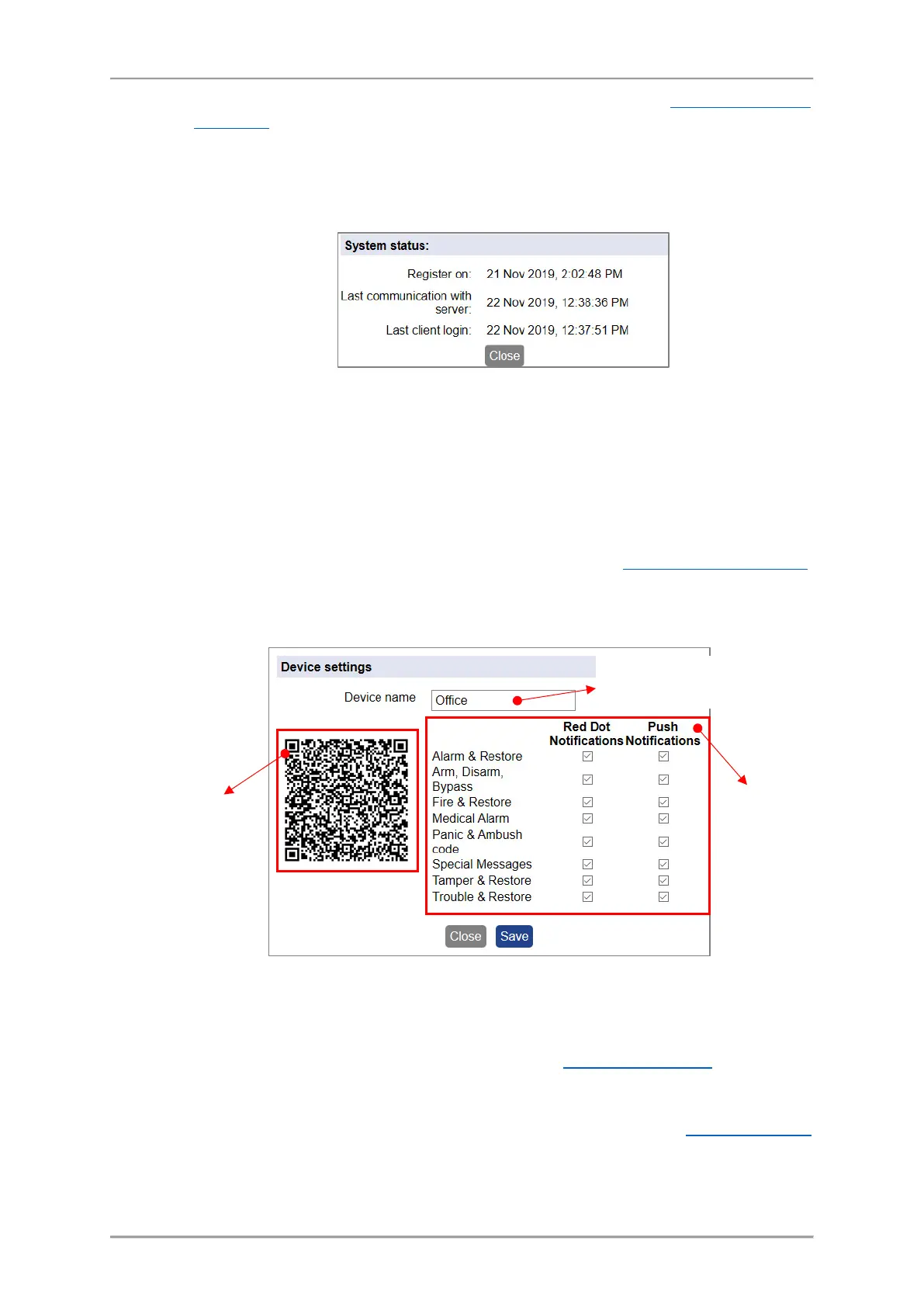
• “Status” – Click on the button to review some information about the connection
between the system and the server – the system status. In the new window you will find
details about the date of registration, last communication and the last user login for
management and control.
• “Connect/Busy” – Remote control of the TTE Combo outputs.
Attention: Every system can be shared for operation between different users, but only
one of them can access it at a time. If the system is accessed from a User, the button
becomes inactive with text “Busy”. That means the system is not accessible for control
from other users at this time.
The system is accessible when the button “Connect” is visible and active. To connect to a
TTE Combo standalone module, press the button and enter the PC ID Number (1234 by
default) – this is the password set with ProsTE – see also item 3.2 General Settings Menu
.
• “Edit” – Editing the name of the system and setting the type of notification messages for
events received via MobileTTE. Press the button to open the window for editing:
o “Red Dot Notifications” – A special mark (a red dot) alerts the User in case of
occurring of an event (in the system list of MobileTTE). Check the boxes of those
events for which you want to be alerted. See Red Dot Notifications
in the User
Guide.
o “Push Notifications” – Check the boxes for those events for which you want to
receive a push notification messages on your smartphone. See Push Notifications
in the User Guide.
Here you can change the
name of the system.
at any time for scanning
and directly adding the
system information to
MobileTTE smartphone
application.
sections for setting
the notification
messages received
via MobileTTE.



 To Next Page