12
.....Quick setup configuration
2. PIPE setup menu continued:
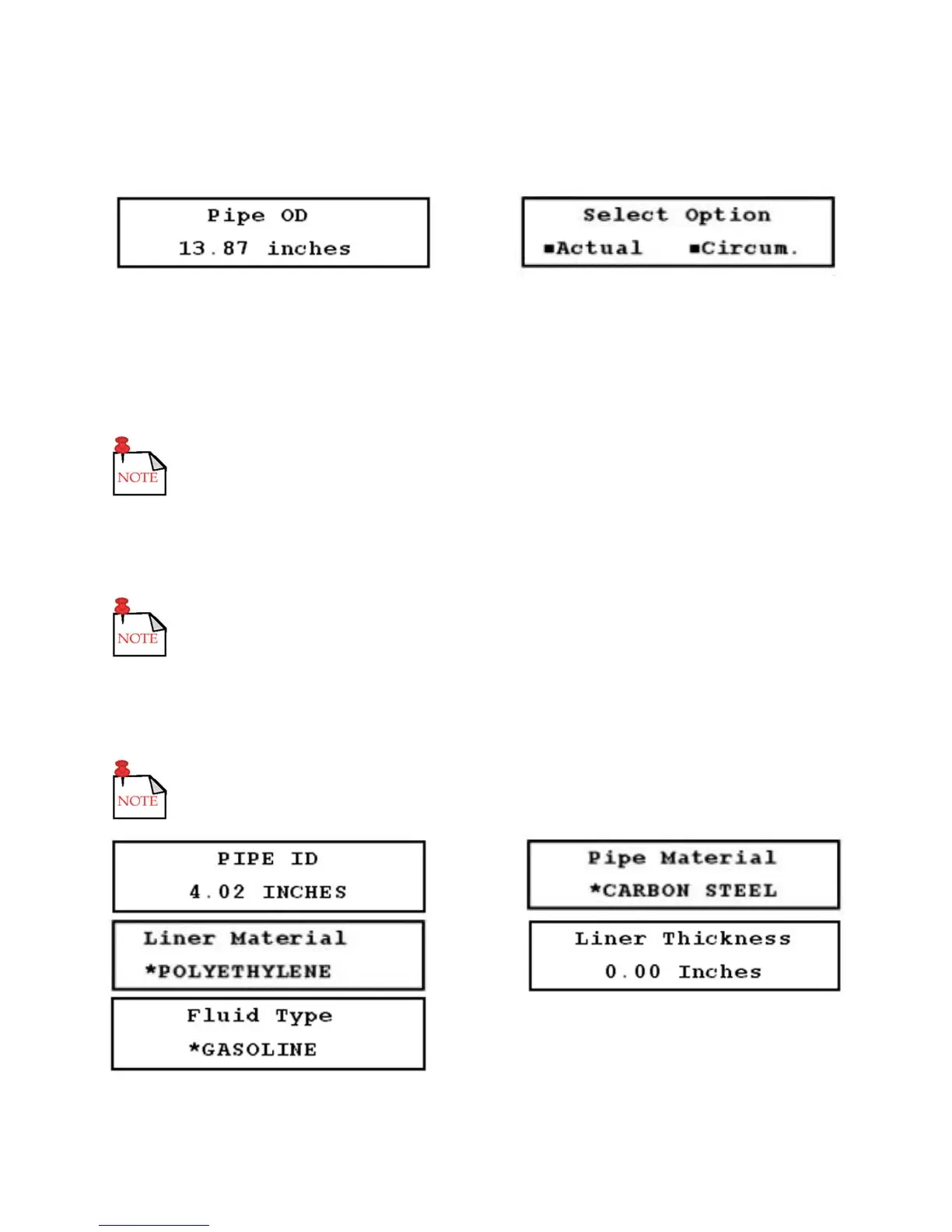
FIGURES 3.5-A (LEFT) & 3.5-B (RIGHT)
b. Select the Pipe ID setup menu (12). Enter the pipe ID value, and press ENTER (Figure 3.5-C,
below).
c. Select the Pipe Material setup menu (13). Press the UP and DOWN ARROWS to scroll through
the available options (Figure 3.5-D, below).
Select OTHER if the material is not listed. You must then enter then pipe sound
speed (14) and pipe inside roughness (15).
3. If there is a liner:
a. Access the Liner Material setup menu (16), and Figure 3.5-E (below) is displayed. Press the UP
and DOWN ARROWS to scroll through the available options.
Select OTHER if the material is not listed. You must then enter the liner sound
speed (18) and liner inside roughness (19).
b. Access the Liner Thickness setup menu (17), and enter the thickness (Figure 3.5-F, below).
4. Access the Fluid Type setup menu (20), and scroll through the available options using the UP and
DOWN ARROWS (Figure 3.5-G, below).
Select OTHER if the fluid type is not listed. You must then enter the fluid sound
speed (21) and fluid viscosity (22).
FIGURES 3.5-C THROUGH 3.5-G (LEFT TO RIGHT, TOP TO BOTTOM)





 To Next Page