20
.....Additional setup menus within the OPTIONS submenu
3. RS232 Configuration setup menu (46): Use this menu to configure the RS232 port which allows the
flowmeter to connect to an IBM
®
-compatible PC using the UltraScan (refer to the UltraScan manual) or
D-Link (refer to Appendix C, page 69) utilities (Figure 3.12-C, below).
a. Access the RS232 Configuration setup menu (46).
b. Select ULTRASCAN or D-LINK.
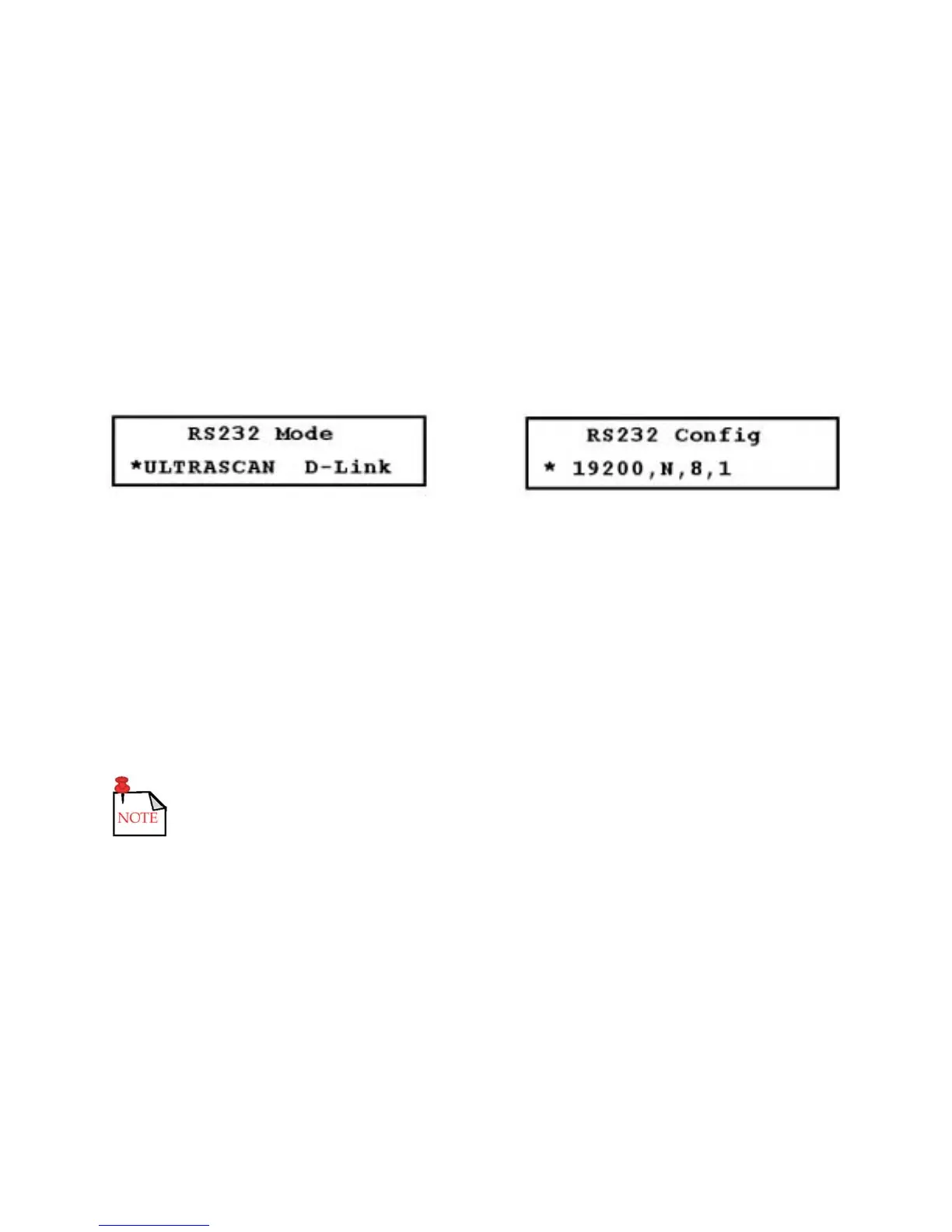
c. Press the DOWN ARROW to display the baud rate selections. The baud rate is the only RS232
parameter that can be selected. The remaining parameters are preset (Figure 3.12-D, below).
d. Access Menu 00.
FIGURES 3.12-C (LEFT) & 3.12-D (RIGHT)
4. Change System Password setup menu (47): The flowmeter is shipped from the factory with the
system password disabled. If a password is enabled, the flowmeter requests the password when a
user attempts to enter any configuration data. Entering the correct password temporarily unlocks the
system,allowing the user to make configuration changes.
To change or disable the system password:
a. Access Menu 47 (Figure 3.12-E, page 21).
b. Enter the new system password and press ENTER (Figure 3.12-F, page 21).
Disable the system password function by entering 0 (zero) as the system pass-
word. Enable the function by changing the password back to a non-zero number.
c. Enter the old system password and press ENTER (Figure 3.12-G, page 21). If the old system
password is correctly entered, Figure 3.12-H (below) is displayed. If the password is incorrectly
entered, Figure 3.12-I (page 21) is displayed.
After the system password is accepted or rejected, Menu 48 is displayed, enabling the scale factor
password to be changed.
d. Access Menu 00 to lock the system with the new password.



 To Next Page