Ifyouwanttochargethesedeviceswhenyourcomputerisinhibernationmodeoristurnedoff,andthe
computerisnotconnectedtoacpower,dothefollowing:
•ForWindows7:StartthePowerManagerprogramandclicktheGlobalPowerSettingstab.Then
selecttheEnableUSBchargefromthecomputerbatteryevenwhenthecomputerisoffcheck
box,andclickOKorApply.
•ForWindows8andWindows8.1:PresstheWindowskeytogototheStartscreen.ClickLenovo
Settings➙Power.ThenselectEnableUSBchargefromthecomputerbatteryevenwhenthe
computerisoffcheckboxunderAlwaysOnUSB.
TheAlways-onUSBconnectoralsocanbeusedasaUSB3.0connectortoconnectdevicescompatible
withaUSBinterface,suchasaUSBprinteroradigitalcamera.
Attention:WhenyouattachaUSBcabletotheconnector,ensurethattheUSBmarkisfacingupward.
Otherwisetheconnectormightbedamaged.
5Mediacardreaderslot
Yourcomputerhasamediacardreaderslot.Insertyourflashmediacardintothisslottoreadthedataon
thecard.Formoreinformationaboutthesupportedcards,see“Usingaflashmediacard”onpage39.
6Built-instereospeaker(left)
Fordetails,seeFunctionkeys.
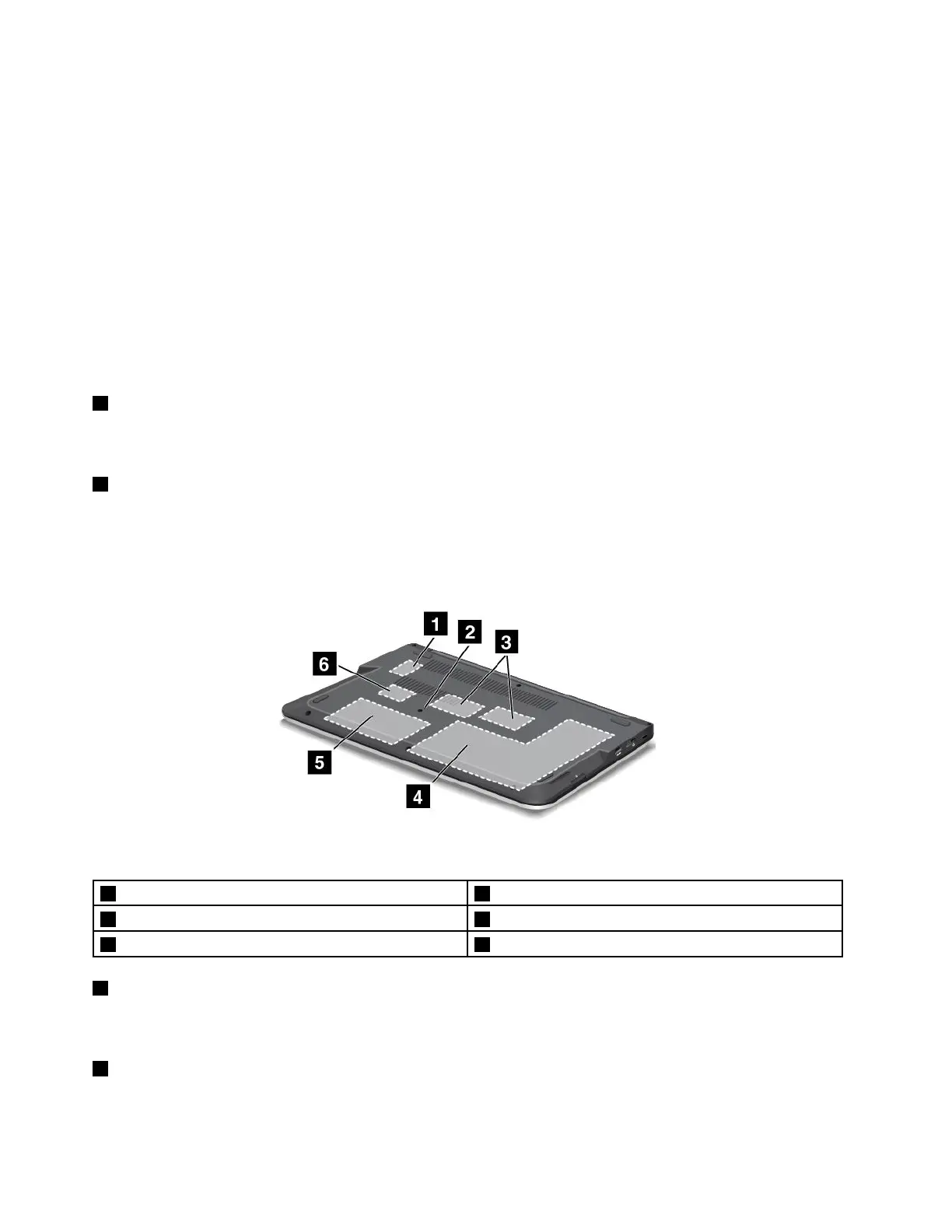
Bottomview
Figure4.Bottomview
1WirelessWANcardslotorM.2solid-statedriveslot4Integratedbattery
2Emergency-resethole5Harddiskdrive,solid-statedrive,orhybriddrive
3Memory-upgradeslots6WirelessLANcardslot
1WirelessWANcardslotorM.2solid-statedriveslot
Forsomemodels,awirelessWANcardmightbeinstalledforyoutoestablishwirelessWANconnectionsor
anM.2solid-statedrivemightbeinstalledfordatastorage.
2Emergency-resethole
Ifthecomputerdoesnotrespond,removetheacpoweradapterandresetthecomputerbyinsertinga
straightenedpaperclipintotheemergency-resetholetoturnoffthecomputer.
6UserGuide


 To Next Page