Portable Connector Chapter 6: Menu Bar Functions
Page 27 TTN169162-D02
6.2.3.1 How to Change an Existing Reference Tool Definition
• In the upper portion of the dialog, click on the name of the reference tool needing change.
• In the lower portion of the dialog, change the values for that reference tool as needed.
• Click the Change button and then click the Close button.
6.2.3.2 How to Add a Reference Tool Definition
• Click the Add New button.
• In the upper portion of the dialog, find and click on the name of the new reference tool.
• In the lower portion of the dialog, enter values for this new reference tool as needed.
• Click the Change button and then click the Close button.
6.2.3.3 How to Delete a Reference Tool Definition
• In the upper portion of the dialog, click on the name of the reference tool to delete.
• Click the Delete button and then click the Close button.
6.2.3.4 How to Discard Any Changes Made in the Dialog
• Click the Cancel button and then click YES in the warning message that appears.
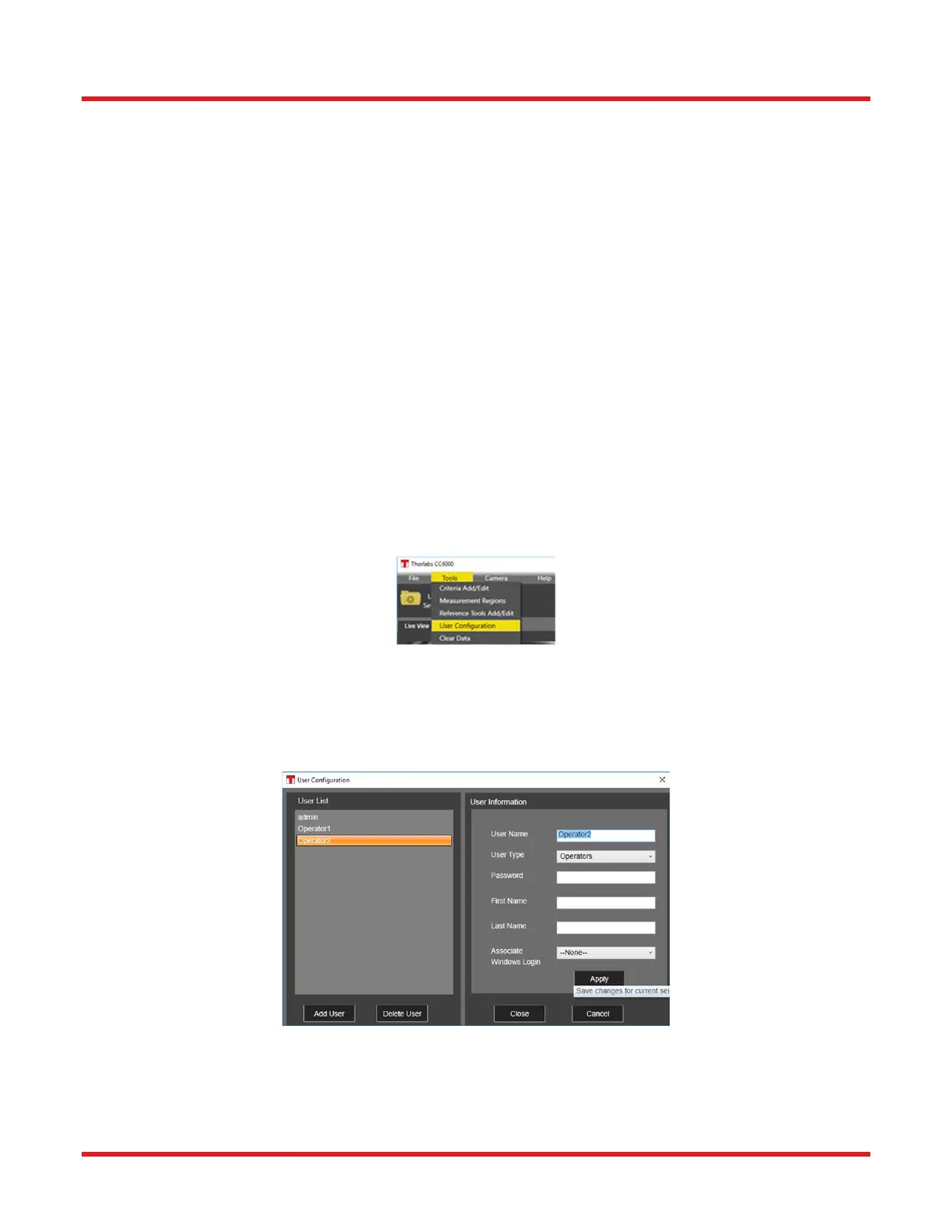
6.2.4. User Configuration (Tools\User Configuration):
Selecting the User Configuration option in the Tools menu shows the list of CC6000 Software users, with the current
one highlighted at left and its characteristics shown on the right (its “properties”). This tool allows Administrator-
level (or higher) users to create new user accounts or modify the properties of existing ones.
6.2.4.1 Descriptions of Buttons
• Add User: Creates a new User. For more information see below “HOW TO ADD A USER”.



 To Next Page