Portable Connector End Face Geometry Interferometer Chapter 6: Menu Bar Functions
Rev B, April 16, 2019 Page 30
Brightness Status: The status box will show one of four possible values (Decrease, Increase, No Change, or
Danger. Which depends on illumination characteristics, and the instructions shown will change to indicate what
action should be taken to improve the illumination.
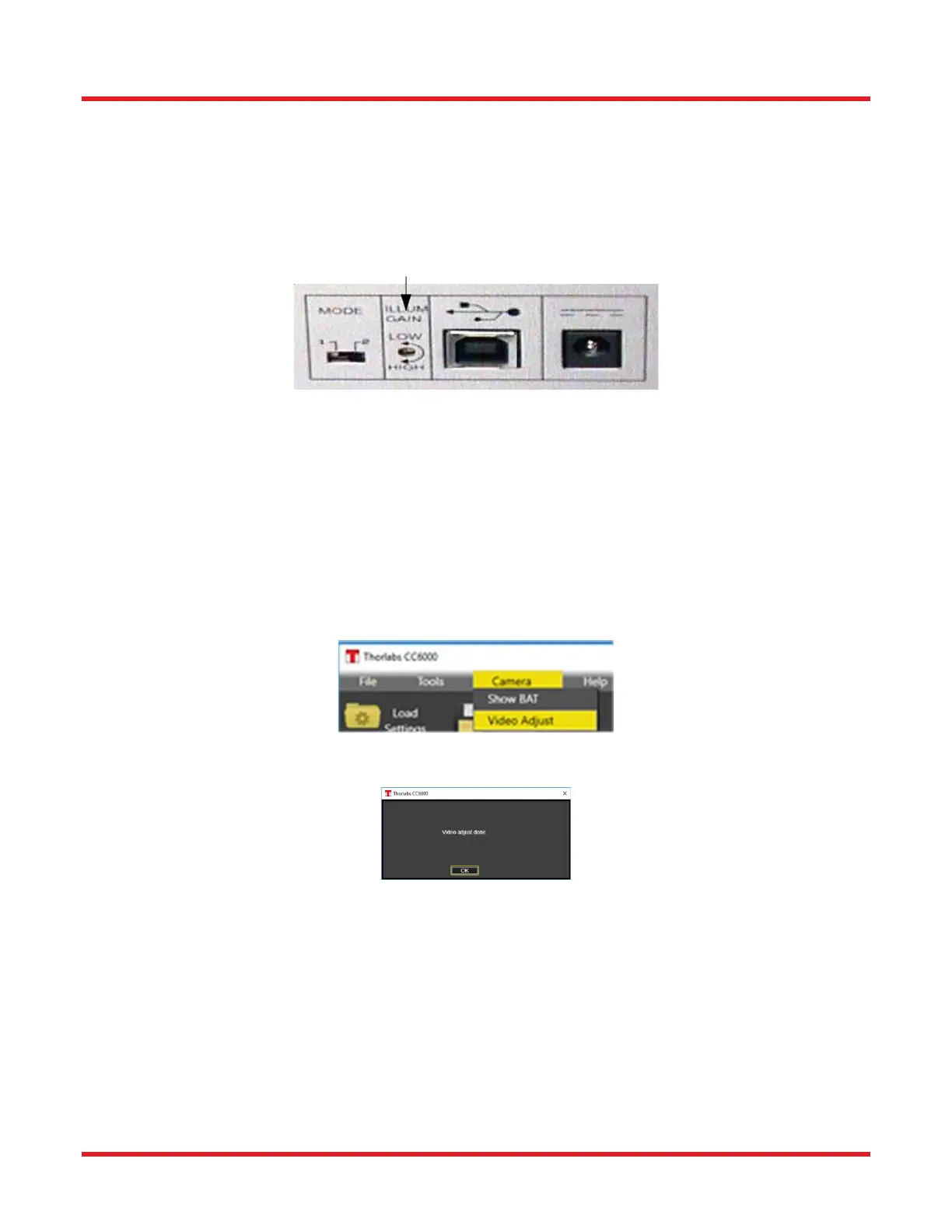
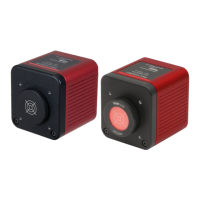
• Decrease: If the status reads ‘Decrease’, decrease the illumination level using the CC6000’s rear Illum Gain
adjustment turned in the LOW (counter- clockwise) direction.
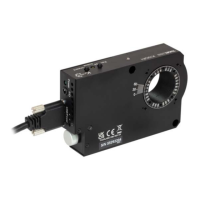
o Rear Illumination Gain adjustment is shown below:
• Increase: If the status reads ‘Increase’, increase the illumination level using the CC6000’s rear Illum Gain
adjustment turned in the HIGH (clockwise) direction.
• No Change: If the status reads ‘No Change’, the illumination level is optimal, so no adjustment is required.
• Danger: If the status reads ‘Danger’, please contact Thorlabs’ service department.
6.3.2. Video Adjust
This tool is used to adjust the illumination automatically. Choose Video Adjust from Camera menu.
A notice of completion is displayed after the illumination is adjusted. Click OK to the message.



 To Next Page