Portable Connector Chapter 5: Starting the CC6000 SOFTWARE Program
Page 23 TTN169162-D02
Chapter 5 Starting the CC6000 SOFTWARE Program
1. Turn on the Computer, Monitor, and Interferometer. Allow the interferometer to warm up for at least 2-3
minutes.
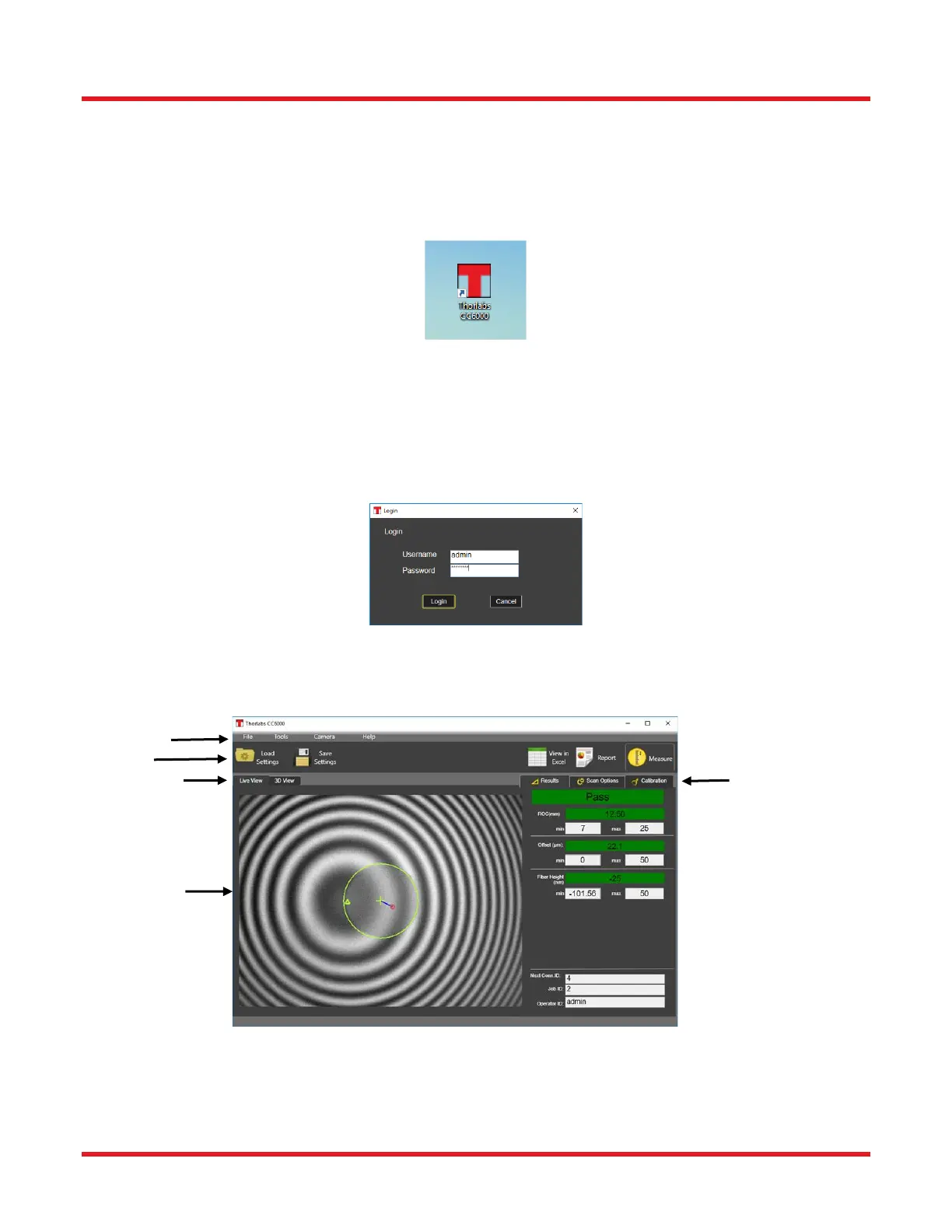
2. Click on the CC6000 SOFTWARE icon on the desktop to activate the program launch.
3. After the camera detection, CC6000 Software Login dialog appears. Enter User name and Password to
launch the program. To eliminate being prompted to log into CC6000 Software see User Configuration,
section User Properties.
a. Default user name: admin
b. Password: thorlabs (NOTE: Password is case sensitive).
To create more users see User Configuration. (See page 27.)
4. The Main Screen will appear when the program is activated.
Note: On start of the CC6000 software, If the instrument’s illumination is not optimal use the Video Adjust option
from the Camera menu. (See page 30.)



 To Next Page