2.9.1 Geo Points Menu
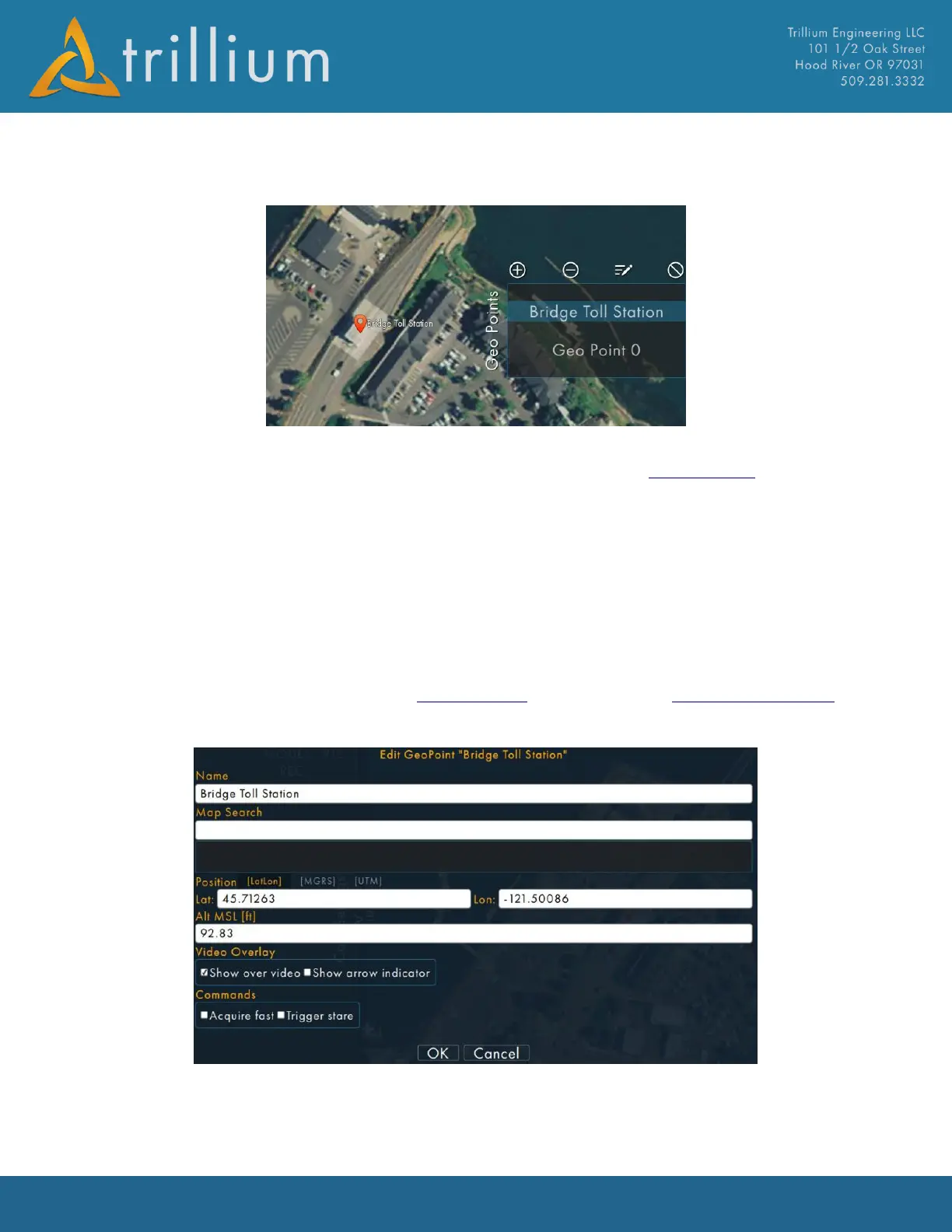
The Geo Points Menu is used to show a list of pre-defined coordinates for areas of interest during a
mission. It can be scrolled via a “flick” gesture. It is currently part of the Map Window and resides
on the right-hand portion of the map.
• Clicking the + icon will add a Geopoint at the current image location.
• Clicking the – icon will delete the selected Geopoint.
• Clicking the pencil Icon will edit the selected Geopoint.
• Clicking the “no” icon will remove ALL GeoPoints after a confirmation prompt.
• Clicking on any item in the list will command the gimbal to switch to Geo Point Mode and
look at the coordinate defined for that item.
The Geo Points Menu stores its data in the GeoPoints.csv file located in the Trillium Data Folder.
Editing GeoPoints will bring up the following window where you can edit the Name, Lat/lon and
Altitude MSL:
Video overlays can be added for each Geopoint which displays on the video as a circle to add
awareness to the operator. Check “Show over video” to display overlay when point is in the screen,
and check “Show arrow indicator” which draw arrow to the point when off screen.


 To Next Page