Installing the System MicronNav System
0656-SOM-00001-07 44 © Tritech International Ltd.
Video Input lists the video inputs (or capture devices) that are installed into Windows.
These may include internal capture cards, external USB devices and built-in webcams (if
using a laptop computer).
If there is a capture device that has more than one driver installed then it may be necessary
to try out the different drivers to find one that is correctly working. If there is a choice of drivers
then it is recommended to opt for the driver labelled 'WDM' or 'Video' and not 'VFW'. A VFW
driver (Video For Windows) is a driver that is used with older operating systems. Although
it may work, the same performance will not be obtained compared with using more recent
operating system drivers.
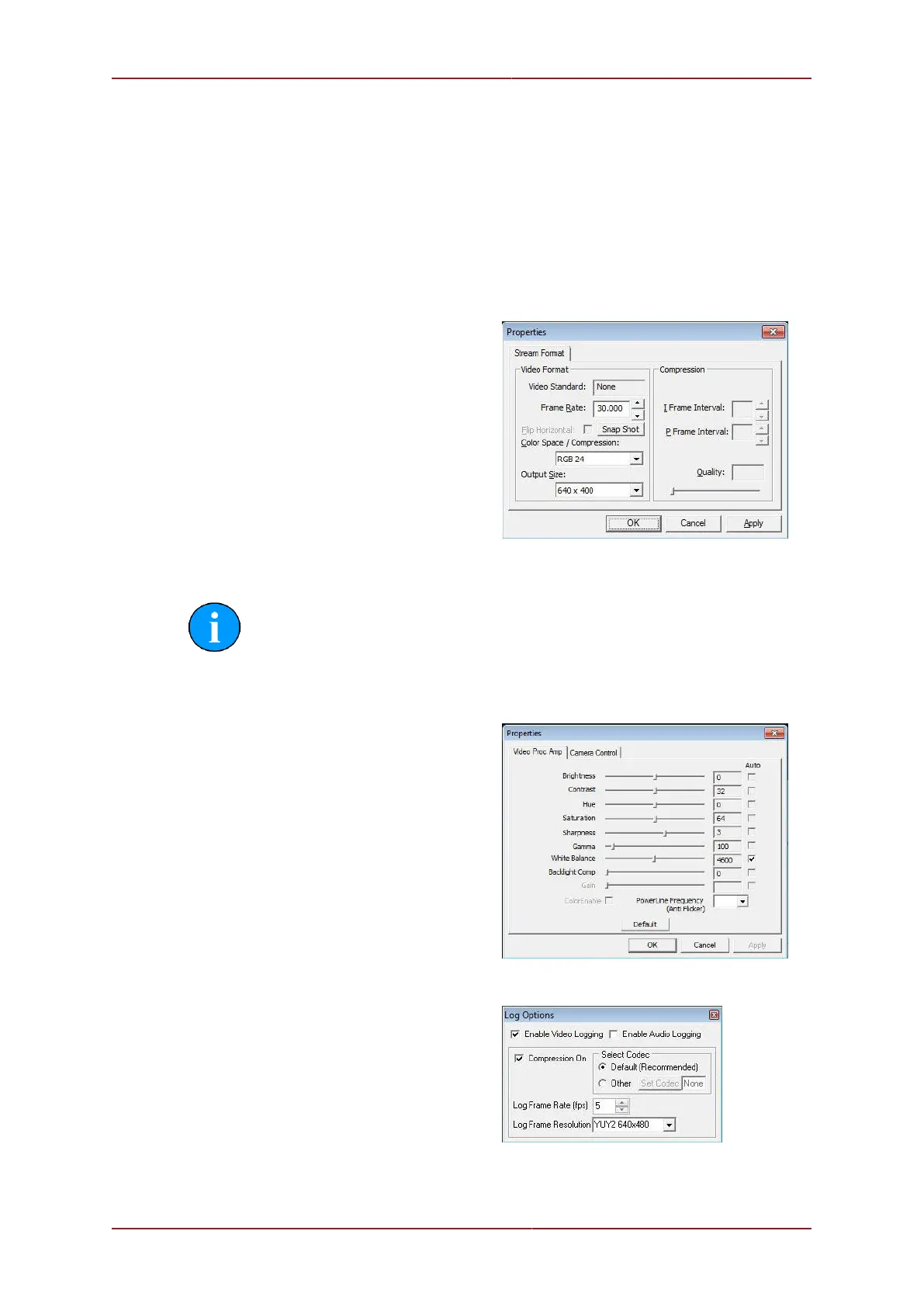
Video Display is called out from the
device driver and will change according to
capture device. This dialog will not always
be available and will depend on the source
capture device that is currently selected from
the Video Input sub-menu.
Figure 3.2.
Note
The Output Size can affect the display quality of the video preview. If the
video display appears distorted try changing Color Space/Compression and
Output Size to rectify (RGB24 and 640x480 are the recommended settings).
Video Configure is also called out from
the device driver and will change according to
capture device.
Figure 3.3.
Log Options The video footage is logged
into an .AVI file format with same filename
as the main Seanet Pro .V4Log log file. A
frame index record is now logged into the
log file which is used during playback to
synchronise the video to any other sensor
data that is being extracted from the log. if no
other sensor data is present then video will be
replayed on it’s own.
Figure 3.4.


 To Next Page