EasyManua.ls Logo

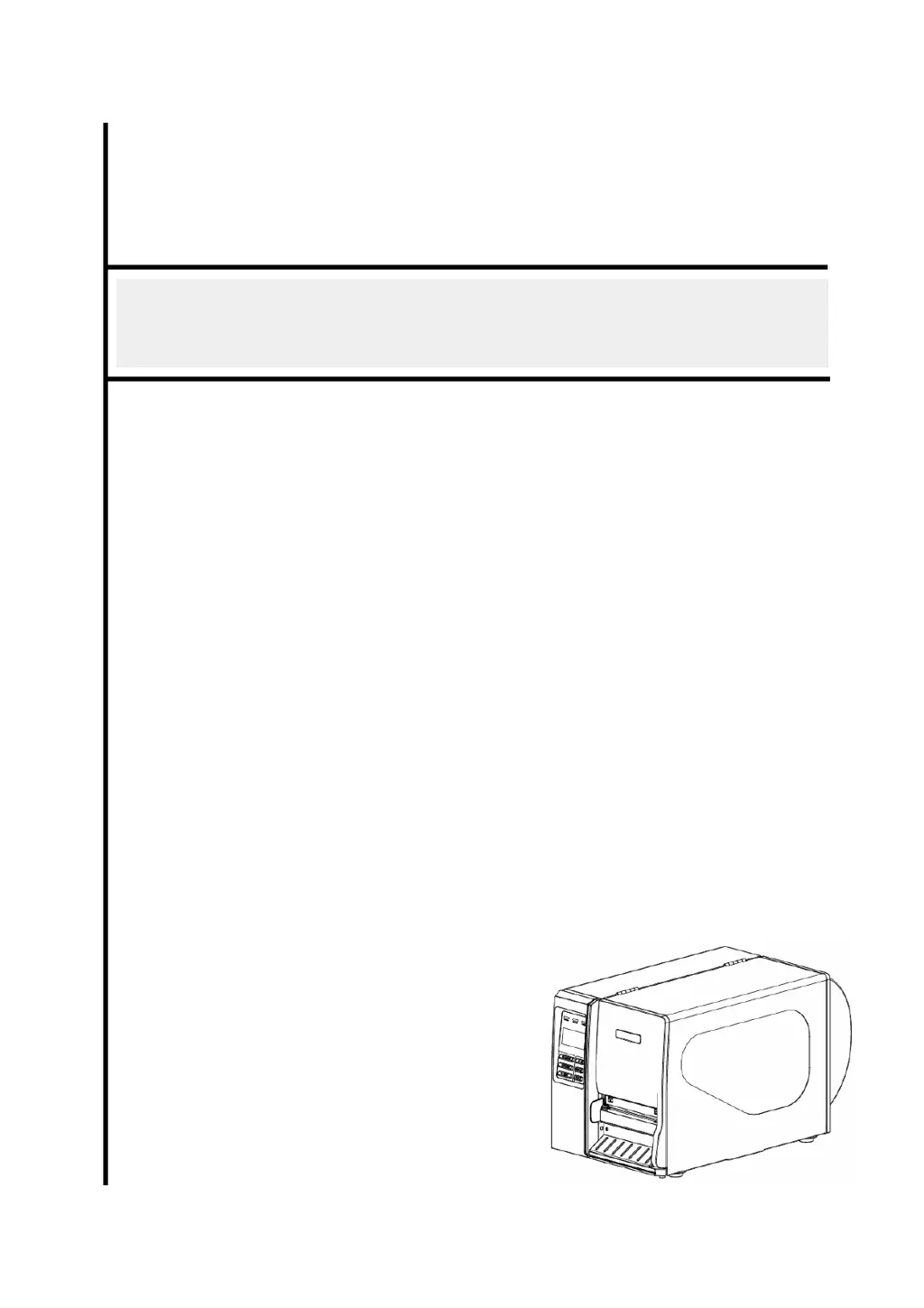
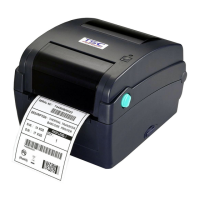
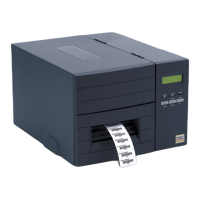
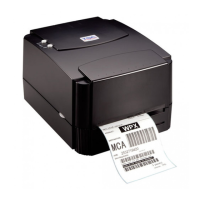
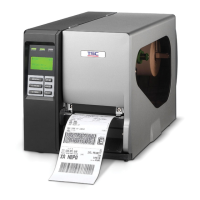
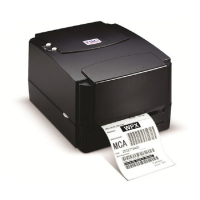
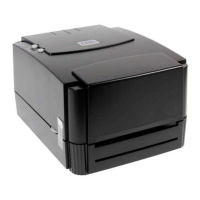
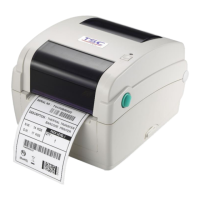
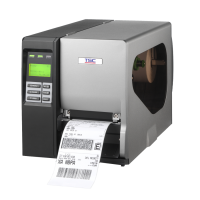
TSC TTP-2410M - User Manual

TSC TTP-2410M
79 pages
Print Icon
To Next Page IconTo Next Page
Loading...
USER’S
MANUAL
TTP-2410M/346M/644M
TTP-246M Plus/344M Plus
THERMAL TRANSFER / DIRECT THERMAL
BAR CODE PRINTER

Other manuals for TSC TTP-2410M

Questions and Answers

  • P
    phillipslauraSep 8, 2025
    What to do if my TSC TTP-2410M Barcode Reader shows 'No Ribbon'?
    • C
      Carmen KellerSep 8, 2025
      If your TSC Barcode Reader displays 'No Ribbon', it could be due to: * Running out of ribbon. Supply a new ribbon roll. * The ribbon being installed incorrectly. Please refer to the steps in user’s manual to reinstall the ribbon.
  • C
    Candice JosephSep 10, 2025
    Why is my TSC TTP-2410M Barcode Reader unable to use the SD card?
    • G
      Gregory RoseSep 10, 2025
      If your TSC Barcode Reader is unable to use the SD card: * The SD card might be damaged. Use the supported capacity SD card. * The SD card might not be inserted correctly. Insert the SD card again.
  • C
    Cody GallagherSep 12, 2025
    How to fix 'Memory full' error on TSC TTP-2410M Barcode Reader?
    • D
      Dennis SnyderSep 12, 2025
      If your TSC Barcode Reader displays 'Memory Full (FLASH / DRAM)', it means the space of FLASH/DRAM is full. Delete unused files in the FLASH/DRAM.
  • S
    Stacy LuceroSep 14, 2025
    What does 'Take Label' mean on my TSC Barcode Reader?
    • R
      ryanjamesSep 14, 2025
      If your TSC Barcode Reader displays 'Take Label', it indicates that the peel function is enabled. If the peeler module is installed, please remove the label. If there is no peeler module in front of the printer, please switch off the printer and install it. Check if the connector is plugging correctly.
  • A
    Amanda GreenSep 15, 2025
    Why doesn't the PS/2 port work on my TSC Barcode Reader?
    • C
      Caitlin RhodesSep 15, 2025
      If the PS/2 port on your TSC Barcode Reader isn't working: * Ensure you turned off the power prior to plugging in the PS/2 keyboard. Turn off printer power prior to plug in the PS/2 keyboard. * The PS/2 keyboard might be damaged. Make sure the keyboard is fine.
  • D
    David WalkerSep 18, 2025
    What to do if TSC TTP-2410M says 'Carriage Open'?
    • M
      michael96Sep 18, 2025
      If your TSC Barcode Reader shows 'Carriage Open', it means the printer carriage is open. Please close the print carriage.

Summary

1. Introduction

1.1 Product Introduction

Overview of the printer's features, design, and capabilities.

1.2 Compliances

Lists regulatory standards and certifications the printer adheres to.

2. Operations Overview

2.1 Unpacking and Inspection

Instructions for safely unpacking and checking the printer and its accessories.

2.2 Printer Overview

Visual guide to the printer's external components and their locations.

2.3 Operator Controls

Details on the front panel display, LED indicators, and buttons for printer operation.

2.4 Setting Up the Printer

Step-by-step guide for initial printer installation and connection.

2.5 Installation of Ribbon

Procedures for correctly installing and loading the printer ribbon.

2.6 Installation of Media

Instructions for loading various types of media, including roll labels and fan-fold labels.

2.7 Adjustment Knob

Guidance on using adjustment knobs for print head pressure and burn line.

2.8 Using the Keyboard with PS;2 Interface

How to connect and use an optional PS/2 keyboard for printer control.

3. Menu Function

3.1 Setup Menu Overview

Overview of the printer's setup menu structure and options.

3.2 File Manager

Functions for managing files stored on the printer's memory.

3.3 Diagnostics

Tools for diagnosing printer status and configuration.

3.4 Language

How to change the display language on the printer's LCD.

3.5 Service

Options for initializing the printer and checking mileage information.

4. Diagnostic Tool

4.1 Start the Diagnostic Tool

Guide to launching and using the printer diagnostic utility software.

4.2 Printer Function (Calibrate sensor, Ethernet setup, RTC setup.........)

Details on printer functions accessible via the diagnostic tool, like calibration and setup.

5. Troubleshooting

5.1 Common Problems

A guide to identifying and resolving common printer issues and error messages.

5.2 Mechanism Fine Adjustment to Avoid Ribbon Wrinkles

Instructions for adjusting printer parts to prevent ribbon wrinkles.

6. Maintenance

TSC TTP-2410M Specifications

General IconGeneral
BrandTSC
ModelTTP-2410M
CategoryBarcode Reader
LanguageEnglish

Related product manuals