Setting-Up
3.
Select the following:
S
erial
Port
Select the name of the serial port to which the
logging device is connected: COM1, COM2,
Rate
Select the baud rate for the port. Higher baud rates
are recommended to transfer data at a faster rate.
Select a lower baud rate only if you are having
trouble communicating at a higher rate.
4. Select Test to verify that you have set up the communications port
properly. The system displays an informative message indicating
whether it was able to establish communications.
5. As an alternate, you can select F
ind Port, to have the TRAKPRO
software search the available COM ports, looking for an attached
D
USTTRAK monitor.
6. Select
OK to accept the setup or Cancel to discard the changes.
Note: Some computers do not communicate reliably at baud rates
above 9600.
Setting the Real-Time Clock
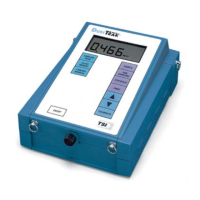
The D
USTTRAK monitor has an internal real-time clock that keeps track
of the time of day (The format is HH:MM where HH is the hour in 24-
hour format and the MM is minutes) and the date. It is very important
for the D
USTTRAK monitor to have the time and date correctly set;
otherwise, date and time stamping of recorded data and calibrations will
not be correct.
There are two ways to set the time and date. The first is to use the
supplied T
RAKPRO
TM
Data Analysis Software.

 To Next Page
 Loading...