Chapter 3
immediately when zero is reached and “CALIBRATE ZERO” appears
on the display. If not, try again until it does.
2. Press CALIBRATE again and the current calibration factor will be
displayed with flashing up and down arrows.
3. Use the up and down arrows on the keypad to adjust the calibration
factor. To revert back to factory calibration, set to 1.00.
4. Press SAMPLE to store the value and exit calibration mode, or press
CALIBRATE to exit without saving the new value.
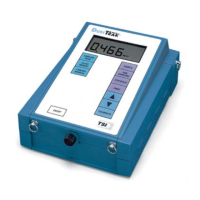
Setting Custom Calibration Factors using T
RAKPRO Software
The T
RAKPRO software allows you to store several custom calibration
factors along with a brief title for the aerosol or environment the calibration
was taken. A calibration factor can be downloaded to the D
USTTRAK
monitor when you want to make measurements of that aerosol or
environment. All future measurements will be adjusted by the new custom
calibration factor until you change it to some other value. To set this new
custom calibration factor using T
RAKPRO software, do the following:
1. Connect your D
USTTRAK monitor to the computer and start the
T
RAKPRO software.
2. Select D
USTTRAK Model 8520 from the Options menu. Or, select
D
USTTRAK from list of available instruments on the Drop-Down menu
on the menu bar.
3. Select C
alibration in the Instrument Setup menu. The following
dialog box is displayed.
05/09/2006
05/09/2006

 To Next Page
 Loading...