14
UltiMaker S8 Installation and user manual
Setup with Material Station
If the UltiMaker S8 is going to be used in combination with the Material Station, you do not need the spool holder,
but you need several accessories included with the Material Station instead.
Tip: Consult the Material Station quick start guide for additional installation information.
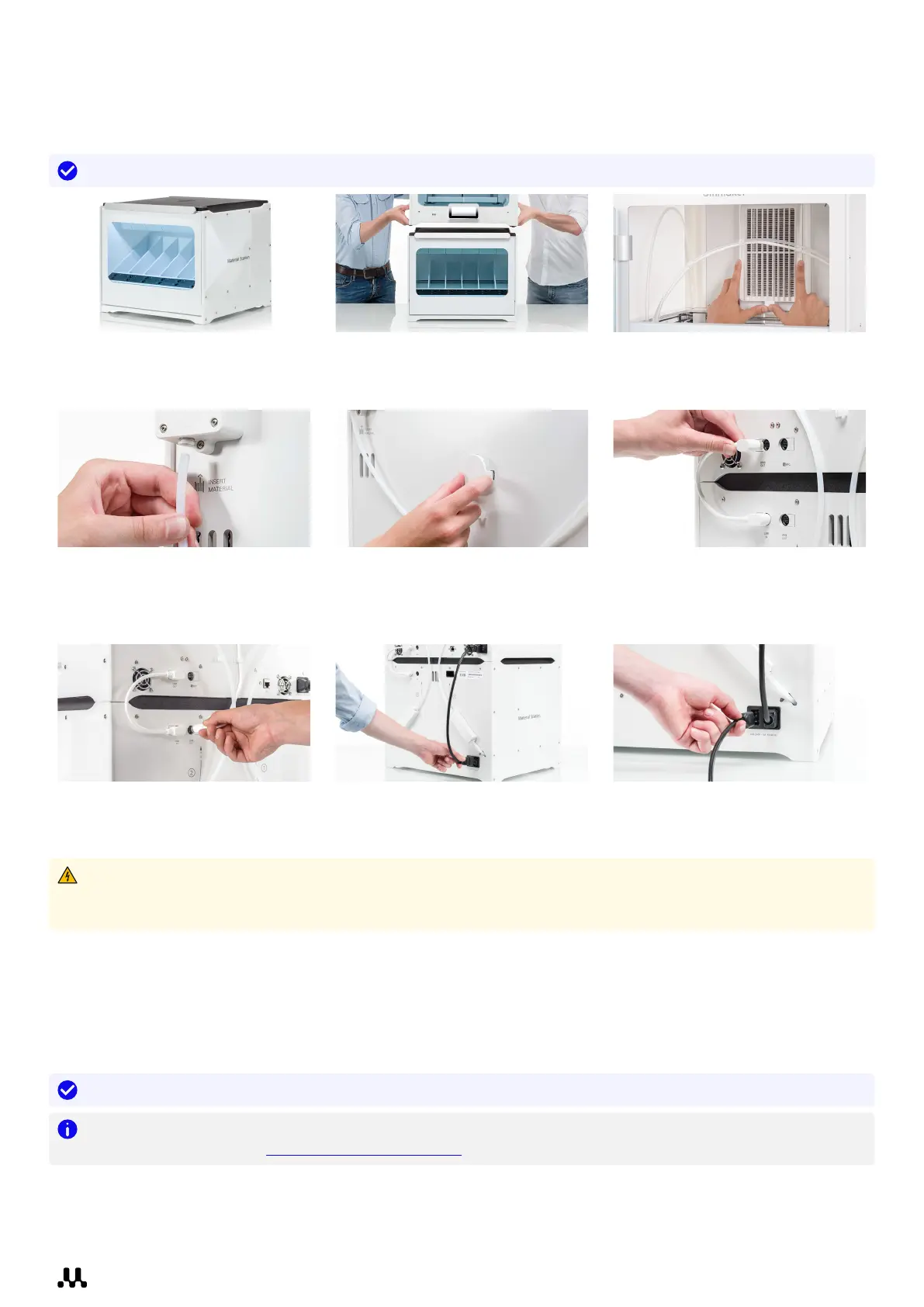
1. First place the Material Station
on the installation surface.
2. With two people, lift the
UltiMaker S8 and place it on
top of the Material Station.
3. Open the door, align the Air
Manager filter with the housing,
and gently push it into place.
4. Insert the tube coupling
collets and Material Station
Bowden tubes into the
UltiMaker S8 feeders.
5. Place the spool holder cap into
the hole for the spool holder
in the S8 back panel.
6. Connect the short Material
Station cable from UMB IN
on the Material Station to
UMB OUT on the printer.
7. Connect the Air Manager
cable to the UMB OUT port on
the Material Station.
8. Connect the power extension
cable to the UltiMaker S8 and
the Material Station.
9. Connect the power cable to the
Material Station and the other
end to a power outlet.
Warning: A mains socket with a protective earth/ground terminal must be used. Make sure that the building
installation has dedicated means of over-current and short-circuit protection. Use a circuit breaker with a
current rating not exceeding 16A (for 220-240 VAC circuits) or 20A (for 100-120 VAC circuits).
3.5 Welcome setup
Turn on the printer using the power switch at the back. When you power on the UltiMaker S8 for the first time, you
will first be asked to select your preferred language. After this, the welcome setup will appear on the display.
Tip: You can always change the language again later from the Options menu (gear icon), under Settings.
Note: The first UltiMaker S8 printers are shipped from the factory with a blocking firmware. The printer must
first be updated via USB (ultimaker.com/s8-firmware). After updating, you can complete the welcome setup.
During the welcome setup, you will load material, connect the printer to the network, and add it to your Digital
Factory workspace. The printer will guide you through the steps.














 To Next Page