A-2 Appendix A: Changing the Computer BIOS Setting
D291566.1.fm
Appendix A: Changing the Computer BIOS Setting
Some computers may need to have their BIOS reconfigured to ensure they will not startup
from the USB ports. If your computer is not booting up correctly at startup, remove any USB
connections and attempt to start the system again. If it boots correctly without any USB
connections, then follow the instructions below to change the BIOS settings.
Note: The instructions below show startup menus and screens from a Lenovo computer
running BIOS version 1.46 (6JET88WW). Screens and instructions may vary slightly
when working with other computers, although the required boot priority order will remain
the same.
1. Power the computer on.
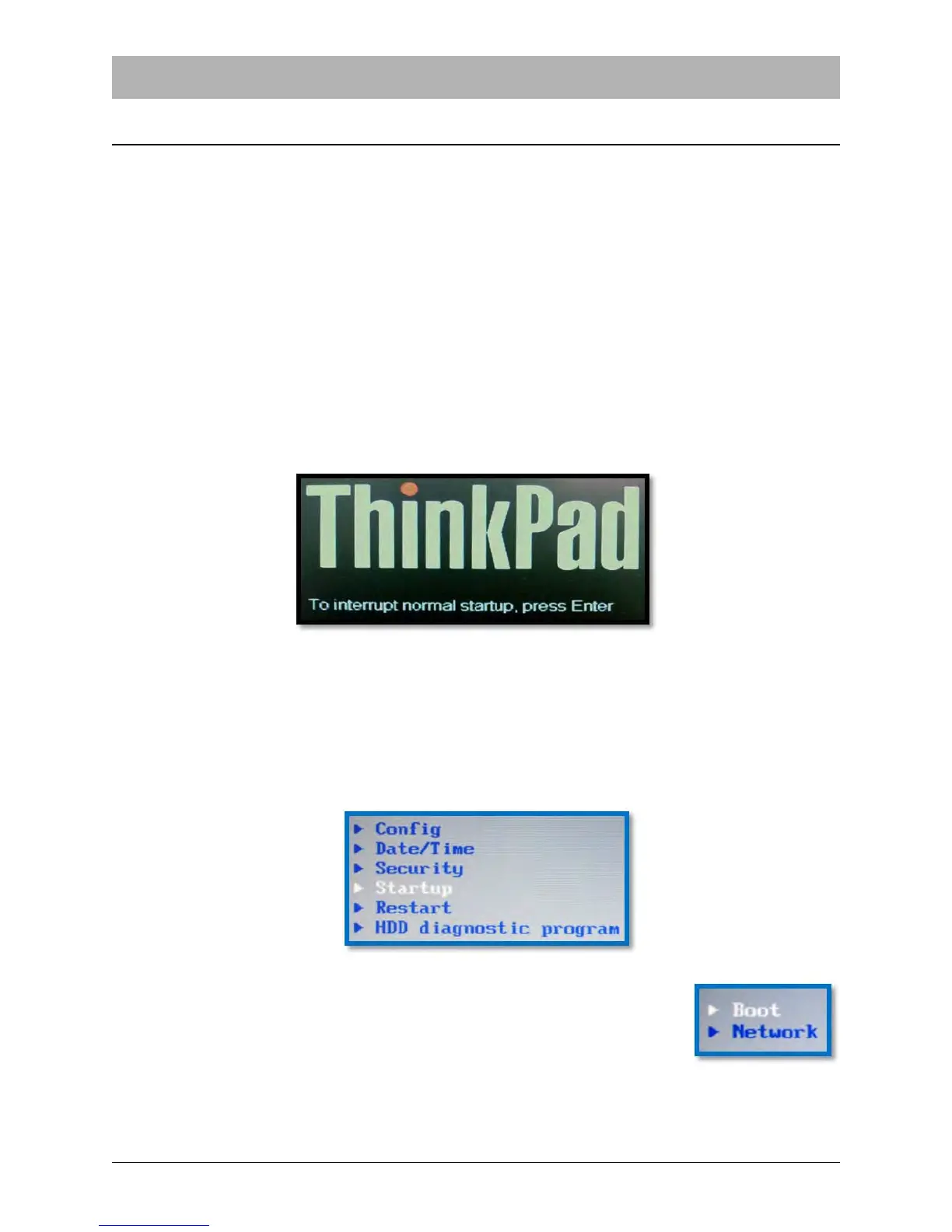
2. When the image below appears, press F1 to enter the BIOS Setup Utility.
Note: The message on the startup screen prompts the user to press Enter to interrupt the
startup process, however that is a less direct route to the Startup Menu. Pressing F1
during startup takes you directly to the Startup Menu.
3. Use the Up / Down arrow keys to hightlight Startup. Press Enter to open the Startup
Menu.
4. Use the Up / Down arrow keys to hightlight Boot. Press Enter to
open the Boot Options Menu.
5. Use the Up / Down arrow keys to highlight ATA HDD0.



 To Next Page