OTDR Series e-Manual, D07-00-076P-RevC00 Page 83 of 107
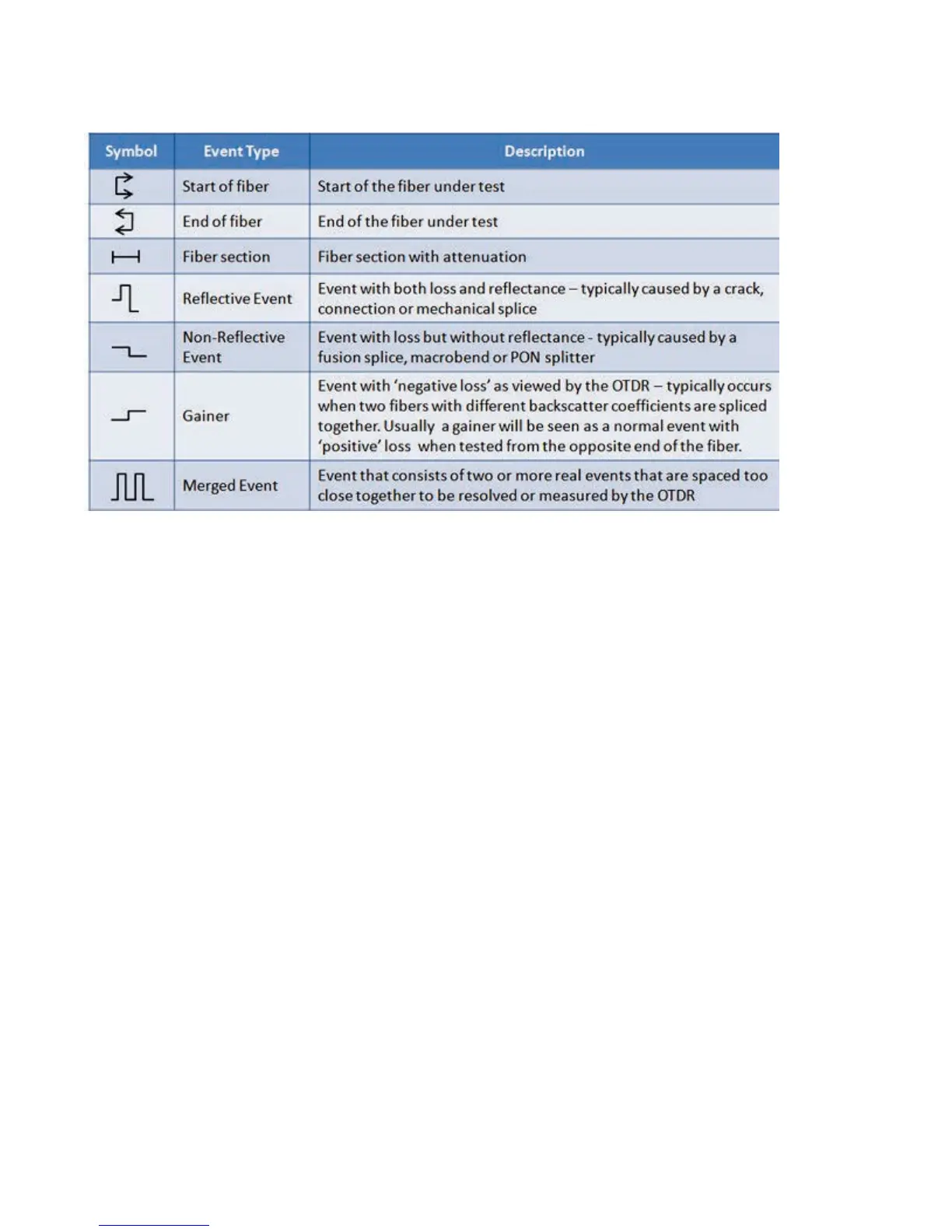
7.4.2 Event Types
The Event is color coded depending on Threshold settings defined in the test setup.
• Red indicates the event fails or exceeds the Pass threshold criteria.
• Green indicates the event passes the Fail threshold criteria.
7.4.3 Event Editing
Adding events:
1. Ensure the Trace view is active.
2. Position marker at the point where a new event will be inserted. You can use the Left/Right
rubber keys to position the marker more precisely, if needed.
3. Press the Add button on the right sidebar. A new event number will appear on the trace
and in the event table.
4. Select the new event in the event table and click the Modify button in the right sidebar.
Position the splice loss markers to measure the new event accurately. Once markers are
positioned, click the Accept button.
Deleting events:
1. Select the event in the Event table or by using the marker on the trace.
2. Use the left/right arrows to position the marker more accurately, if needed.
3. Once selected, press the Delete button on the right sidebar. The event will now be deleted
from the event table and the event number will no longer appear on the trace.


 To Next Page