10.4.4 Active Alarms Menu
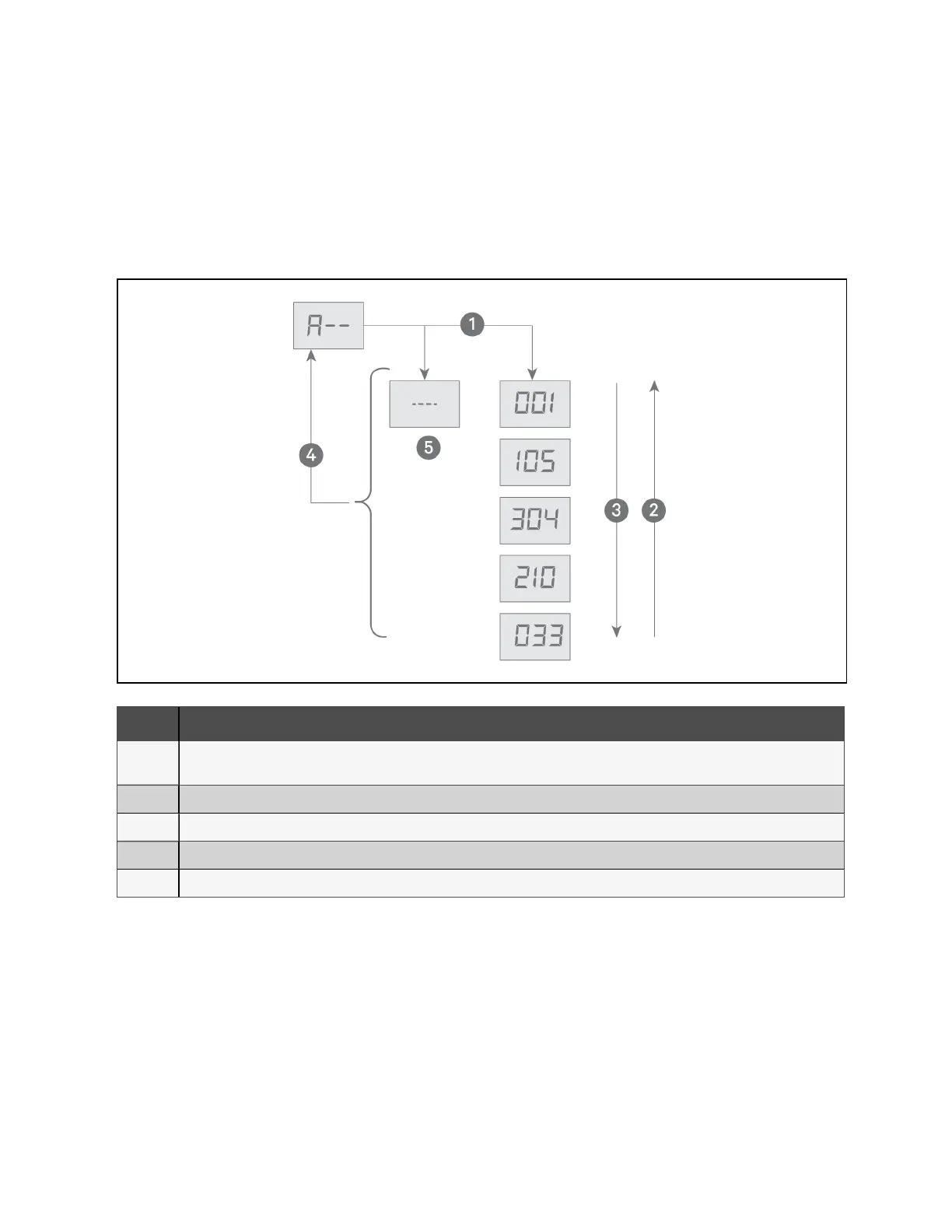
In the active alarms menu, A——, press ENT to enter the active alarm items, which displays all the active alarms of condenser,
see Table 10.3 on page47, and Table 10.4 on page49, for descriptions of the system and EC fan alarms. When there are
multiple alarms, the IDs display by order received/initiated with the most recent alarm displayed first. Figure 10.10 below,
shows the operation and structure of active alarms menu.
Figure 10.10 Active Alarms Menu
Item Description
1
Pressing ENT displays dashes to indicate no alarm, or displays the most recent alarm ID first then in the order received/initiated. See Table
10.3 on page47, and Table 10.4 on page49, for a description of the alarm IDs.
2 Pressing up arrow, cycles up through the alarm IDs.
3 Pressing down arrow, cycles down through the alarm IDs.
4 Pressing ESC returns to the active alarms menu.
5 Dashes only display indicates no active alarms.
10.4.5 History Alarms Menu
In the history alarms menu, H——, press ENT to enter the history alarm items, which displays 100 history alarm records of the
condenser, see Table 10.3 on page47, and Table 10.4 on page49, for descriptions of the system and EC fan alarms. The
item ID is the sequence number of the history alarms. The item ID and alarm information ID display alternately. When there are
no alarms, dashes ––– display. You can clear the alarm history using the C98 configuration menu item. Figure 10.11 on the
next page, shows the operation and items structure.
10 Control Operation Proprietary and Confidential ©2024 Vertiv Group Corp. 45
Vertiv™ Liebert® MCV Installer/User Guide



 To Next Page