Vigilant MX1-Au Operator Manual Document: LT0439
Page 23 October 2018 Issue 1.73
RESETF1 will reset the displayed point. See the next section for
more detail.
DISABLEF2 will disable or enable the displayed point. See page 6-
5 for more detail.
TESTF3 will test the point. See pages 6-11 and 6-15 for more
detail.
VALUESF4 will display analogue values for a point. See page 6-17
for more detail. This option is not displayed for a zone.
Pressing MENU again will switch back to the Recall Point or Zone Status
display.
From the recall zone status display, press MENU or MENUF4 to display
the zone menu commands.
Press RESETF1 or RESET to reset the zone.
Zone 001 Std Detection G1
Office
Press OK to confirm reset
or CANCEL
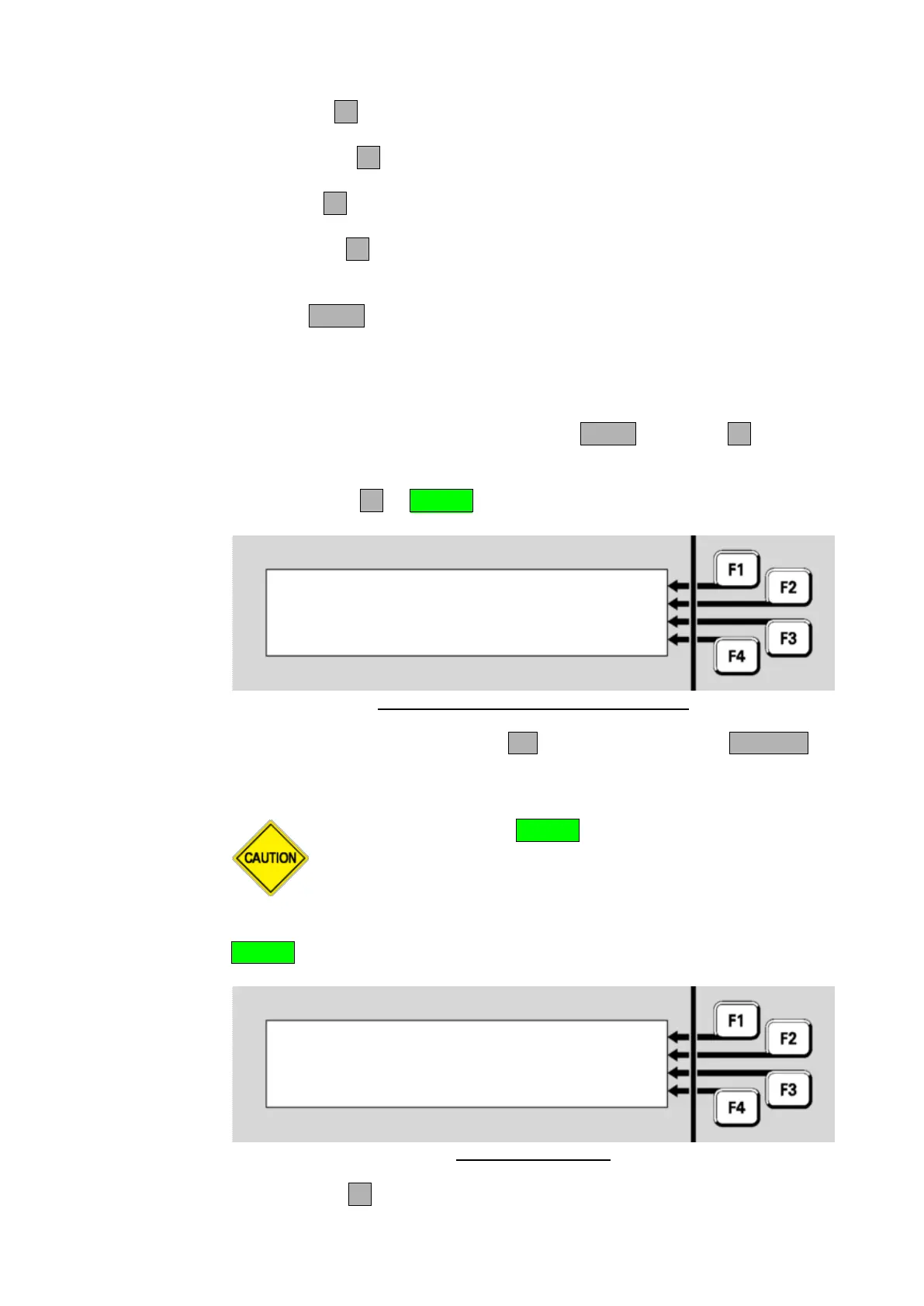
Fig 6-2 – Zone Reset Confirmation Display
In the confirmation display, press OK to confirm the reset or CANCEL for
no action.
Do not press the f.b.p. RESET control when the Alarm List is
being shown unless the intent is to reset all alarms.
A range of zones can be reset from a base display by pressing the
RESET key. Reset options are as shown below.
Select an item to reset | ZONE
| POINT
|
|
Fig 6-3 – Reset Menu
Press ZONEF1.
Resetting Zones or Points
Resetting a
Range of
Zones



 To Next Page