Chapter 1: Memory Array Hardware Installation
24
Violin 6000 Series Memory Array Installation Guide
535-0045-00 Rev 02
To connect the PCIe cables to a host computer:
1. Install a PCIe Host Bus Adapter (HBA) card into the available PCIe slot in the host computer,
ensuring that it is securely seated into the PCIe slot. See the documentation that came with
the PCIe card for installation instructions.
2. Orient the unconnected end of the PCIe cables so that they align with the PCIe connectors on
the back of the host computer.
3. Securely plug the cables into the PCIe connectors.
Connecting Network Interface Cables to the Memory
Array
This section describes the steps required to connect the network interface cables from the Memory
Array to a storage area network (SAN) via Fibre Channel, InfiniBand or a Local Area Network (LAN)
via 10GbE iSCSI. See SAN-attached Storage Configurations on page 9 for instructions on the ports
to use on the Memory Array for the supported configurations, including a high-availability
installation.
Note: When connecting the interface cables in a SAN-attached configuration, it is important to
know the ports from which LUNs are exported from the Web interface. See Understanding Port
Numbering on page 10 for more information on the port numbering of the support cards.
Connecting Fibre Channel Cables
The dual 8Gbps ports on the Fibre Channel HBA are SFP+ with LC-style connectors. See Fibre
Channel Adapter Card Specifications on page 63 for more information.
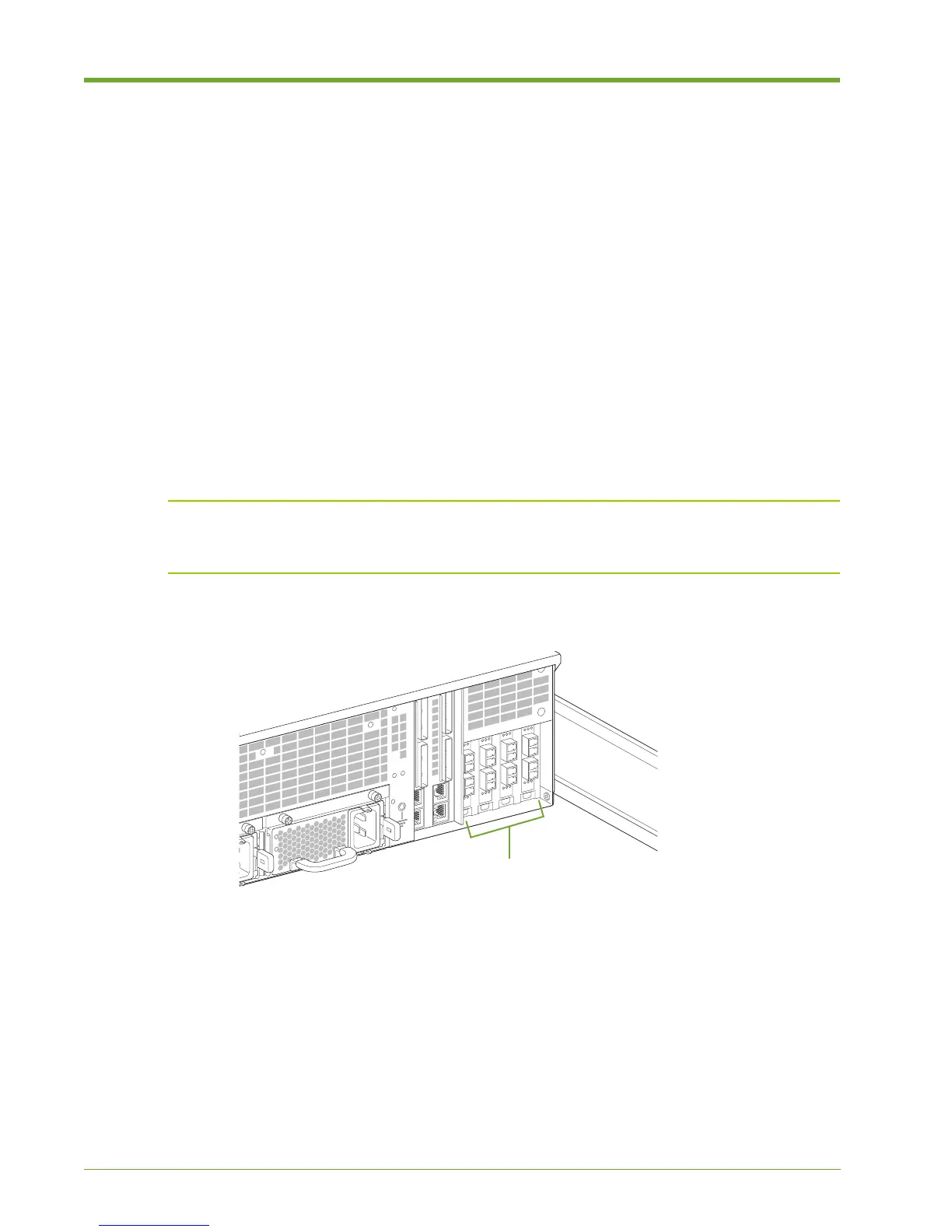
1. Align one connector of the Fibre Channel cable with the appropriate Fibre Channel connector
at the rear of the Memory Array chassis.
2. Securely plug the Fibre Channel cable into the Fibre Channel connector of the appropriate
Fibre Channel port.
3. Connect the other end of the Fibre Channel cable to a host computer or Fibre Channel switch.
Figure 1.17 Connecting Interface Cables to the Memory Array
Fibre Channel, 10 GbE iSCSI
or InfiniBand Ports


 To Next Page