15
in the previous field to specific slot number (01-99), you can set the slot time value to Clear Slot, so this event
will be used to clear a specific slot on the message board. Select the preferred slot time or mode using the
Up/Down arrow keys.
Name – A descriptive title/name for the event that will help identify it from other events. Type in the description and hit
[Enter] to move to next field.
Font – Select the preferred text font style & size this event. Use the Up/Down arrow keys to select one of 16 font styles.
See the VNS16xx/VNS2640 user manual for full description of all available font styles.
Format – Select the preferred text display formats for this event. Use the Up/Down arrow keys to select one of 16 text
formats. See the VNS16xx/VNS2640 user manual for full description of available text formats.
Timeout – Set the length of time the message will stay on the screen. Enter 5 digits number to setup the timeout total
number of seconds or ‘00000’ when no timeout is required (message will stay on the screen until cleared by
another event).
Align – Select the text line alignment. Use the Up/Down arrow keys to select Left, Center or Right.
Flash – Enable or disable the text flash mode. Use the Up/Down arrow keys to select.
Yloc – Select the vertical location of the text line on the screen for this event. Depends on the selected font size & style,
the user can select the exact vertical location of the text line, for example to vertically center the line on the
screen. Use the Up/Down arrow keys to select one of 10 values (0 – top of the screen).
TX Channel – Select the transmitter RF channel for this event, if other than the default channel, in cases where the
VS4820 base station operates on more than one frequency.
Auto – Enable/disable the event activation style. If enabled, the event will be initiated instantly, (when activated)
without any additional user input or confirmation. If the Auto mode is disabled, the user will be able to
temporarily add/edit the event text message and confirm the activation before any data is being transmitted.
Message – Text message field. Enter here the text message for this event. Hit the [Del] key to clear the screen and the
[Enter] key when done typing.
Use the Left/Right arrow keys to navigate between the fields. Use [F5] to save any changes, [F9] to delete the event (if
editing an existing event) and hit the [ESC] key to exit the screen back to the previous menu.
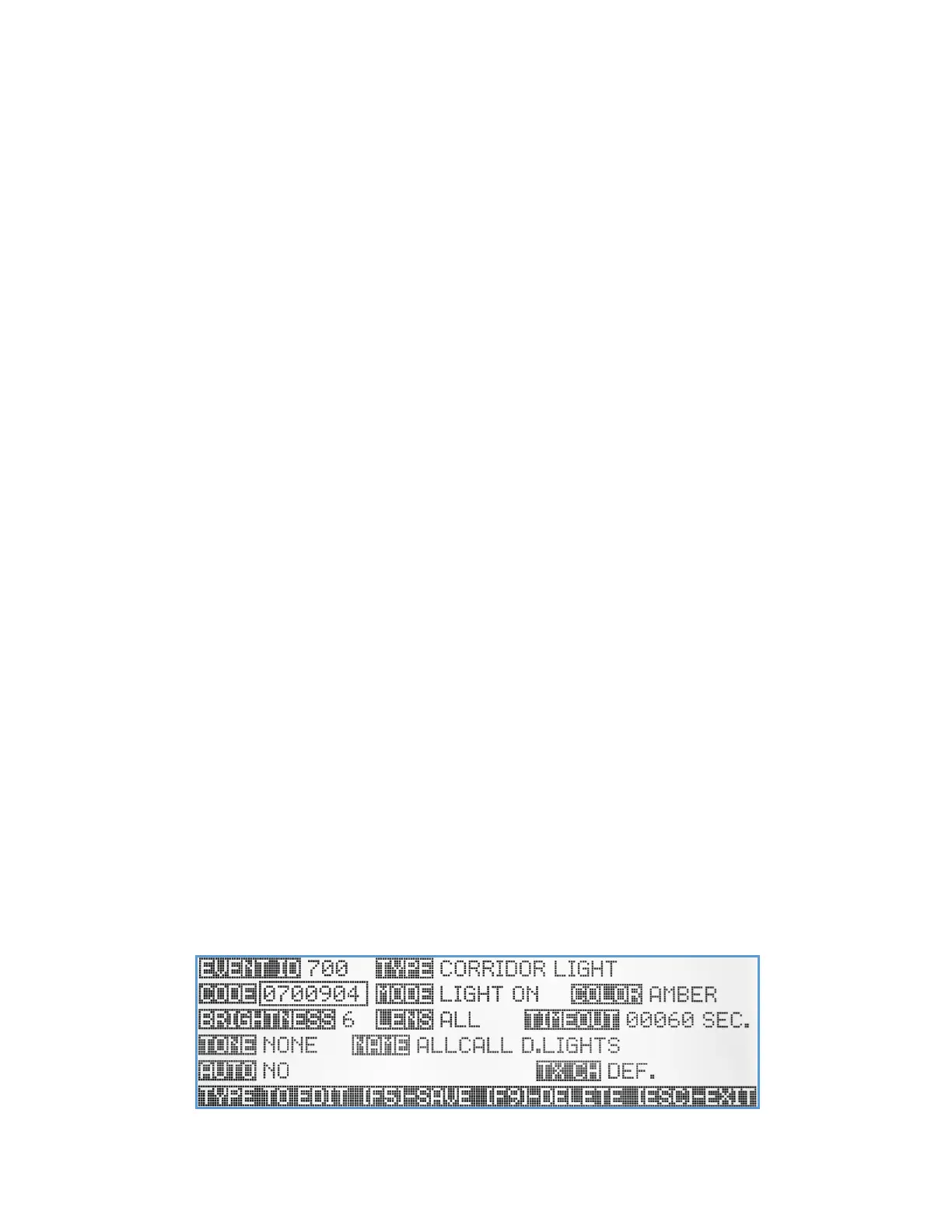
Corridor Light Event
The Corridor Light event type is designed to control and activate the Visiplex VNS2710 wireless corridor light fixture that
is being used to help indicate to staff about specific call status, especially when used in assisted living facilities.
Code – A unique 7-digit activation code that can activate a single or group of wireless corridor light devices. Usually,
Visiplex products include up to 8 user-programmable activation codes, that provide individual activation or as
part of up to 8 groups/zones. Use the keyboard numeric keys to enter/edit the activation code.


 To Next Page