31
Event/Bell Schedule Setup
The VS4820 comes with an event schedule database, that can be programmed to automatically activate a pre-defined
event at a specific day and time. The schedule database can hold and activate up to 99 different events per day, making
it an ideal solution for break bell alerts, shift change notifications, lights control, etc. Visiplex offers a free VPS software
that can help with creation and update of event schedule, and later uploading it to the VS4820.
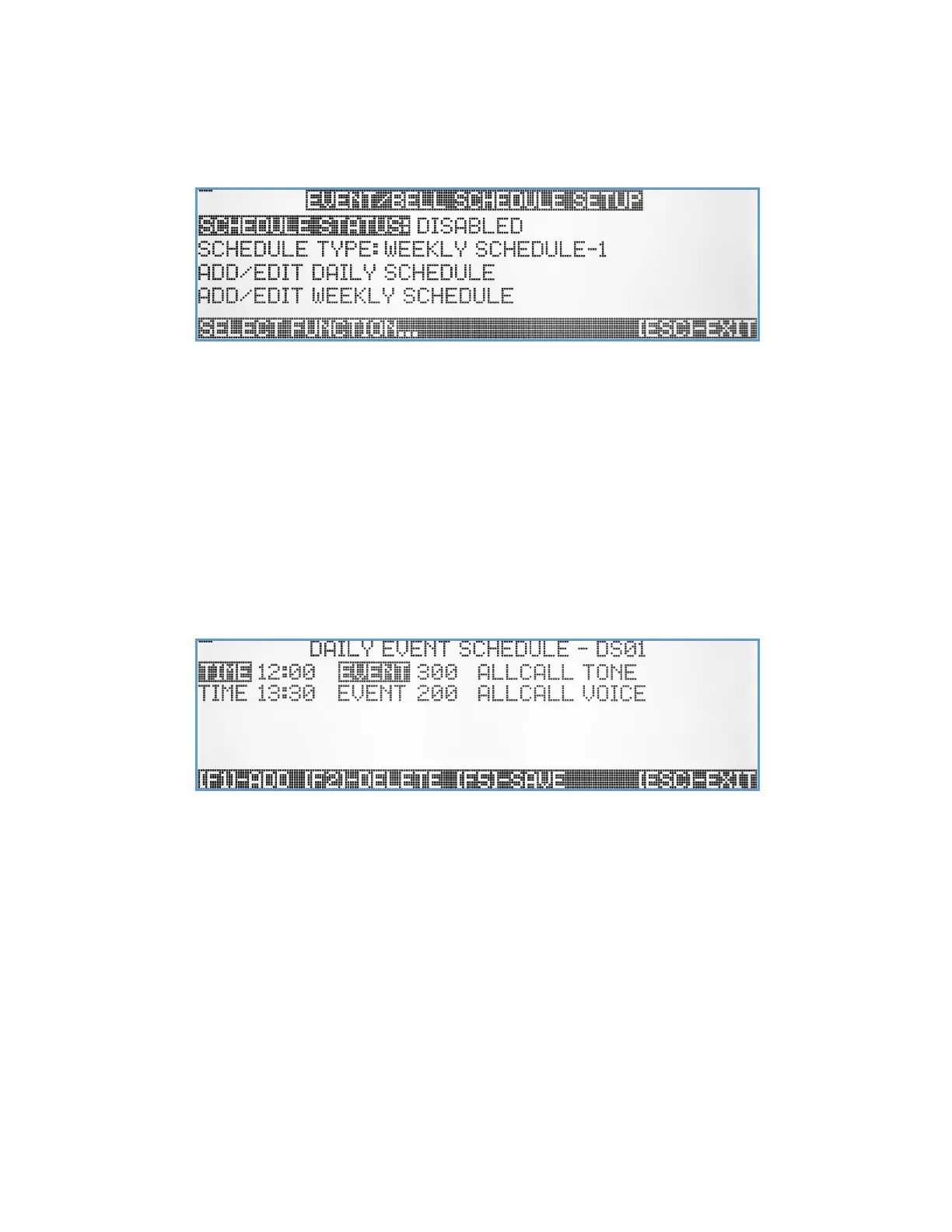
Schedule Status – This menu option let the user control the schedule state. The user can select between Disabled,
Paused and Active schedule states. The schedule will run and activate events only when it set into active state.
Schedule Type – Enable selection between four options of Weekly Schedule or Calendar mode. A Weekly Schedule
design is based on 7 weekdays with up to 99 time-assigned events per day. This type of schedule mode will
repeat itself every week. The user can program 4 different weekly schedule templates and switch between
them if needed during special occasions such as holidays, summer breaks, etc. The Calendar schedule design is
based on assigning up to 99 time-assigned events per day for every day of the year. This schedule design is
more flexible for the user, but rarely being used.
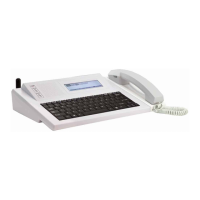
Add/Edit Daily Schedule – Up to 99 daily schedules templates can be created, each with up to 99 time-assigned events.
Use the Up/Down arrow keys to select the daily schedule to view/edit and hit [Enter]. The screen will display all
existing events for that specific daily schedule.
Use the [F1] key to add a new event to the daily schedule, enter the time of day that the event needs to be
initiated at and enter the event number to be activated. Use the Up/Down arrow keys to select any event on
the list to be edited. Hit [F2] to delete any selected event. When done, hit the [F5] key to save your changes or
[Esc] to ignore and switch back to the previous screen.
If needed, the user can create multiple Daily Schedule templates, that later will be used to be assigned to each
day of the week in the Weekly Schedule.
Add/Edit Weekly Schedule – The VS4820 offers 4 weekly schedule templates. Using the Up/Down arrow keys, the user
can select the weekly schedule template to view or edit.
When selected, the screen will display a list of all weekdays for that schedule with the ID of the daily schedule
that has been assigned to each day.


 To Next Page