27
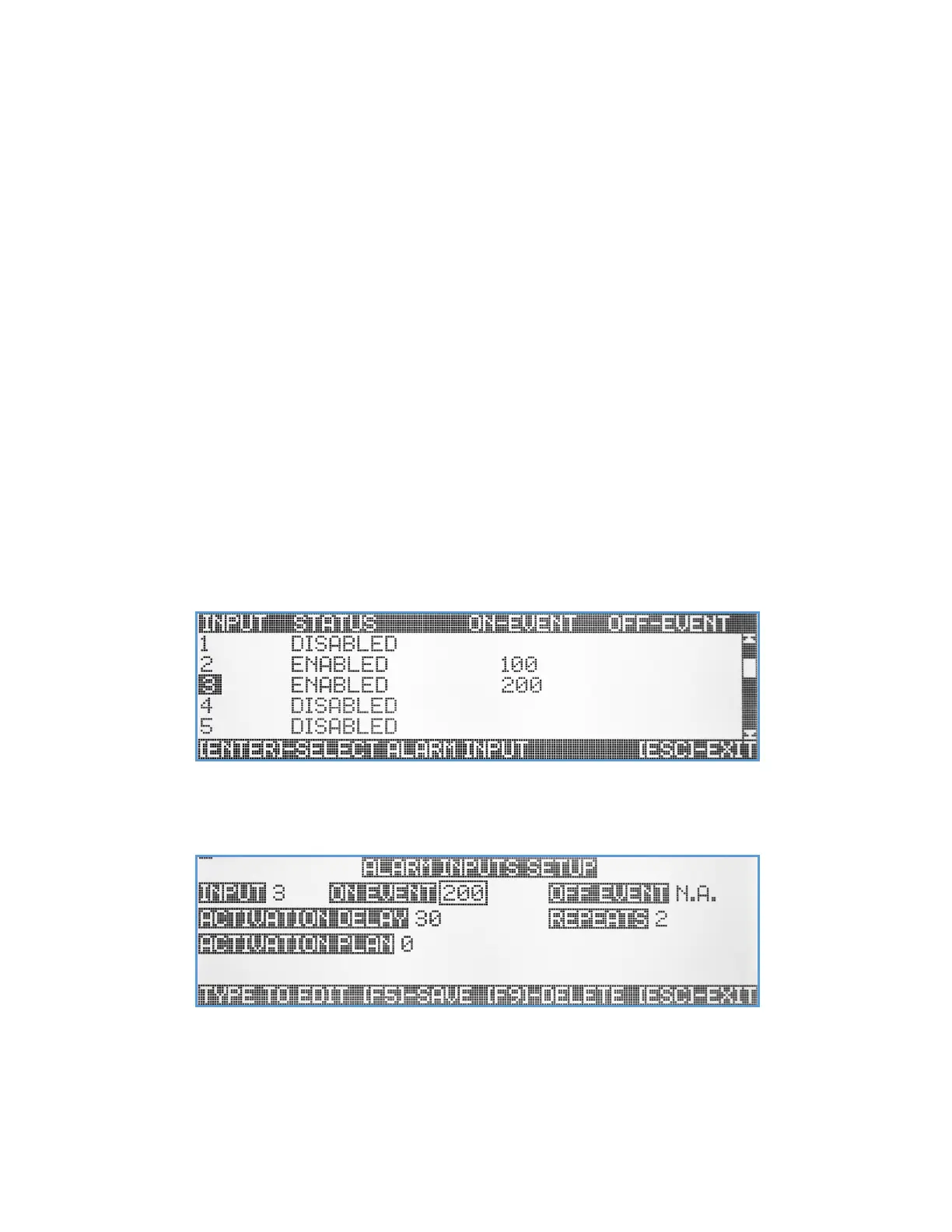
Repeats – The On Event can be set to repeat every minute up to 15 times (or until call cancel/clear is received).
Call Type – Select the type of panic button to match the device model and button that is being set.
Activation Delay – The On Event activation can be delayed up to 90 seconds if needed. Enter values from 00-90 in this
field (00 – no delay is the default value).
Supervised – Each of the Visiplex wireless panic button products, can be set to send periodically a unique supervision
call, that reports its functionality and battery level status. This is being used to ensure that the panic button can
be received by the base station and is fully functional. Setting up the Supervised feature to Yes, will enable the
monitoring by the VS4820 of this panic button device. If for some reason a supervision call will not be received
from a specific panic button, the VS4820 can be programmed to notify a supervisor about it.
Activation Plan – The VS4820 comes with a user programmable Activation Plan, that set up daily active hours for every
weekday. The user can program up to 9 different activation plans and assign each alarm on the system to be
monitored during the assigned activation plan hours only. Assigning Activation Plan 0 to alarm, will make it
monitored by the system all the time (24/7).
Use the Left/Right arrow keys to navigate between the fields. Use [F5] to save any changes, [F9] to delete the panic
button record (if editing an existing one) or hit the [ESC] key to exit the screen back to the previous menu.
Alarm Inputs Setup
The VS4820 comes with 7 alarm inputs, located at the back of the unit. The RJ-45 Alarm connector uses one pin as a
common and the other 7 pins as inputs. When any of the alarm inputs is shorted to the common line, an alarm event will
be triggered. Visiplex offers a special RJ-45 to 8-pin screw terminal connector to simplify the hard-wired connections.
When the Alarm Inputs Setup submenu is being selected, the VS4820 screen will display a list of all 7 alarm inputs with
status and assigned events. Using the Up/Down arrow keys the user can select an alarm input to program or edit,
switching to the Alarm Input Setup screen.
Input – Shows the selected alarm input
On Event - A 3-digit event ID that will be activated when the alarm input is triggered. Enter ‘000’ to disable.
Off Event – A 3-digit event ID that will be activated when the alarm input is back to normal. Enter ‘000’ to disable.


 To Next Page