Amending operators settings and user rights
Click on the box beside Level, this will step through the 6 Operator set up pages, chose the
operator required.
The operator ID can be changed using the on screen keyboard
The operators Password can be changed
The operators user rights can be amended:
Menu – Allows access to the menu
Play/Search – Allows access to the Playing back and Searching
Archive – Allows the ability to download information
Rec - Allows the ability to turn off recording
PTZ – Allows the ability to control PTZ cameras
Network – Allows the ability to view remotely with the client software
Covert – Allows the ability to view coverted cameras
Shutdown – Allows the ability to turn the power off from the front panel
Click on the “Rights “ box to show camera selection:
The cameras which each user can view can also be allocated.
Once the above has been set, ensure that the Activate box has been ticked.
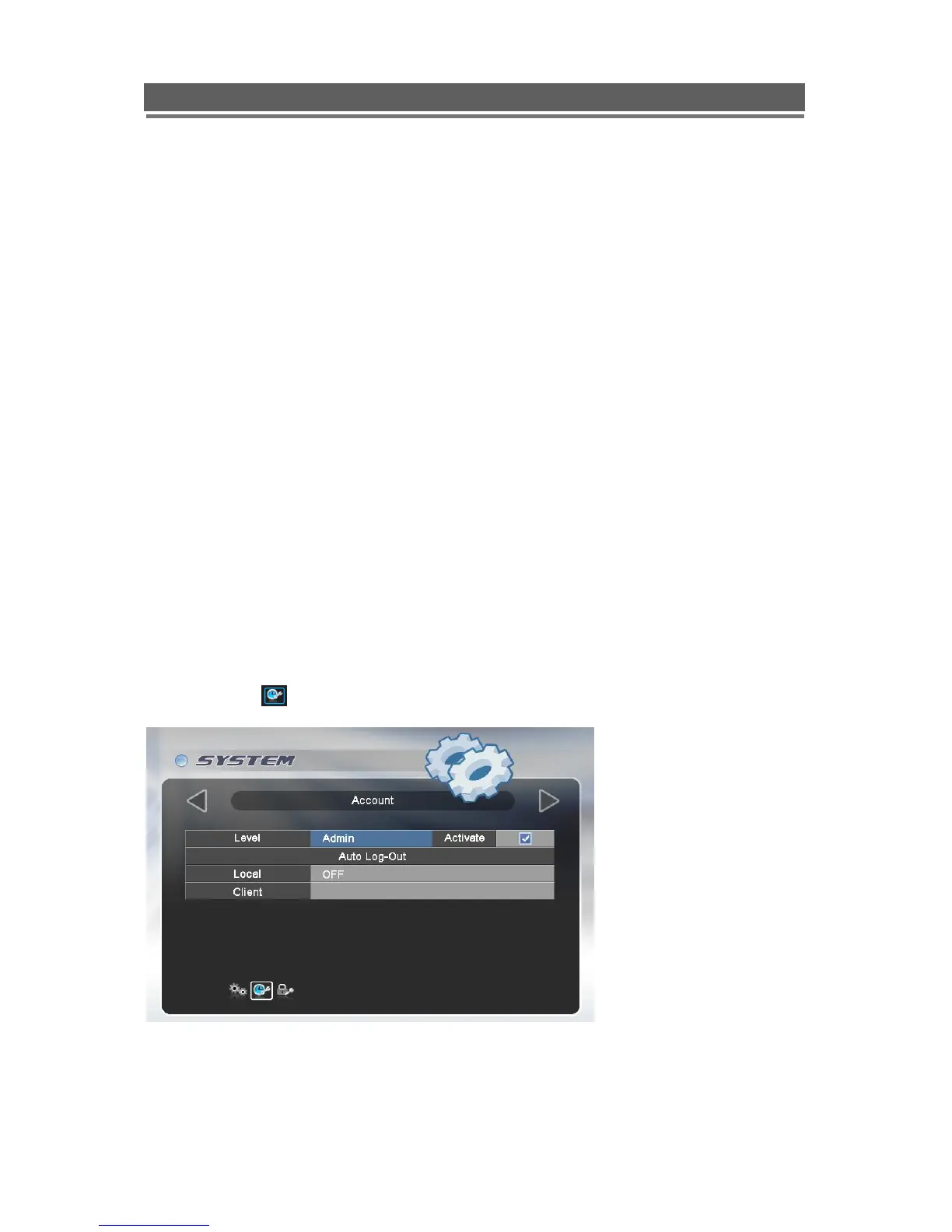
Automatic timed log out
The system can be set to automatically log out a user after a certain amount of time if no key
presses have been made. The operator level has to have been activated before this can be
set. While in the account setup page for the User, click on the middle icon at the bottom of
the menu page , the screen will change to show the following:
Click on the boxes adjacent to “Local” for the time out period for operation form the front
panel. Click on the box adjacent to “Client” for the time out period for operation form the
client software. This can be set to either: Off, 15 mins, 30 mins or 1 Hour.


 To Next Page