40
The configuration menu
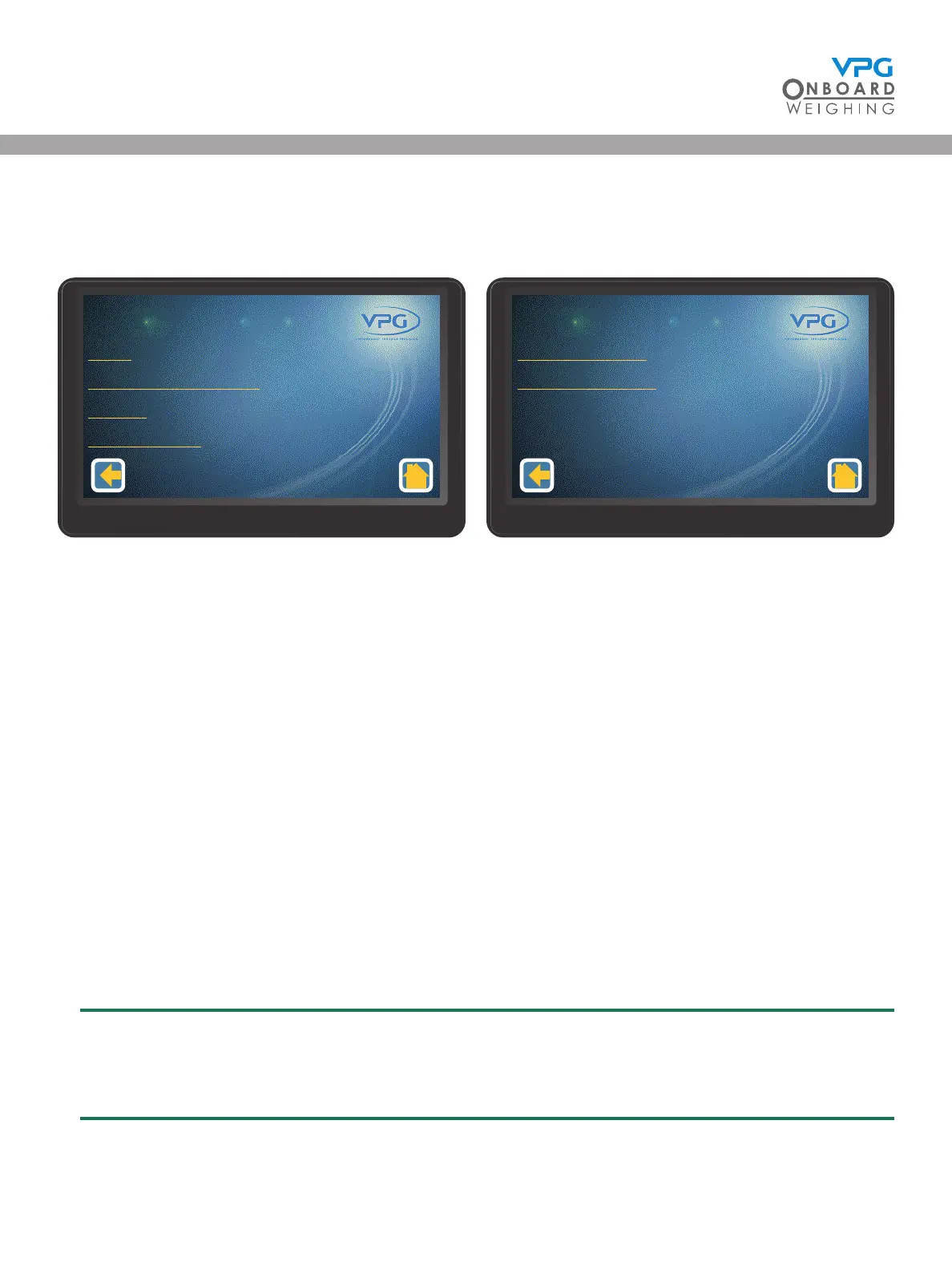
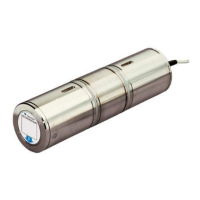
Tap the conguration icon on the home page to open the conguration menu:
There are six submenus in the conguration screen:
• Login. Use this option to login to the VanWeigh® system. This will allow you to edit the
conguration options.
• Vehicle Conguration. Use this menu to input the vehicle conguration into the VanWeigh®
system. This is a step by step process that allows you to congure the junction box and alarms
and nally calibrate the system. The vehicle will start to display weight measurements when
the calibration is complete.
• Display. Use this menu to congure the brightness, language, volume, date & time and power
o timer settings of the display unit.
• System Cong. Use this menu to congure any additional features, such as a serial
scoreboard output.
• Weighing Cong. Use this menu to congure the weighing units and how the weight values are
displayed.
• PIN Management. Use this menu to edit the PIN numbers that allow access to the VanWeigh®
system.
The weighing units are set to kg by default. Change this to the correct unit before conguring
and calibrating the display unit, if required. See “How to congure the weighing units” on
page 57
Weighing Cong
PIN Management
Conguraon
2/2
Login
Vehicle Conguraon
Display
System Cong
Conguraon
1/2
VanWeigh
®


 To Next Page