page 2 – 9
IP-12/IP-16 / Dec 2014
SURFACE CONFIGURATION
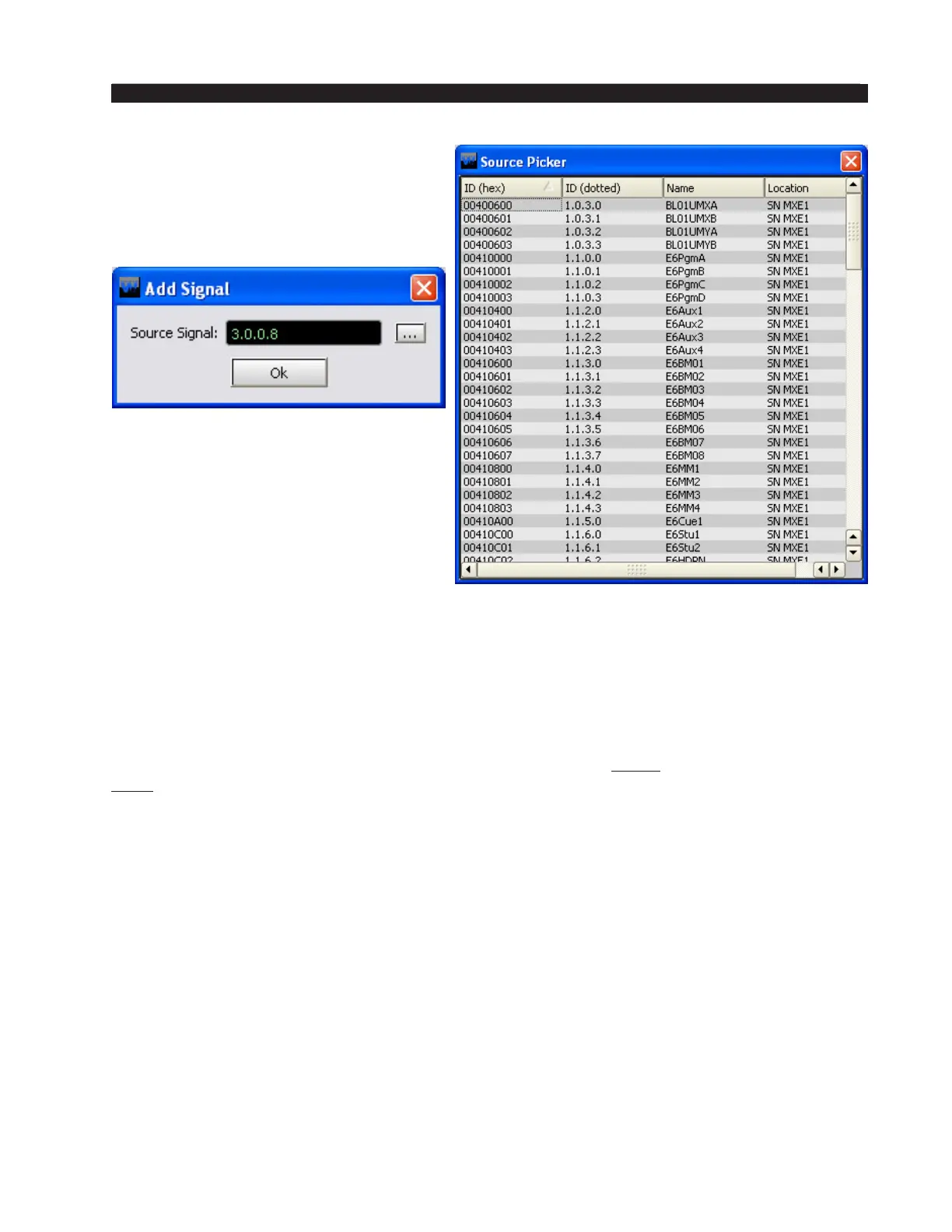
Find the desired source in the Source
Picker and double-click on it. This returns
to the Add Signal dialog with the selected
signal’s ID in dotted notation in the Source
Signal eld:
Click Ok and the selected signal now
appears in the Signals list on the VDips
tab. You can now select this signal in the
Signals list and edit its VDip settings.
Once you have edited VDip settings
you must click Apply for those changes to
be used. If you’ve done some VDip edit-
ing and decided you don’t want to make
that particular change after all you can click Cancel, which will cancel any changes you
made since entering the VDips tab, or since you last clicked Apply.
If you want to set VDip the same on several sources, begin by setting up one signal.
Then highlight that source in the Signals list and right-click on the area. Select Copy
from pop-up. Now highlight another signal you want to have the same VDip settings,
then right-click and select Paste. This copies the VDip settings from the rst signal to
the second one.
Please note that all VDip settings apply to the programmed signal regardless of which
fader the signal appears on.
PFL/Cue Dropout – When a channel’s CUE button is pressed it will assign the channel’s
signal to the CUE bus. When PFL/Cue Dropout is checked it causes the channel’s CUE
function to be de-activated whenever the channel ON switch is pressed.
EFS - This function causes the channel to turn OFF when the fader is fully down or
turn ON when the fader is brought up from the fully down position. The ON and OFF
switches can still control the channel.
OL Pre Fader – When checked, causes the signal, when assigned to the surface’s
OL output, to be tapped before the fader.
Timer Restart - The surface’s digital timer can be programmed to automatically reset
to zero and begin counting up when the channel’s ON button is pressed. To enable this
function the AUTO button in the timer section of the SC-12 Studio Control Module has
to be activated.
Fader Cue – Assigns the signal to the Cue bus when the fader is moved all the way
down. The CUE button can still be used to change the CUE status.



 To Next Page