EasyManua.ls Logo

White W3300 - To Use the Language Selection Key

Default Icon
73 pages
Print Icon
To Next Page IconTo Next Page
To Previous Page IconTo Previous Page
Loading...
01/22/2008
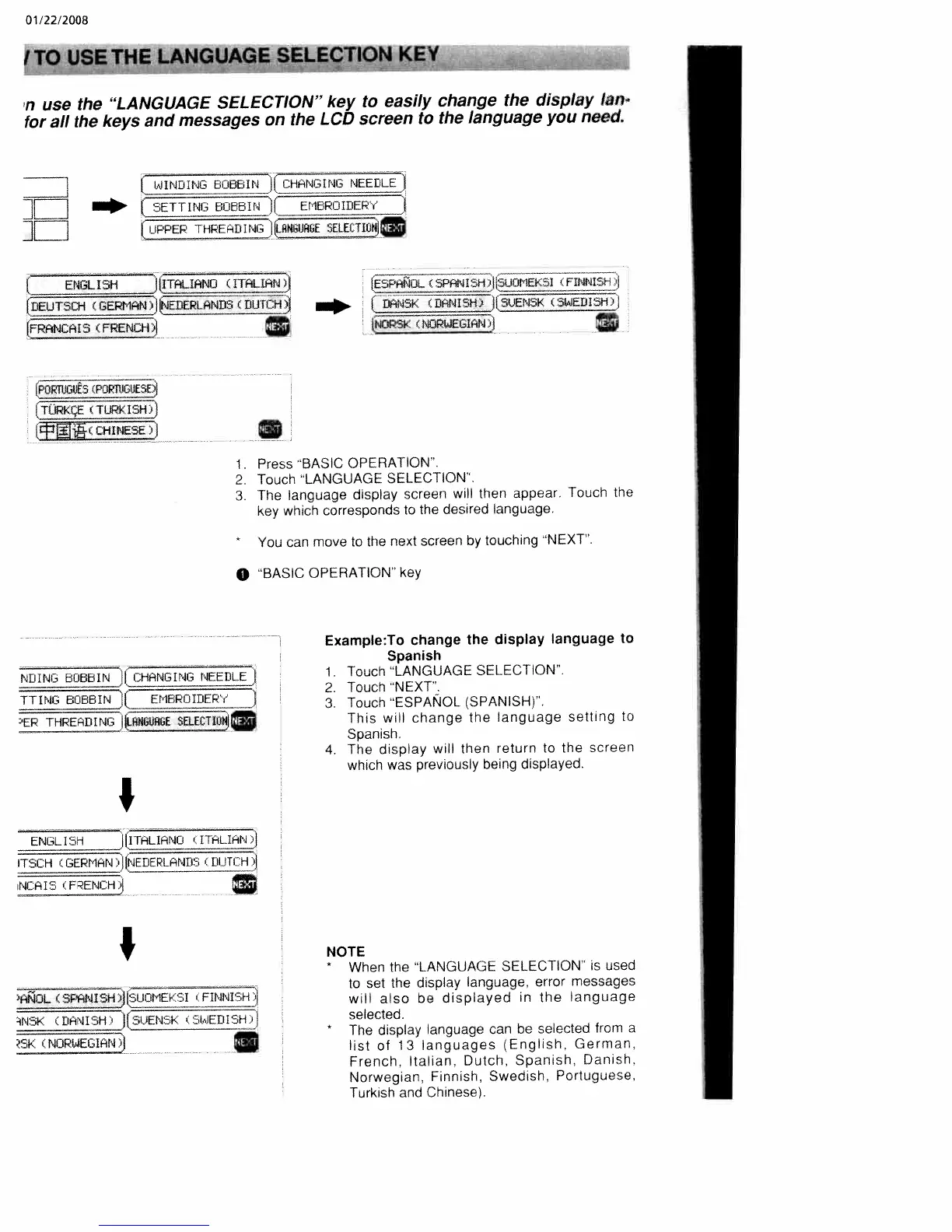
‘n
use
the
“LANGUAGE
SELECTION”
key
to
easily
change
the
display
lan
for
all
the
keys
and
messages
on
the
LCD
screen
to
the
language
you
need.
rNG
BcJBEIN
CHNING
NEEDLE_I
NGBCiIjtEME311JIBEP’?J
PEJREeD,,NGJR6E
SELE(TI0I2
(TURKcE
URKISH))
(cfjc
CHINESE
)j
0L(SPISH)K51Ft4ISH
_IEDI.
;iàRsI<
(NORWELIAN
J
EN[-.L15H
:.J
TSCH_(GEpMN’INErIERLAND.s__tIUTCH.J
AI5FRENH)
Jr
NNI]
NOTE
*
When
the
“LANGUAGE
SELECTION’
is
used
to
set
the
display
language.
error
messages
will
also
be
displayed
in
the
language
selected.
*
The
display
language
can
be
selected
from
a
list
of
13
languages
(English,
German,
French,
Italian,
Dutch,
Spanish.
Danish.
Norwegian,
Finnish,
Swedish,
Portuguese,
Turksh
and
Chinese).
ITIAt/
H(GUTCH
FRANCAI5
(
FRENCH
1.
Press
“BASIC
OPERATION”.
2.
Touch
“LANGUAGE
SELECTION”.
3.
The
language
display
screen
will
then
appear.
Touch
the
key
which
corresponds
to
the
desired
language.
You
can
move
to
the
next
screen
by
touching
‘NEXT’.
‘BASIC
OPERATION”
key
Example:To
change
the
display
language
to
Spanish
1.
Toucri
‘LANGUAGE
SELECTION’.
2.
Touch
“NEXT”.
3.
Touch
“ESPANOL
(SPANISH)”.
This
will
change
the
language
setting
to
Spanish.
4.
The
display
will
then
return
to
the
screen
which
was
previously
being
displayed.
NDING
800E1IN
JICHANGING
NEEDLEJ
jI8IN(EMEPOIDER’/
J
Jr
NK
(DNN
IS’
II5UENS1<
SWEDI
‘3H.]
ORGIAr)

Table of Contents

Related product manuals