EasyManua.ls Logo

White W3300 - Uppercase & Lowercase

Default Icon
73 pages
Print Icon
To Next Page IconTo Next Page
To Previous Page IconTo Previous Page
Loading...
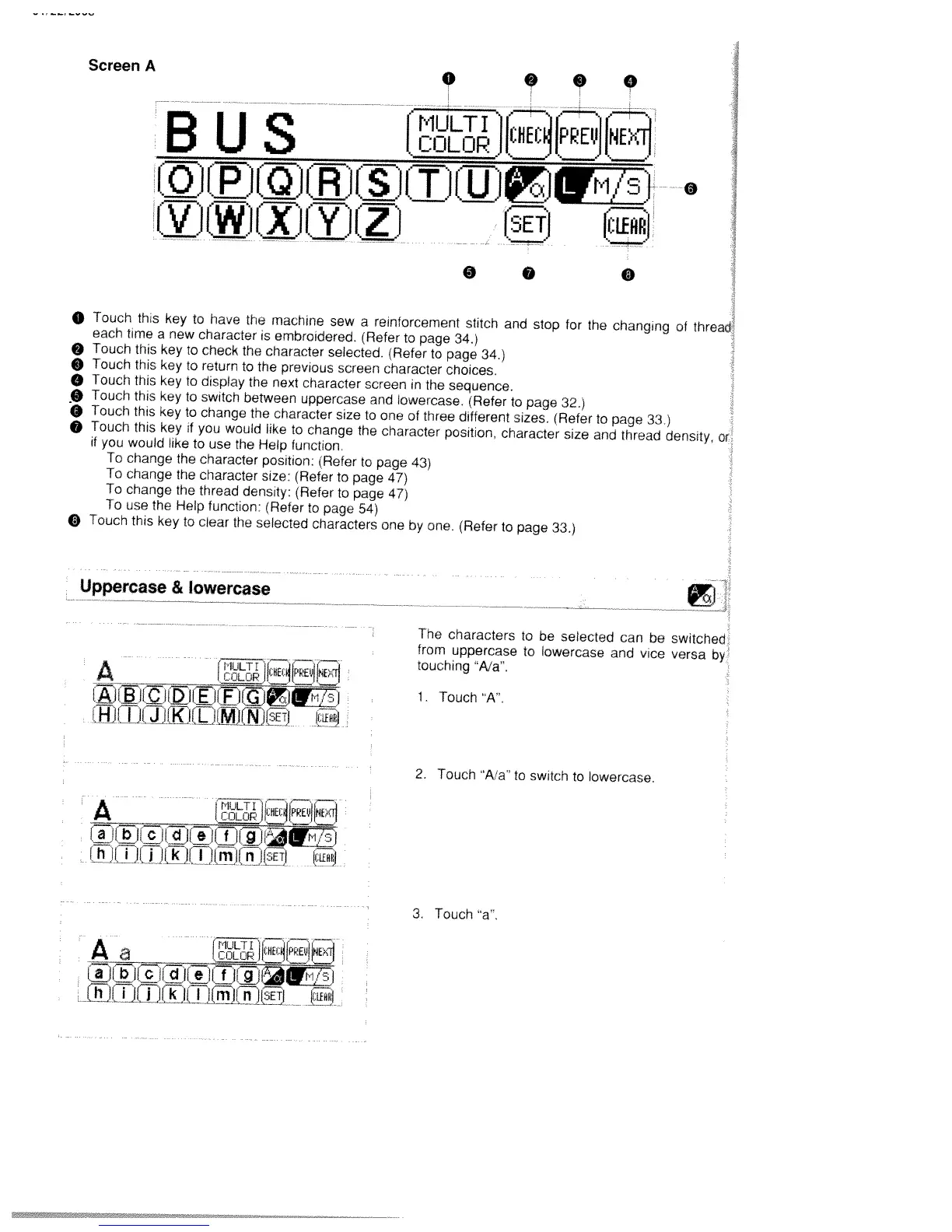
ScreeriA
0
B
U
S
__
_
VDEWffXuYJrL
Ti
0
0
0
O
Touch
this
key
to
have
the
machine
sew
a
reinforcement
stiich
and
stop
for
the
changing
of
fhreaci
each
time
a
new
character
is
embroidered.
(Refer
to
page
34.)
Touch
this
key
to
check
the
character
selected.
(Refer
to
page
34.)
Touch
this
key
to
return
to
the
previous
screen
character
choices.
o
Touch
mis
iey
to
display
the
next
cnaracter
screen
in
the
sequence.
O
Touch
this
key
to
switch
between
uppercase
and
lowercase.
(Refer
to
page
32.)
O
Touch
this
key
to
change
the
character
size
to
one
of
three
different
sizes.
(Refer
to
page
33)
O
Touch
this
key
if
you
would
like
to
change
the
character
position,
character
size
and
thread
density,
or
if
you
would
like
to
use
the
Help
function
To
change
the
character
position:
,Refer
to
page
43)
To
change
the
character
size:
(Refer
to
page
47)
To
change
the
thread
density:
(Refer
to
page
47)
To
use
the
Help
function:
(Refer
to
page
54)
O
Touch
this
key
to
clear
the
selected
characters
one
by
one.
(Refer
to
page
33.1
Uppercase
&
lowercase
The
characters
to
be
selected
can
be
switched
from
uppercase
to
lowercase
and
vice
versa
by
A
MULTI
1
touching
‘A/a.
M
[IJLOPJ
E
t
1.
Touch
‘A’.
IEHtj
2.
Touch
A/a’
to
switch
to
lowercase.
A
EH
3.
Touch’a.
A
MULTI1
a
_____
___
1
WIjnJJSE
I

Table of Contents

Related product manuals