EasyManua.ls Logo

White W3300 - Changing the Embroidery Position; Use Arrow Keys for Position Adjustment; Checking the Embroidery Area; Use TRIAL Function to Check Area

Default Icon
73 pages
Print Icon
To Next Page IconTo Next Page
To Previous Page IconTo Previous Page
Loading...
01/22/2008
Changing
the
embroidery
position
[IJ(Zi
iziwc
(DW(Z)
El
PJ
iJ
i
E1DE
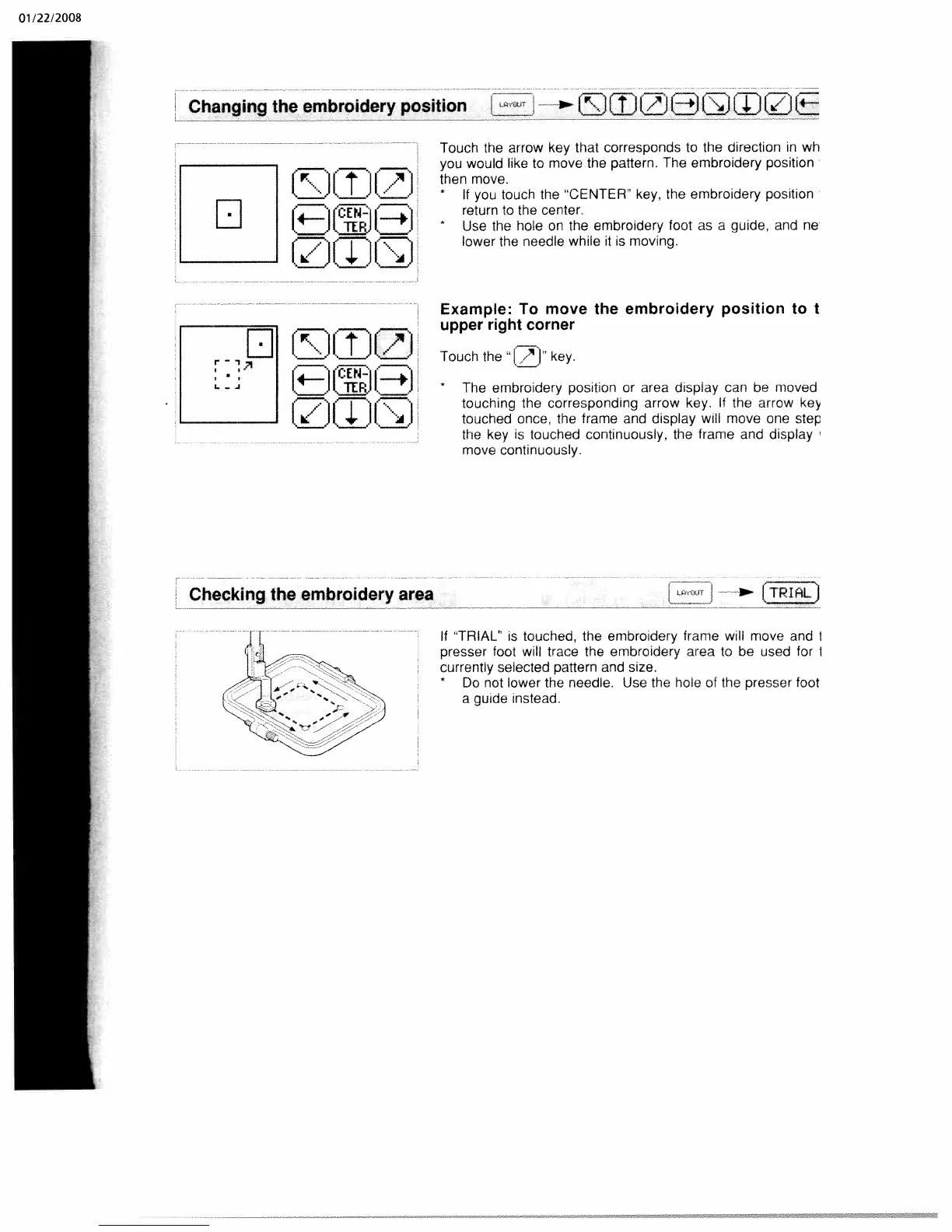
Touch
the
arrow
key
that
corresponds
to
the
direction
in
wh
you
would
like
to
move
the pattern.
The
embroidery
position
then
move.
*
If
you
touch
the
CENTER
key,
the
embroidery
position
return
to
the
center.
*
Use
the
hole
on
the
embroidery
foot
as
a
guide,
and
ne
lower
the
needle
while
it
is
moving.
Example:
To
move
the
embroidery
position
to
I
upper
right
corner
Touch
the
[Zi”
key.
*
The
embroidery
position
or
area
dispiay
can
be
moved
touching
the
corresponding
arrow
key.
If
the
arrow
ke
touched
once,
the
frame
and
display
will
move
one
step
the
key
is
touched
continuously,
the
frame
and
display
move
continuously.
Checking
the
embroidery
area
_____
If
“TRIAL”
is
touched,
the
embroidery
frame
will
move
and
I
presser
foot
will
trace
the
embroidery
area
to
be
used
for
currently
selected
pattern
and
size.
*
Do
not
lower
the
needle.
Use
the
hole
of
the
presser
foot
a
guide
instead.

Table of Contents

Related product manuals