Chapter 4: Operating the Device
Chapter 4: Operating the Device
NOTE:
For user who may need SDK, please download the SDK from Winmate Download center website
>> M101B/BL/BT >> Development Kit or check the Driver CD which is shipped with the tablet.
Please notice that HF RFID reader, Barcode reader, and UHF RFID reader are optional module,
please make sure user have ordered the module before using the SDK.
http://www.winmate.com/DownCenter/DownLoadCenter.asp?DownType=2207&OnlyCon
tent=
4.1 Hottab Introduction
Hottab provides quick access to the tablet’s functions and features, such as setting up shortcuts,
using camera, powering on/off built-in devices, programming function key, and changing power
management.
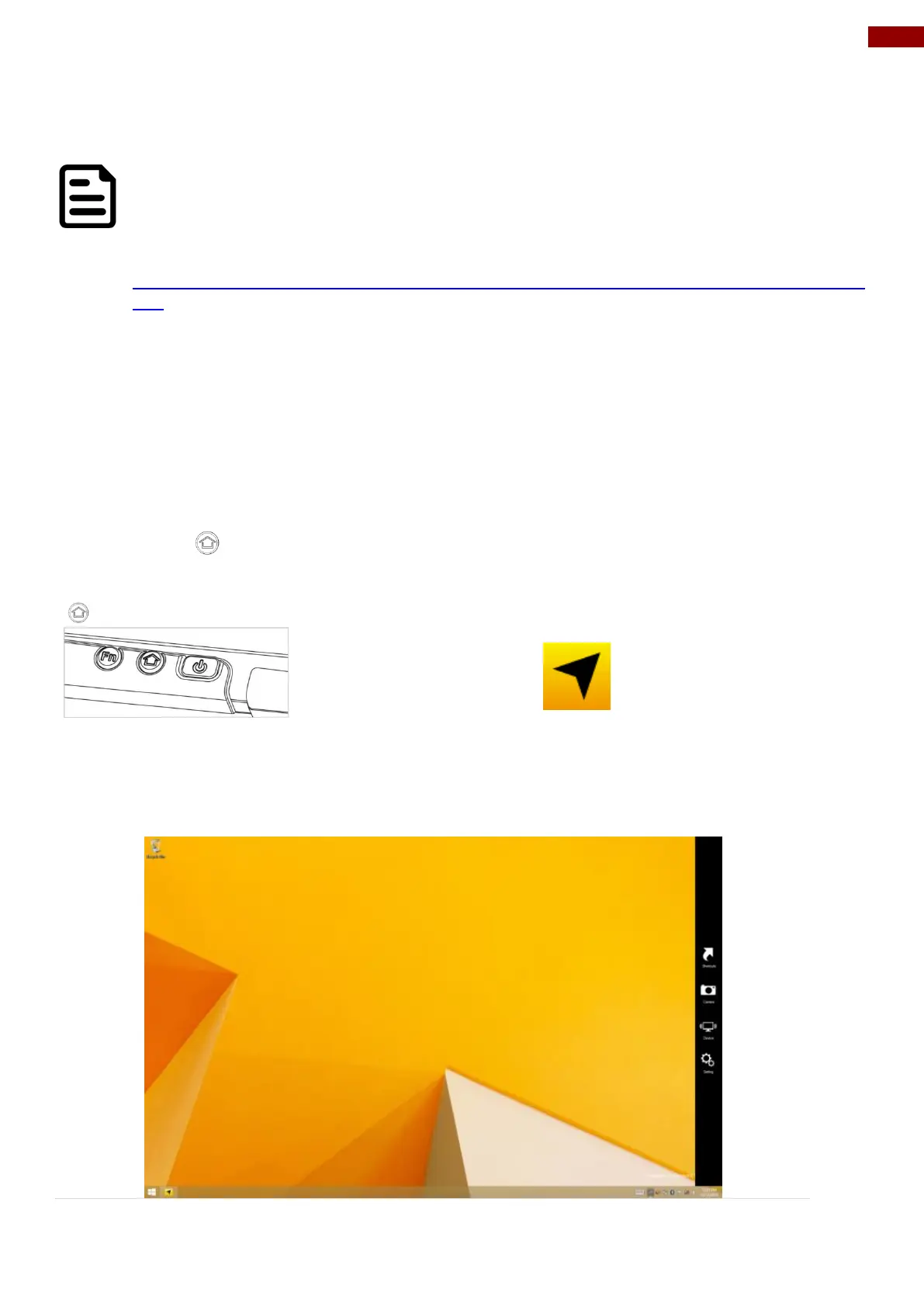
As Windows starts up, Hottab starts and runs in the background. To display the Hottab control
utility, press the (Menu) Button located on the front panel, OR launching the Hottab Utility
application.
(Menu) Button on the Front Panel:
The main user interface is located on the right side of the screen. There are 4 main menu options:
Shortcuts, Camera, Device ON/OFF, and Settings. Operations and functions on each menu
options is explained in detail in the coming section.



 To Next Page