Chapter 4: Operating the Device
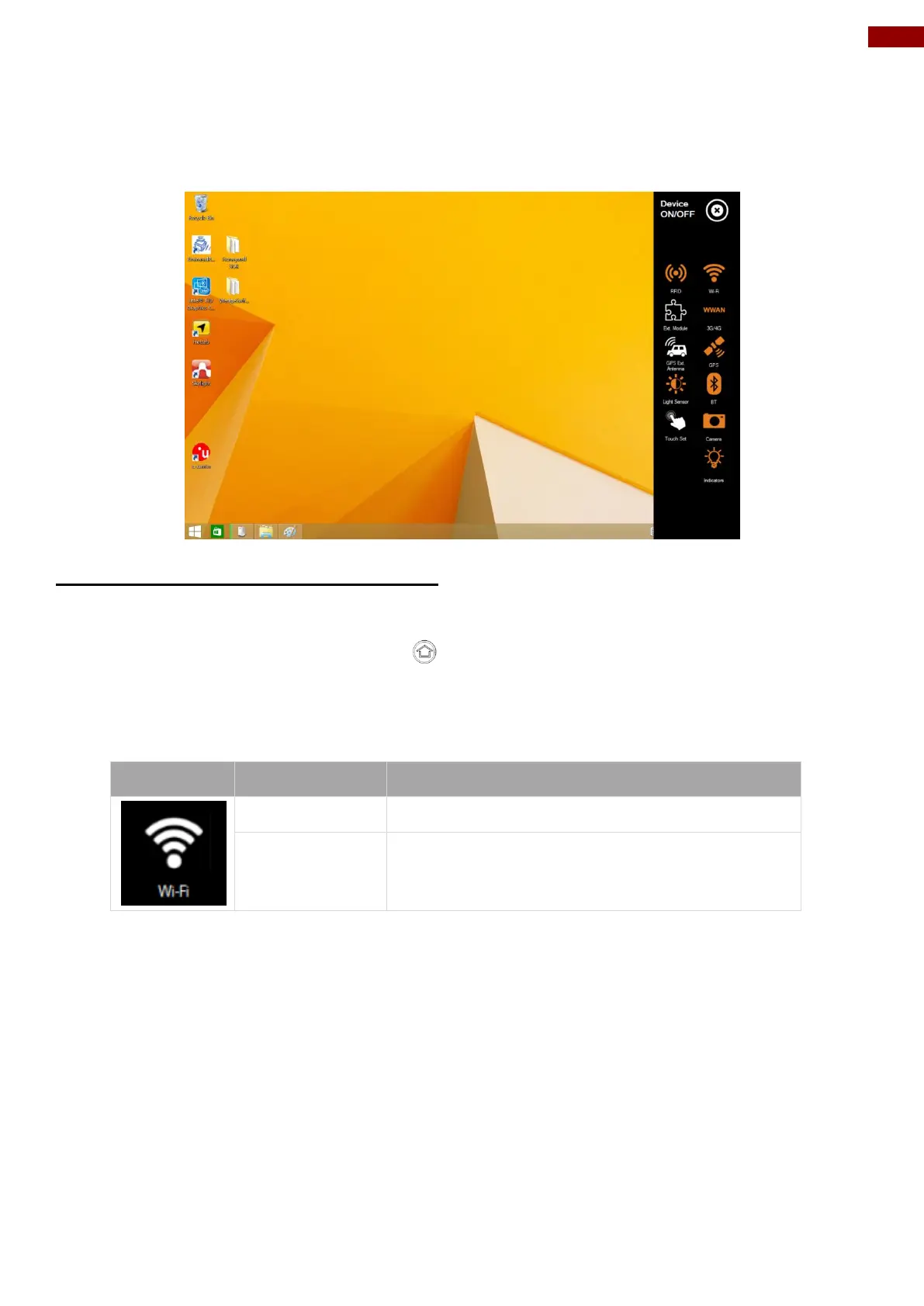
4.4 Device On/Off
This section provides a quick access to set-up built-in devices, including turning on/off RF modules,
setting up barcode reader, RFID reader, and expansion modules.
4.4.1 Using Wireless LAN (Wi-Fi)
To use the wireless LAN(Wi-Fi) feature to connect to the network, perform the following procedure:
1. Open the Hottab utility by press the (Menu) Button located on the front panel, OR
launching the Hottab Utility application.
2. Tap on the Device ON/OFF button.
3. Check the status color of the Wi-Fi icon:
4. If the Wi-Fi feature is disabled (white), tap on the Wi-Fi icon to enable it (orange).
5. Click the wireless network connection status icon in the Windows notification area. A list of
available wireless networks is displayed.
6. Double-click a network to connect to it. Provide required authentication information if
needed.
7. To check the connection status, observe wireless network connection status icon in the
Windows notification area. The more bars the icon shows, the better the wireless LAN
connection strength is.
8. Now wireless LAN connection is setup, try connection to the network with a internet
browser such as Internet Explorer.



 To Next Page